Discounts let you apply a reduction to specific products, to the order total or to both.
You can create predefined discounts in the back-office and use them later in the app, or apply custom discounts directly during the sale.
Define where the discount can be applied, whether it is a percentage or an amount, and what it includes.
1Back-office configuration
Set up the discounts that will be available to Revo XEF users.
- Open the Revo XEF back-office.
- Go to Settings → Discounts.
- Press + New.
Discount configuration
Check the image or review the explanation of each field.
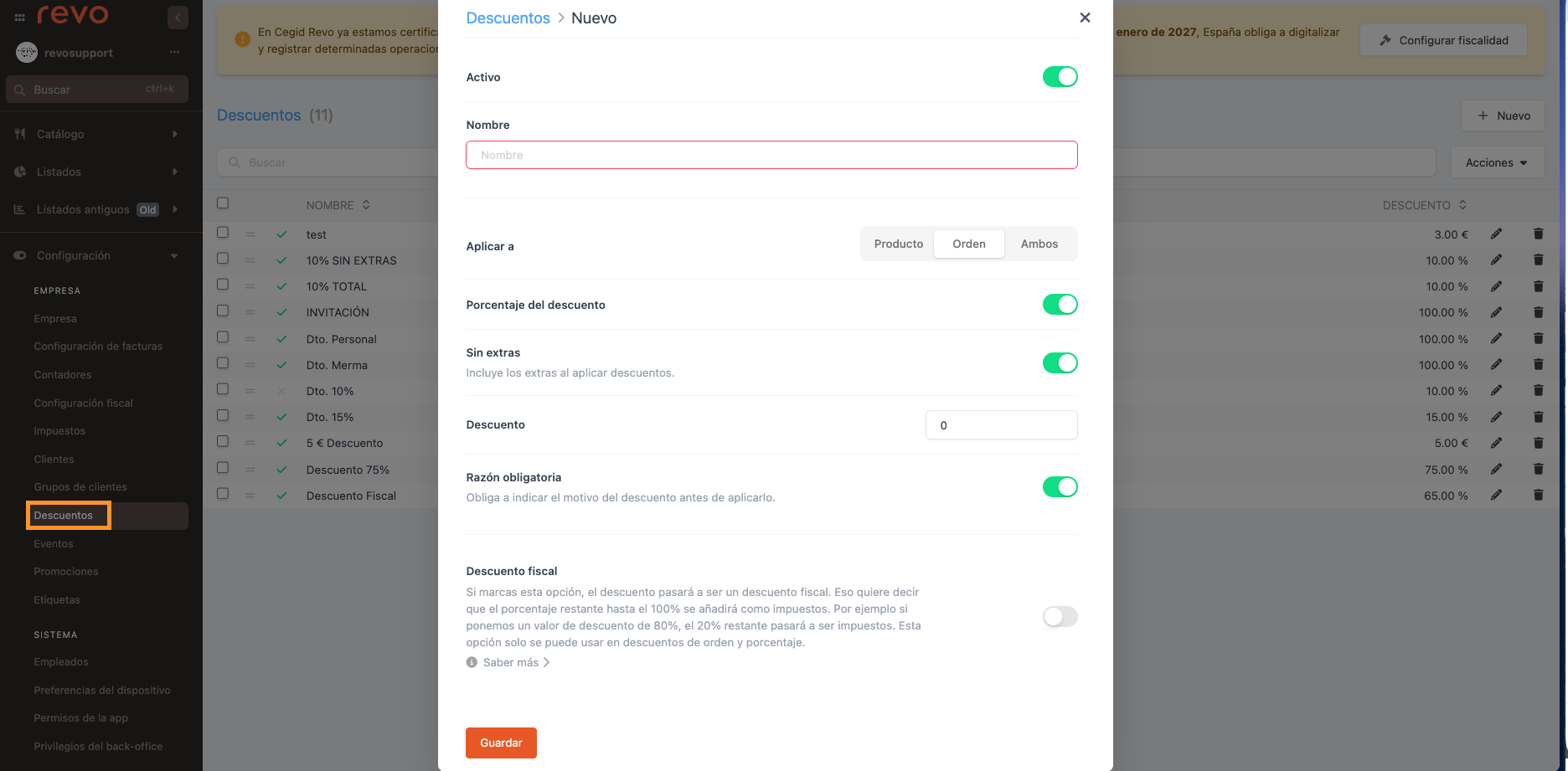
| Active | Turn it on so the discount is available in the app. |
| Name | Enter the name that will appear in the app and on the invoice. |
| Apply to | Product: products only. Order: order total only. Both: products and order. |
| Discount percentage | Turn it on to apply a percentage. If it is off, the discount will be a fixed amount. |
| With extras | Includes the product extras in the calculation. Only available for product discounts. |
| Discount | Enter the percentage or amount to be deducted. |
| Mandatory reason | When it is on, selecting the discount in the app requires entering a reason before continuing. You can then see this text in the back-office discount list and in the CSV export. |
| Tax discount | Can only be used for order discounts by percentage. If you turn it on, the discount becomes a tax discount. This means the remaining percentage up to 100% is added as taxes. For example, if you set up an 80% discount, the remaining 20% is added as taxes. |
- Press Save.
You can edit a discount, delete it if you will no longer use it, or deactivate it temporarily so it no longer appears in the app.
See the different ways to apply a discount and how to remove it when needed.
2Applying and removing discounts in the app
Select the action you want to perform:
Select a way to apply the discount to see the steps and the related image.
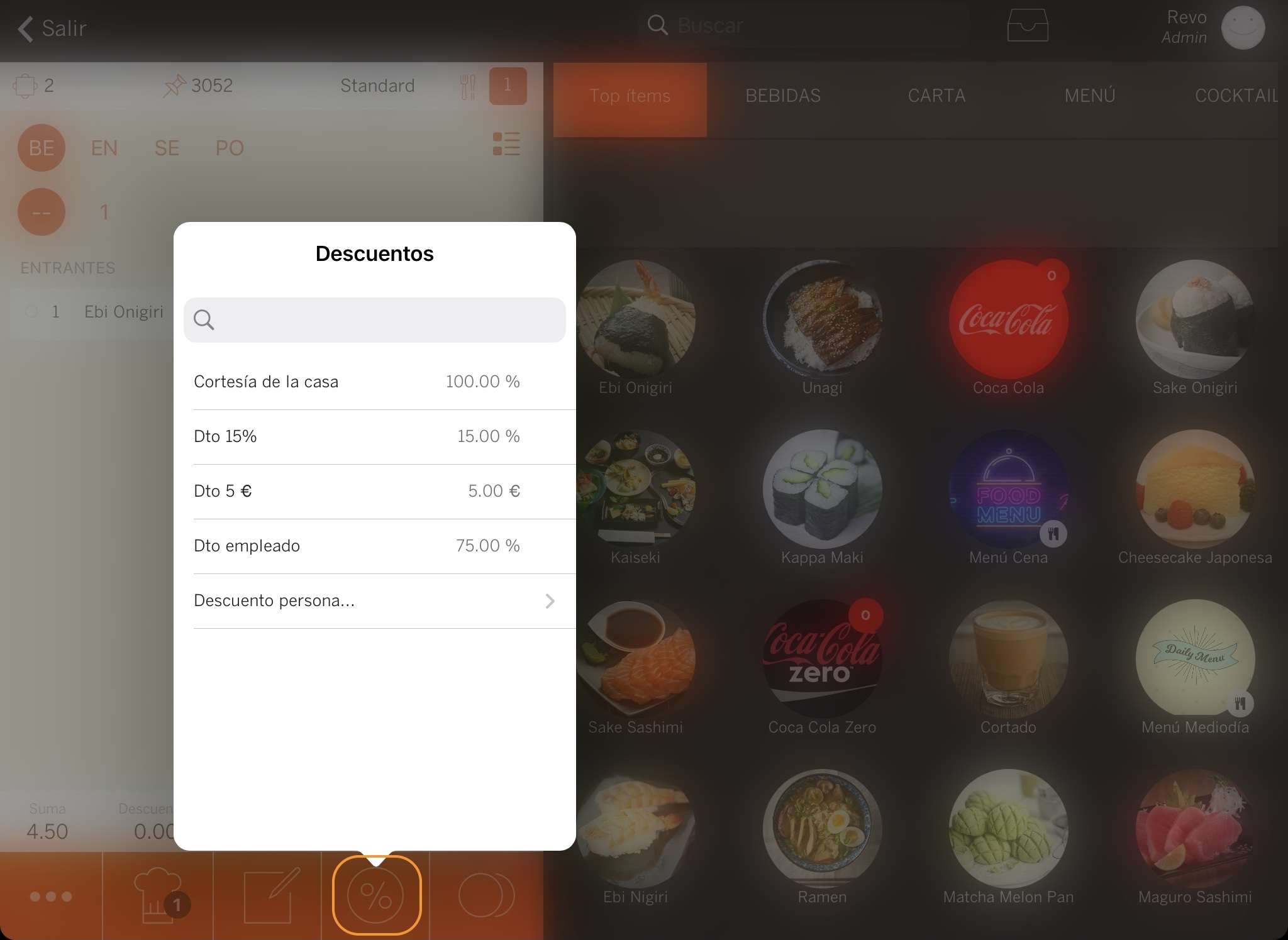
1From the Discounts buttonApply a general discount to the order.
Press Discounts in the order and select the discount you want to apply.
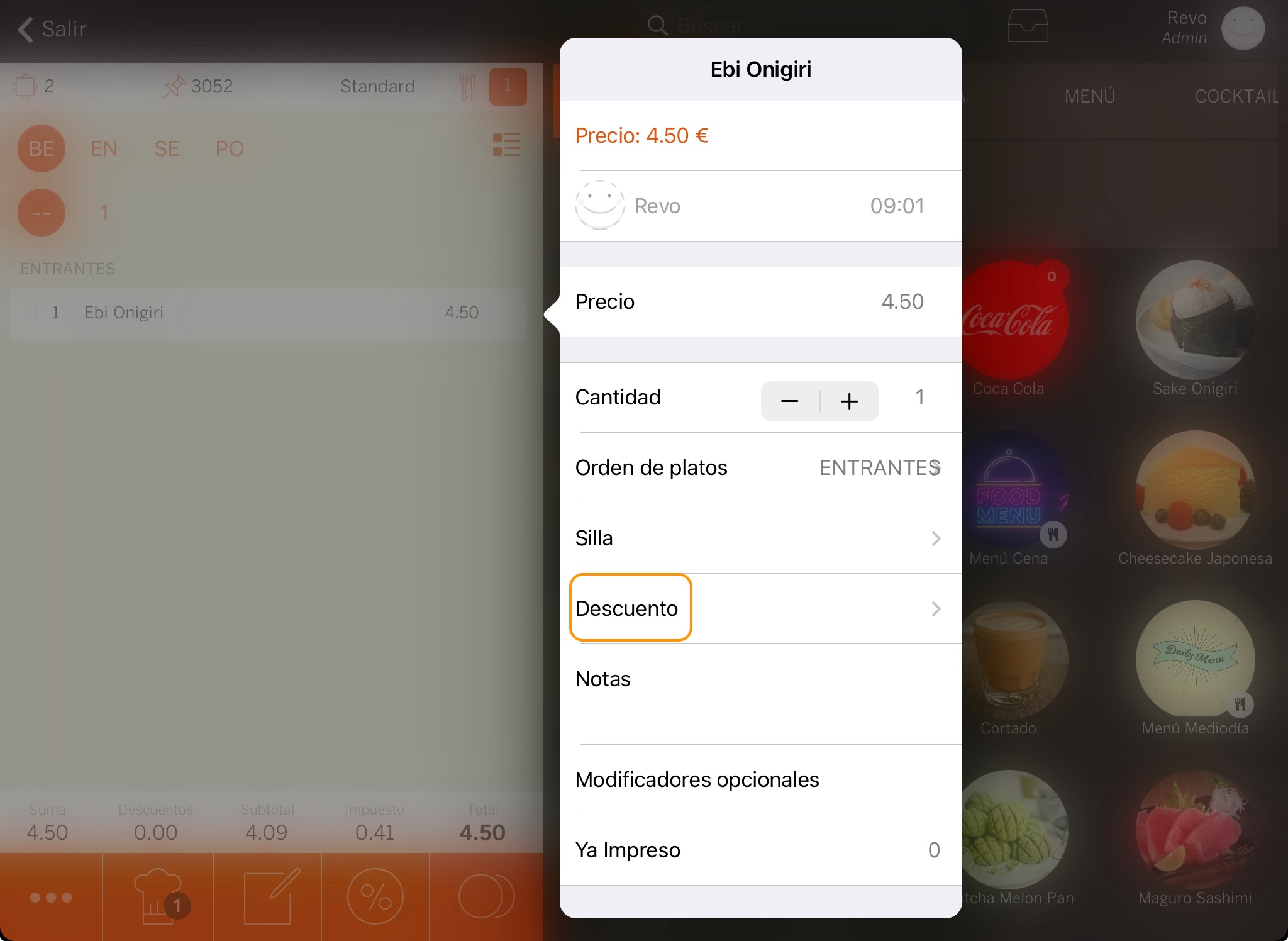
2By selecting a productApply the discount to a single line only.
Select the product and tap Discounts to apply a reduction to that line only.
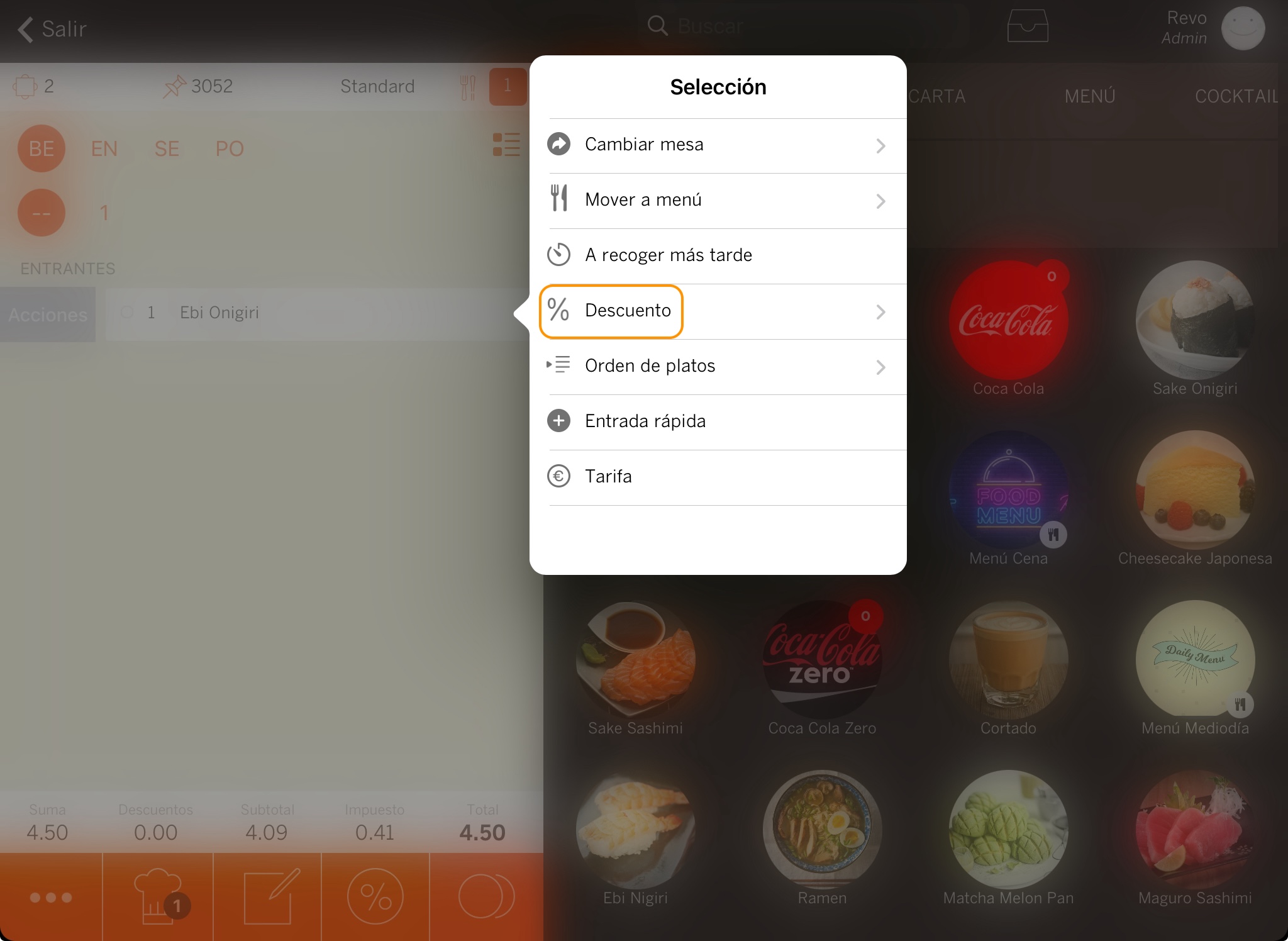
3From the product actionsAccess the discount from the actions menu.
Swipe the product to the right, open its actions and tap Discounts.
4To several productsApply the same discount to a multiple selection.
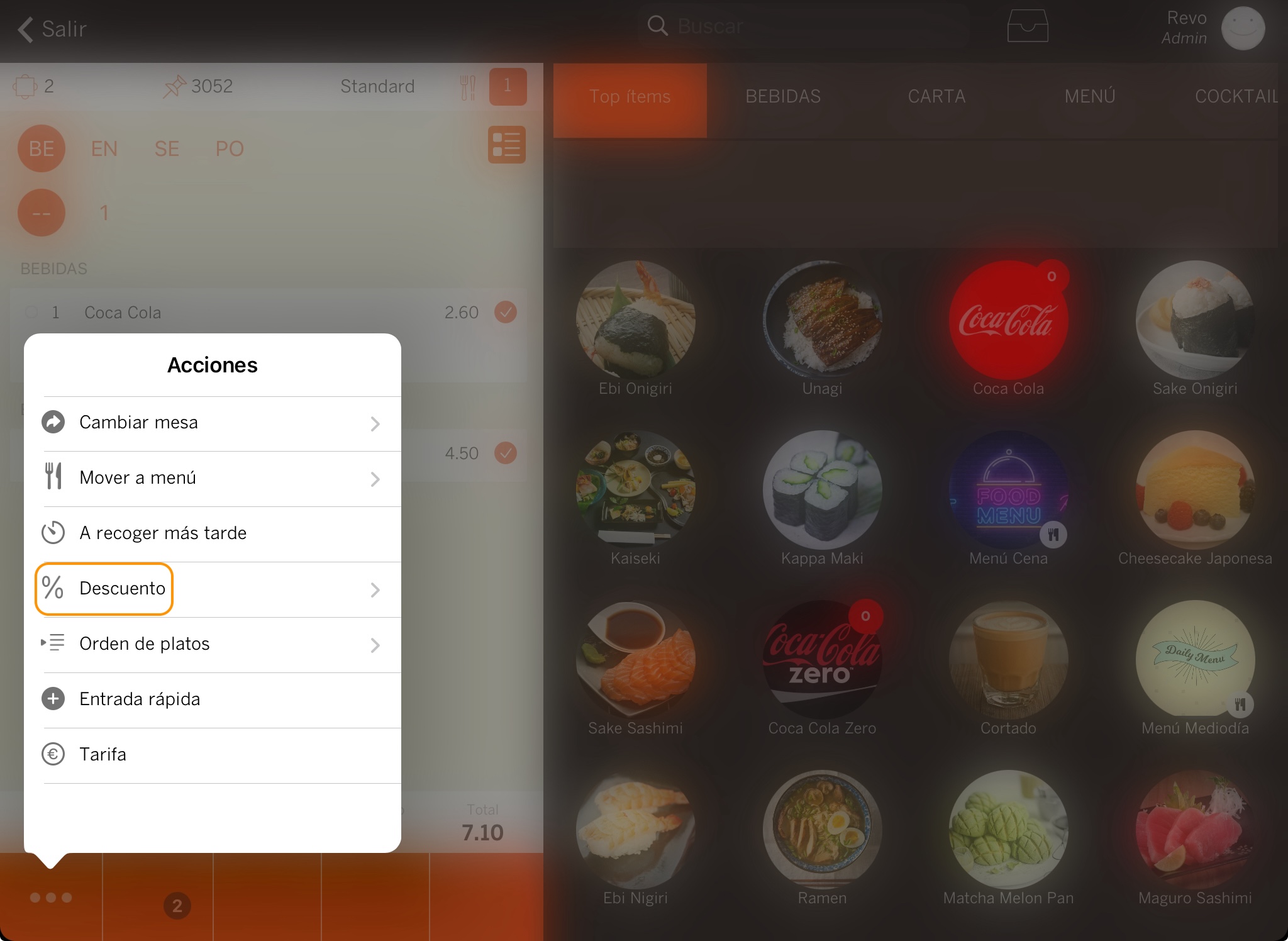
Use multiple selection, select the products, tap the more options button and select Discounts.
5Custom discountCreate a one-off discount with a name, amount or percentage.
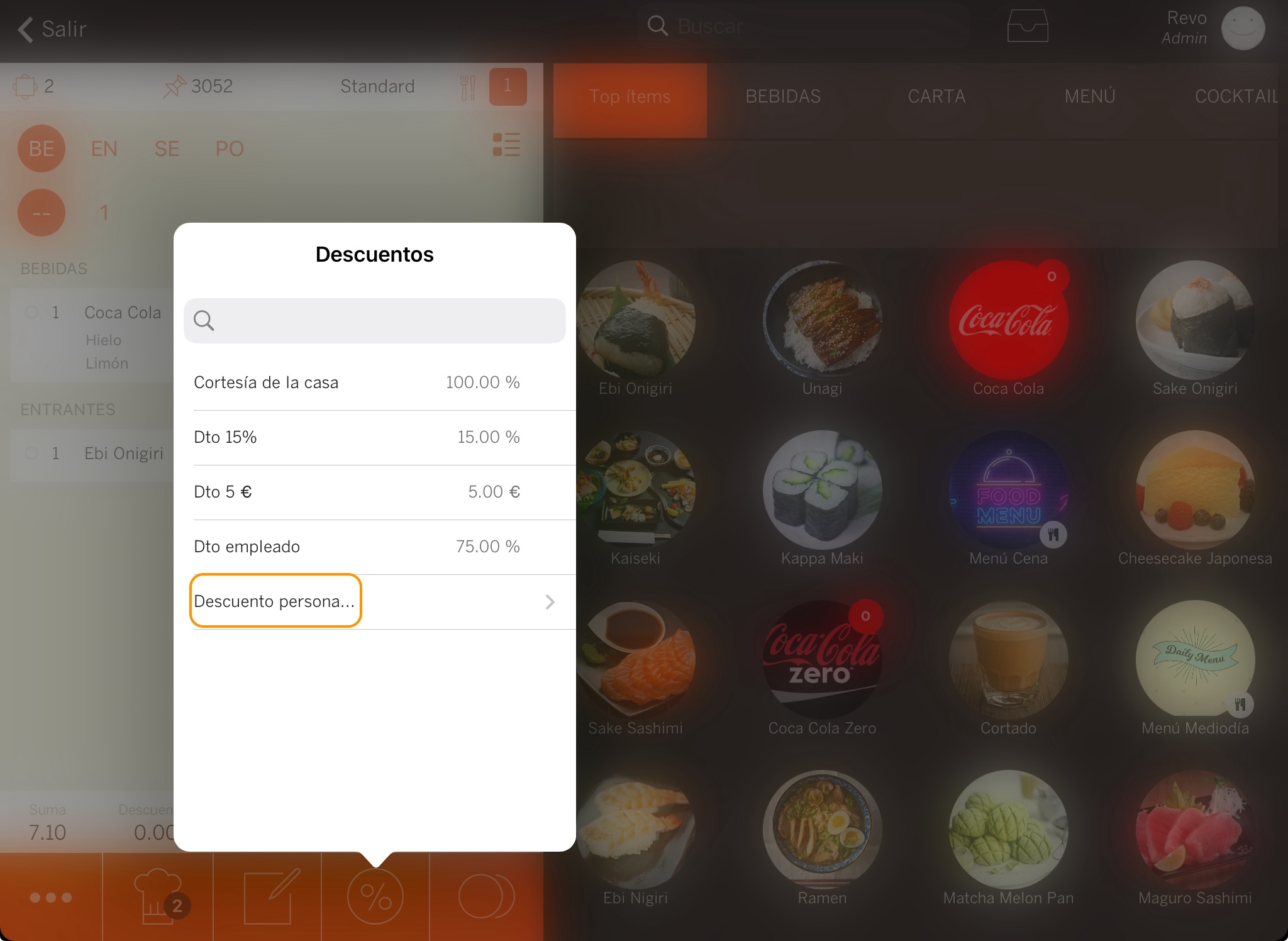
- Tap the discounts button and select Custom discount.
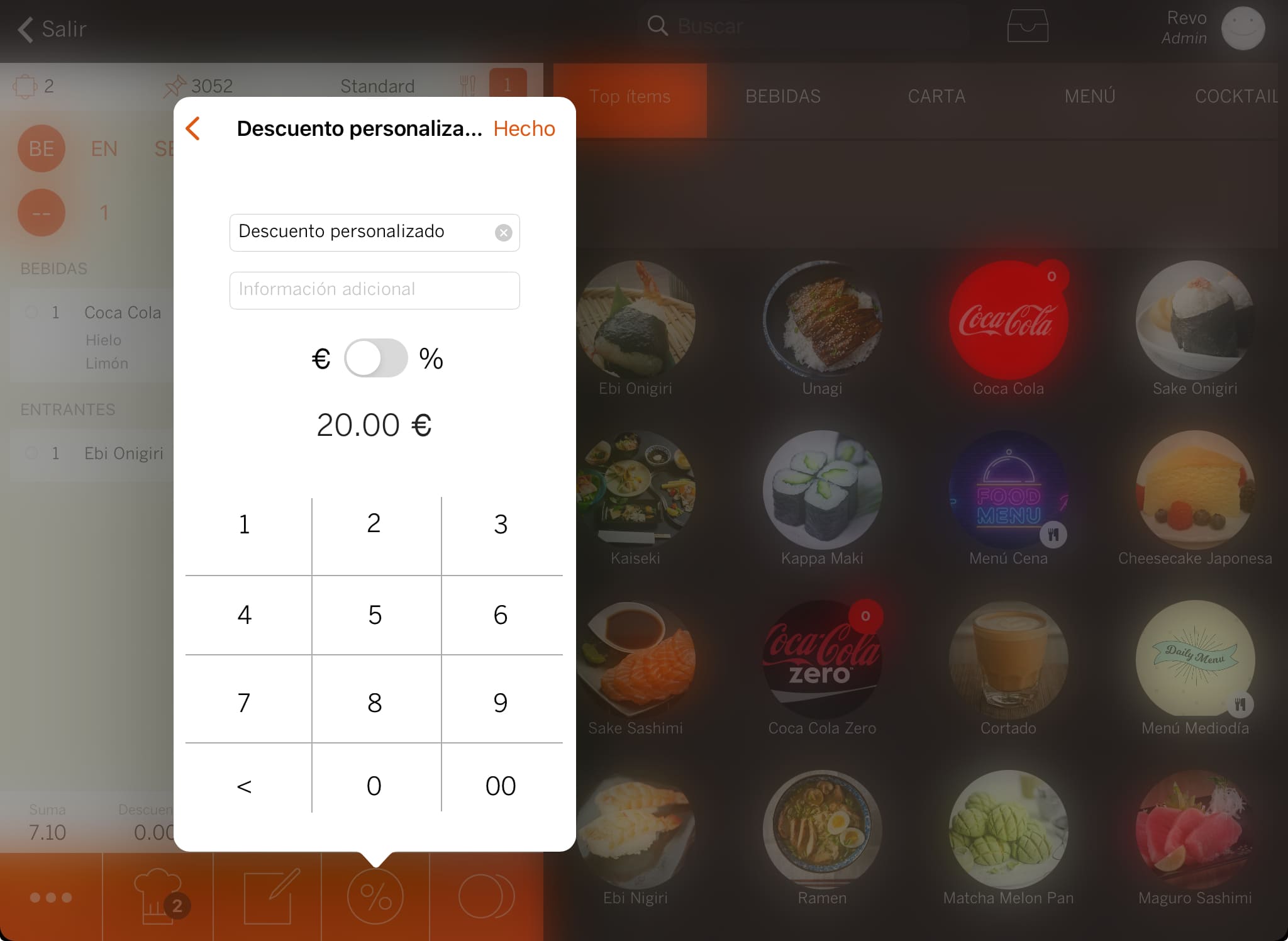
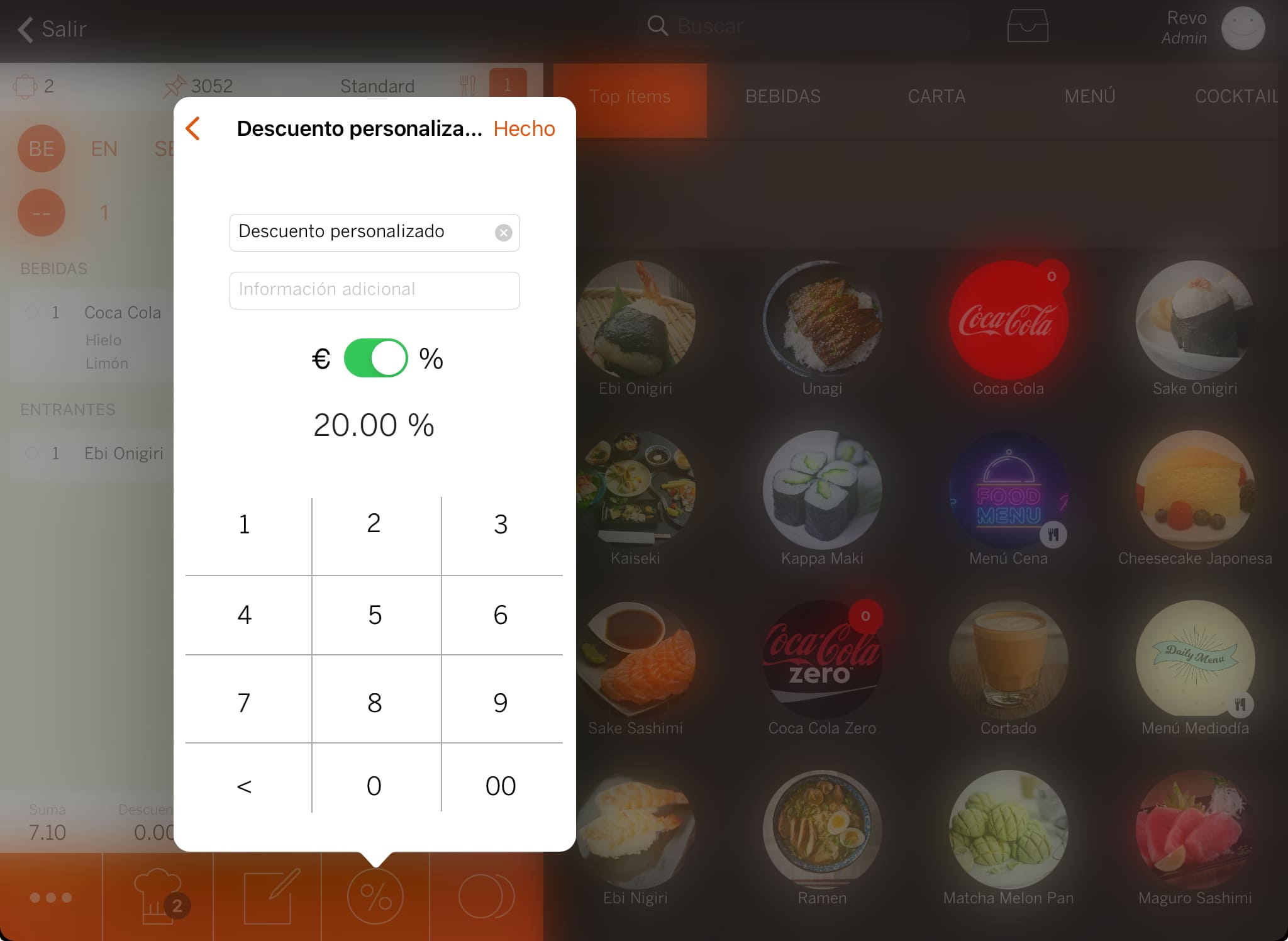
- Change the name, add extra information, choose whether it is an amount or a percentage and enter the value.
6Apply a 100% discountFully reduces the amount it applies to, from the order payment.
A 100% discount fully reduces the amount it applies to. To offer it at payment, first create a predefined discount in Settings → Discounts: turn on Discount percentage and enter 100 as the value. Also define whether it applies to the order, to products or to both, depending on how you will use it.
Then set up a payment method of type Discount 100%. This payment method lets you choose, in the app, from the 100% discounts you have created.
In the app: open the order payment, select Payment method → Discount 100% and choose the relevant discount. The app applies the discount, leaves the outstanding amount at €0 and closes the order with the selected payment method.
The Discount 100% and the Accounting discount 100% are two different payment method types. The accounting variant is not an option to select just because the discount percentage is 100%; use it only when the accounting or tax setup of your business requires it. To learn more, see the article on Payment methods.
Select how you want to remove the discount.
1Cancel the discountRemove it from the discounts menu.
Press Discounts and select Cancel discount.
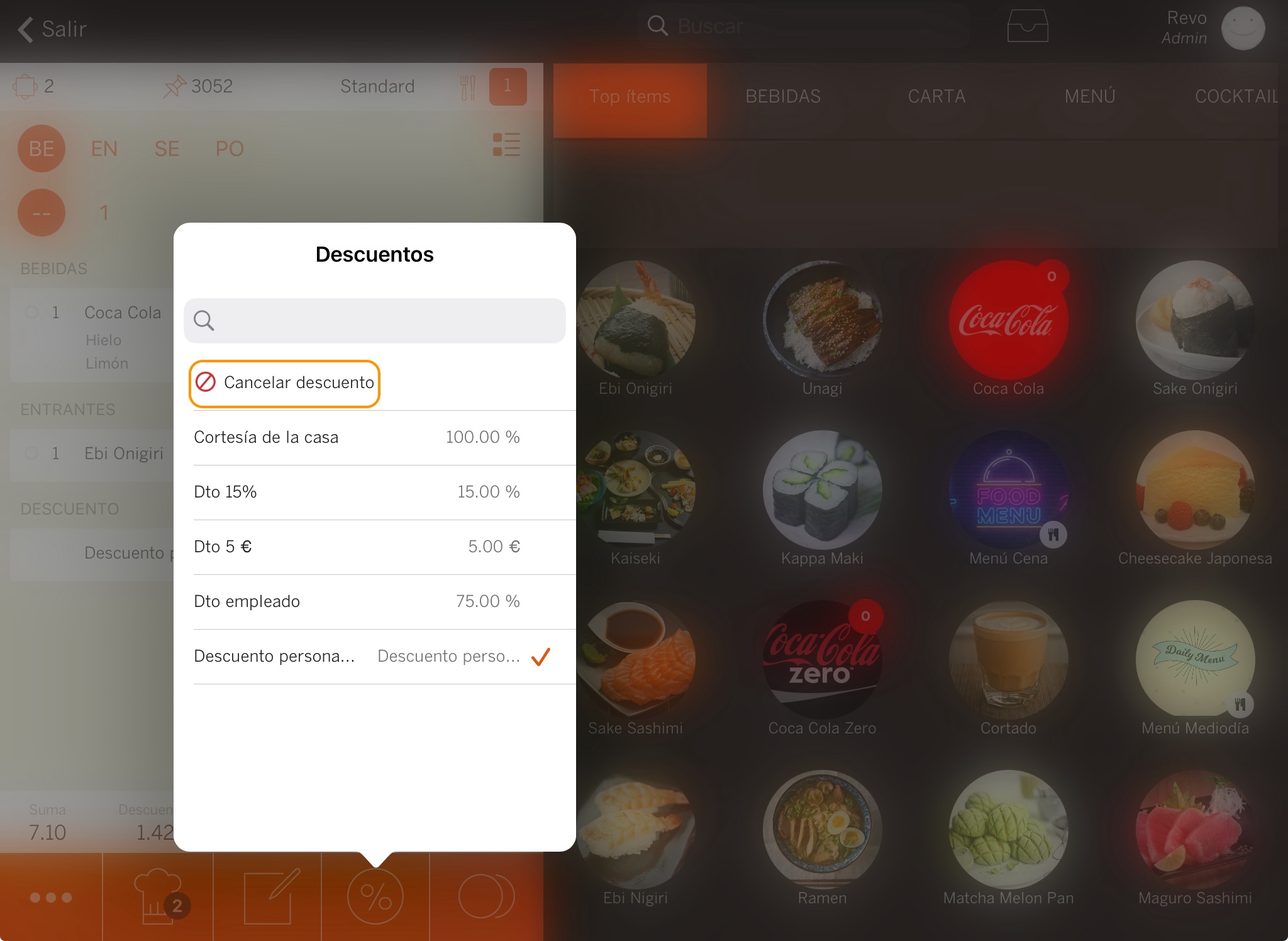
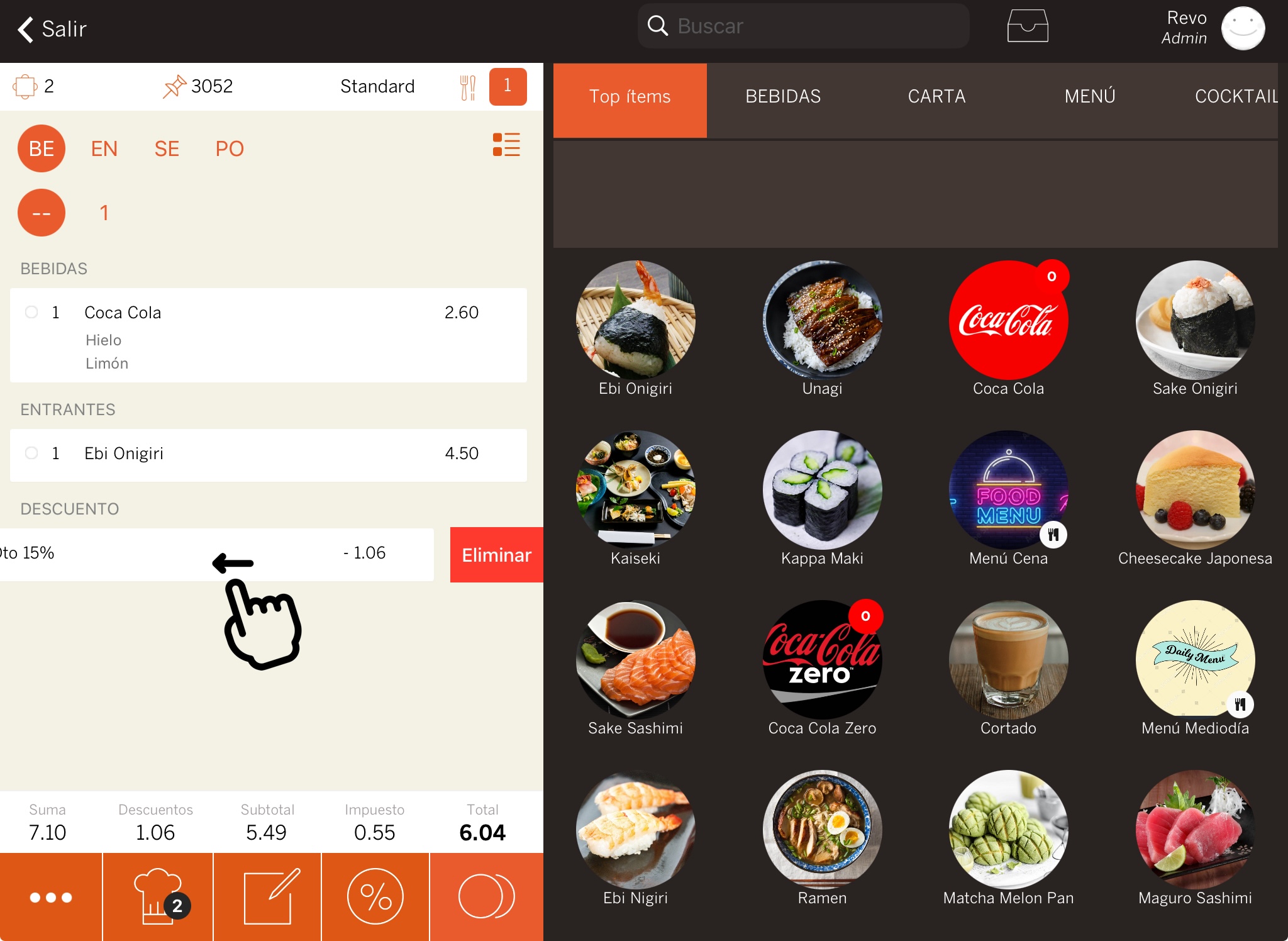
2Delete it from the orderUse the swipe gesture on the discount.
Swipe the discount fully to the left or tap Delete when the option appears.
Review common setups for amount and percentage discounts.
3Practical examples
Select an example and open only the step you need.
€5 off the order
Use this setup to deduct a fixed amount from the total of an order managed directly in Revo XEF.
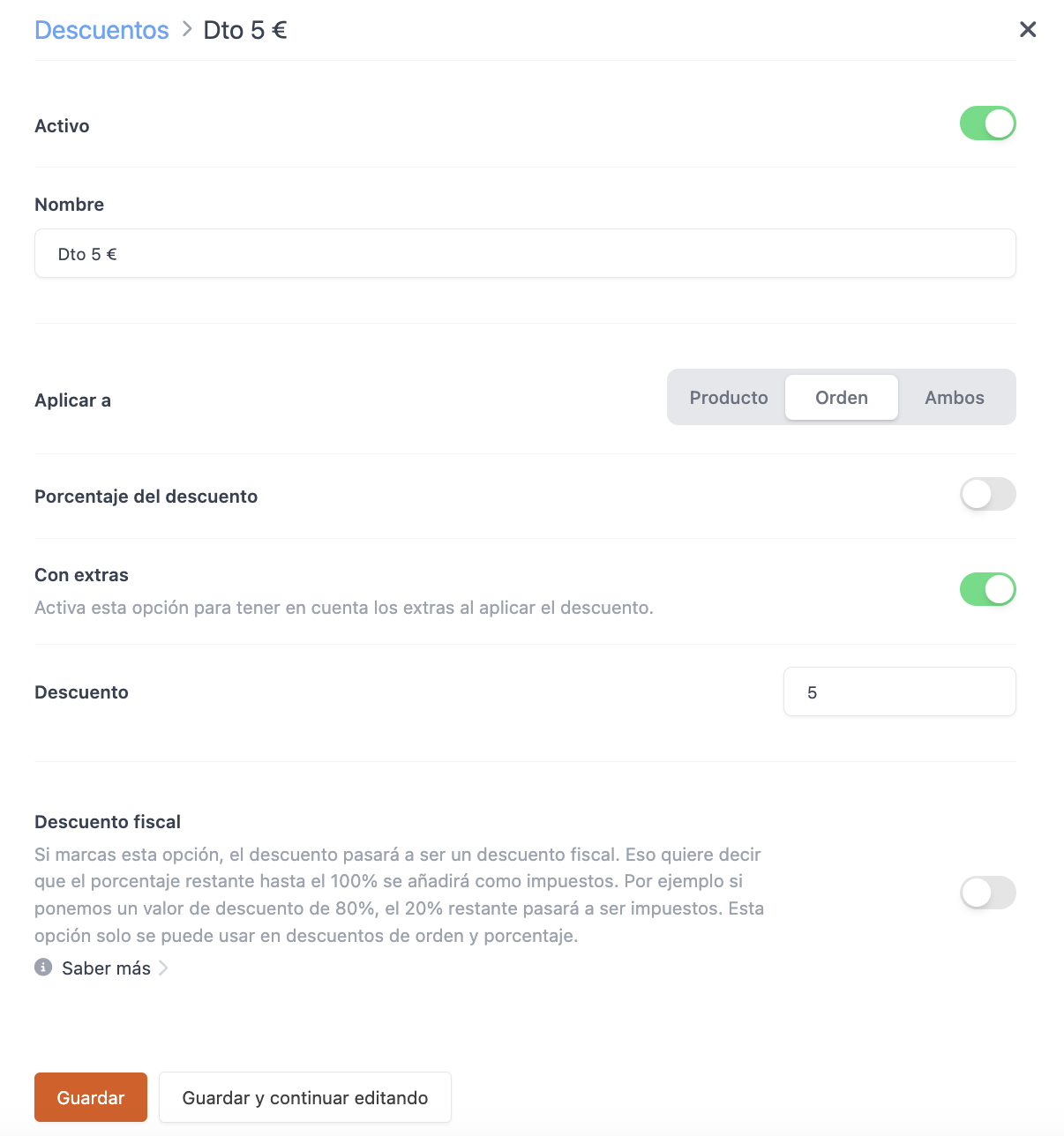
1Set up the discount
Open the Revo XEF back-office, go to Settings → Discounts, tap + New and set up a discount of €5 that applies to the order.
2Apply it in the app
Add the products, tap the discounts button and select Dto 5 €.
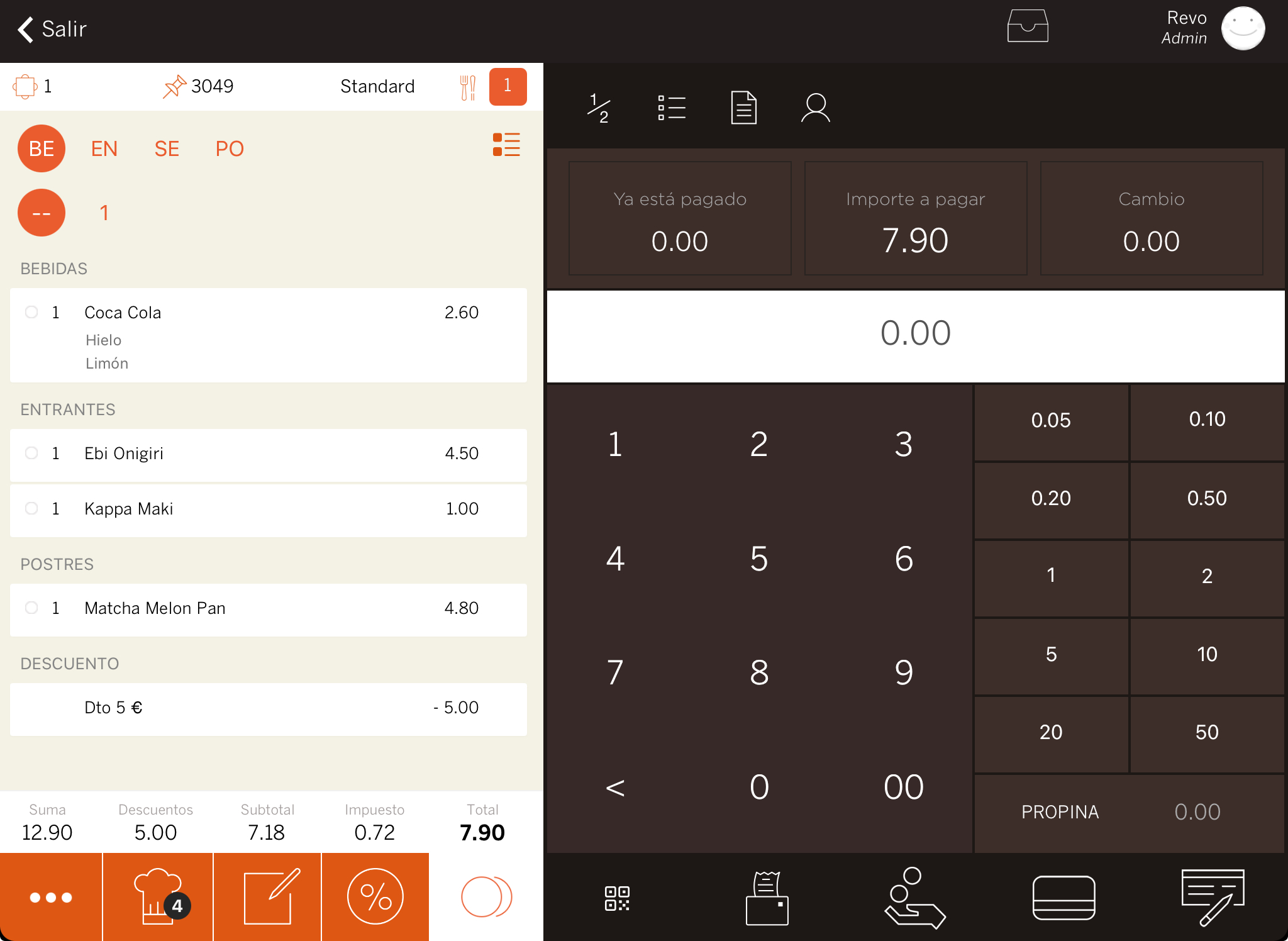
The discount appears at the end of the order with the deducted amount shown as a negative value.
10% off products
In this example, the discount does not include product extras or supplements.
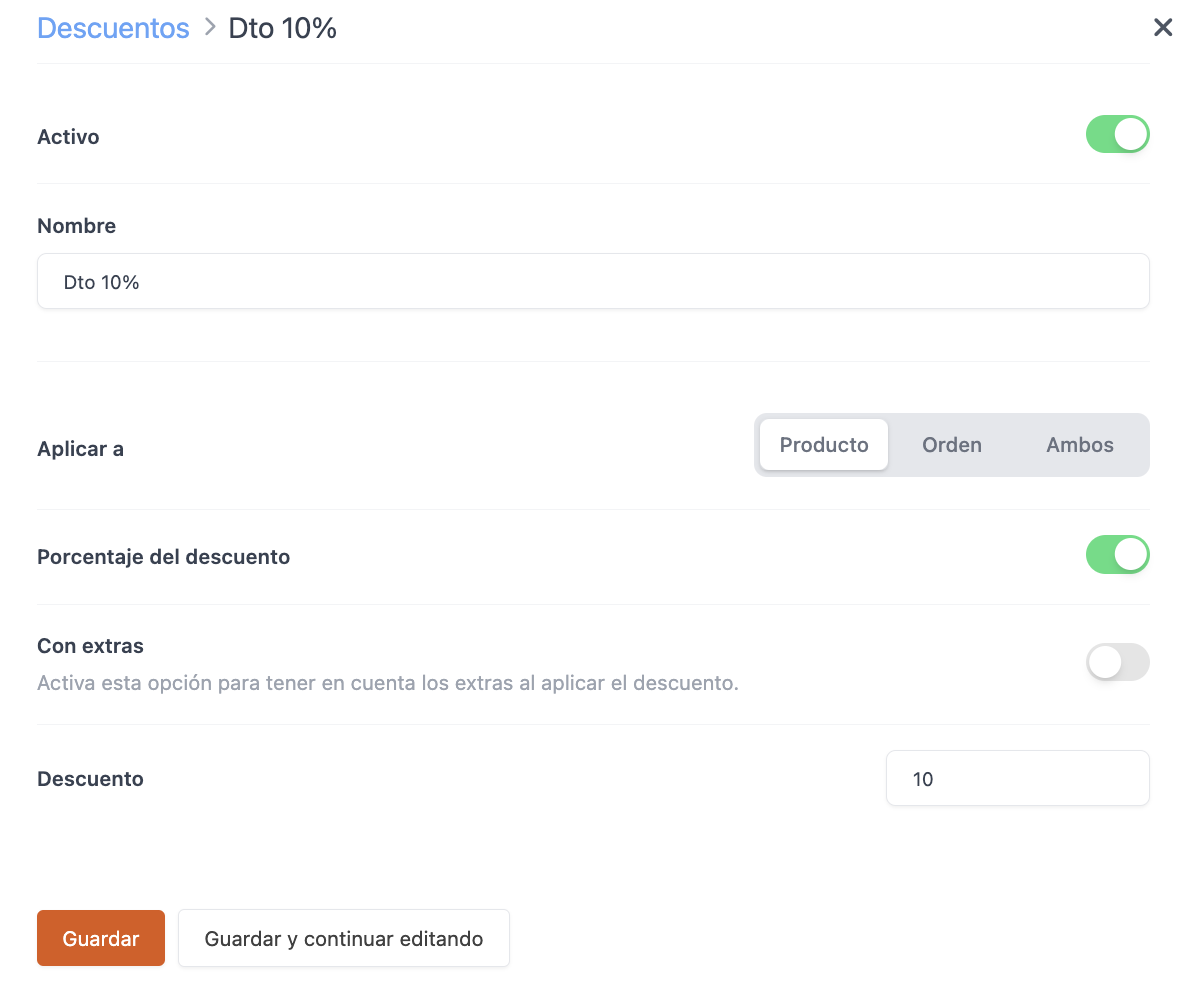
1Set up the discount
Open the Revo XEF back-office, go to Settings → Discounts and create a discount of 10% that applies to products. Turn off the option With extras.
2Apply it in the app
Select the product, tap Discount and choose Dto 10 %.
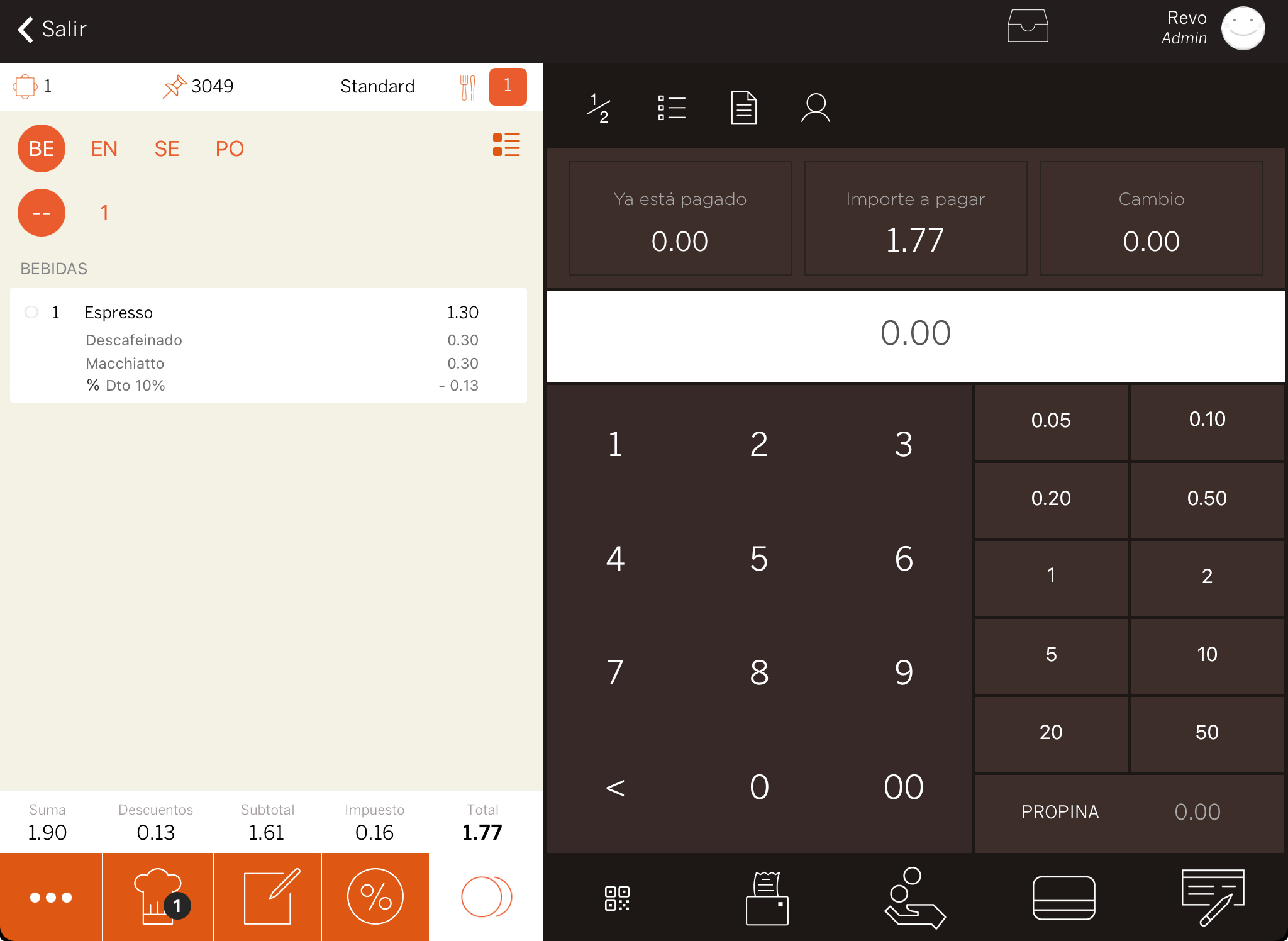
The discount applies to the product price, but not to the value of its extras.
15% off products or the order
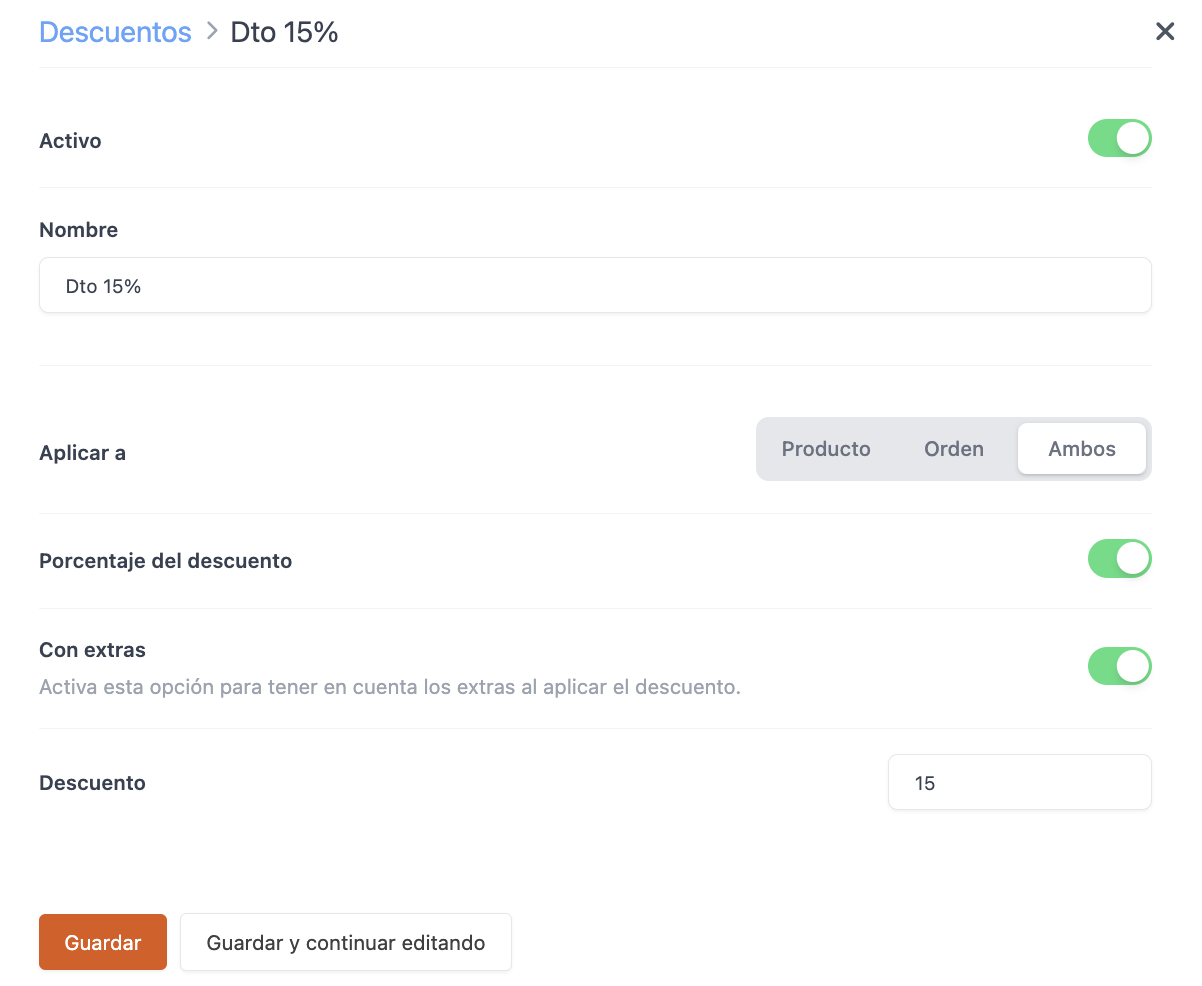
Use the option Both to apply the same discount to specific products or to the order total.
1Set up the discount
Open the Revo XEF back-office, go to Settings → Discounts, create a discount of 15% and select Both in Apply to.
2Apply it in the app
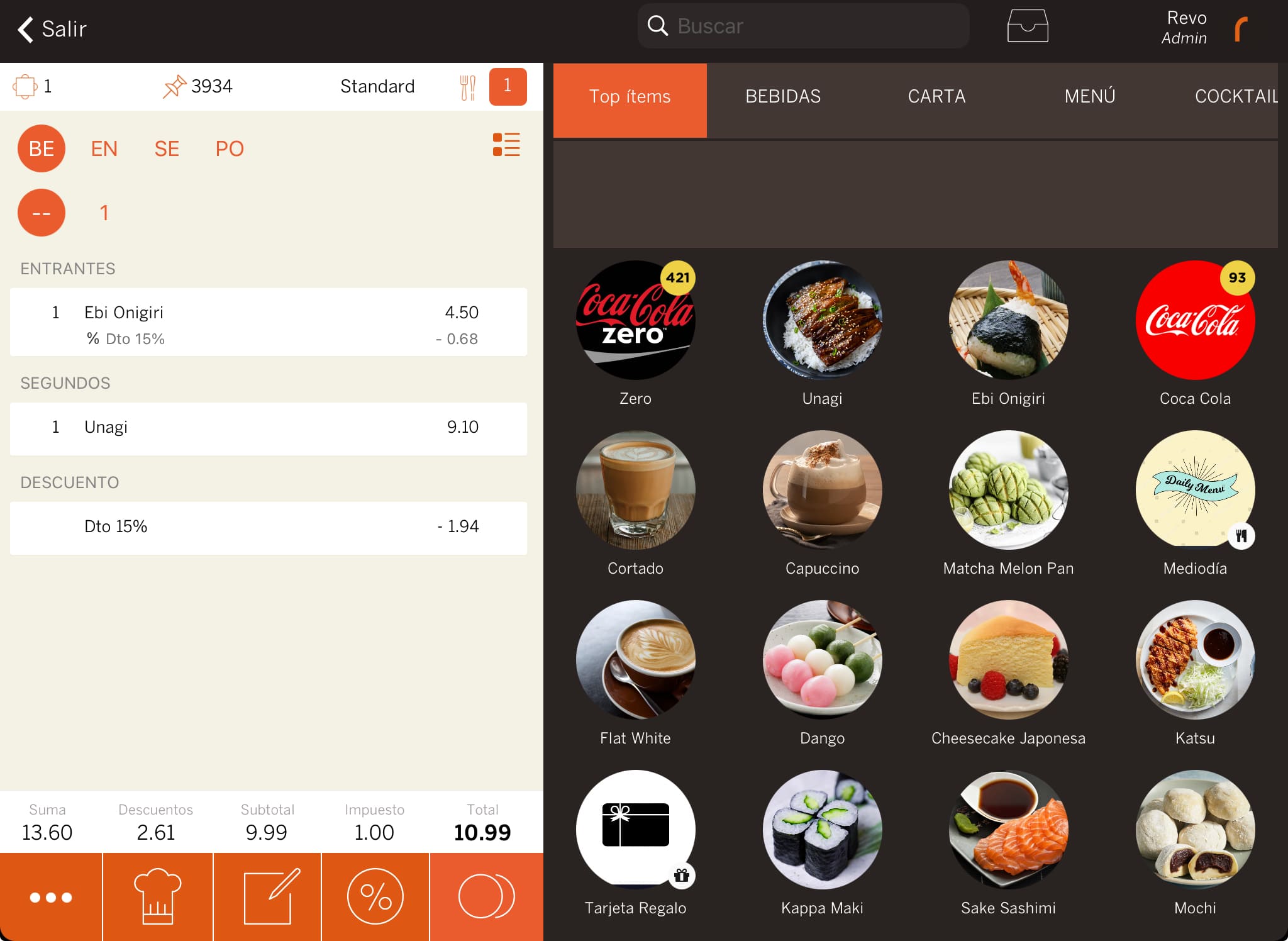
Select the product and apply Dto 15 %. The same discount is also available for the whole order.
If you first apply a discount to a product and then another to the order, the second one is calculated on the final, already discounted value. For example, if a €4.50 product drops to €3.82, the order discount is calculated on €3.82.
See short answers about setting up and using discounts.
4Frequently asked questions
Can I apply a discount to a product and then to the whole order?
Yes. The product discount is calculated first. Then the order discount is calculated on the final price left after the first discount.
Why does a discount not appear in the app?
Check that it is active and that the Apply to field allows it for the action you are performing. Also make sure you have saved the changes and updated the configuration in the app.
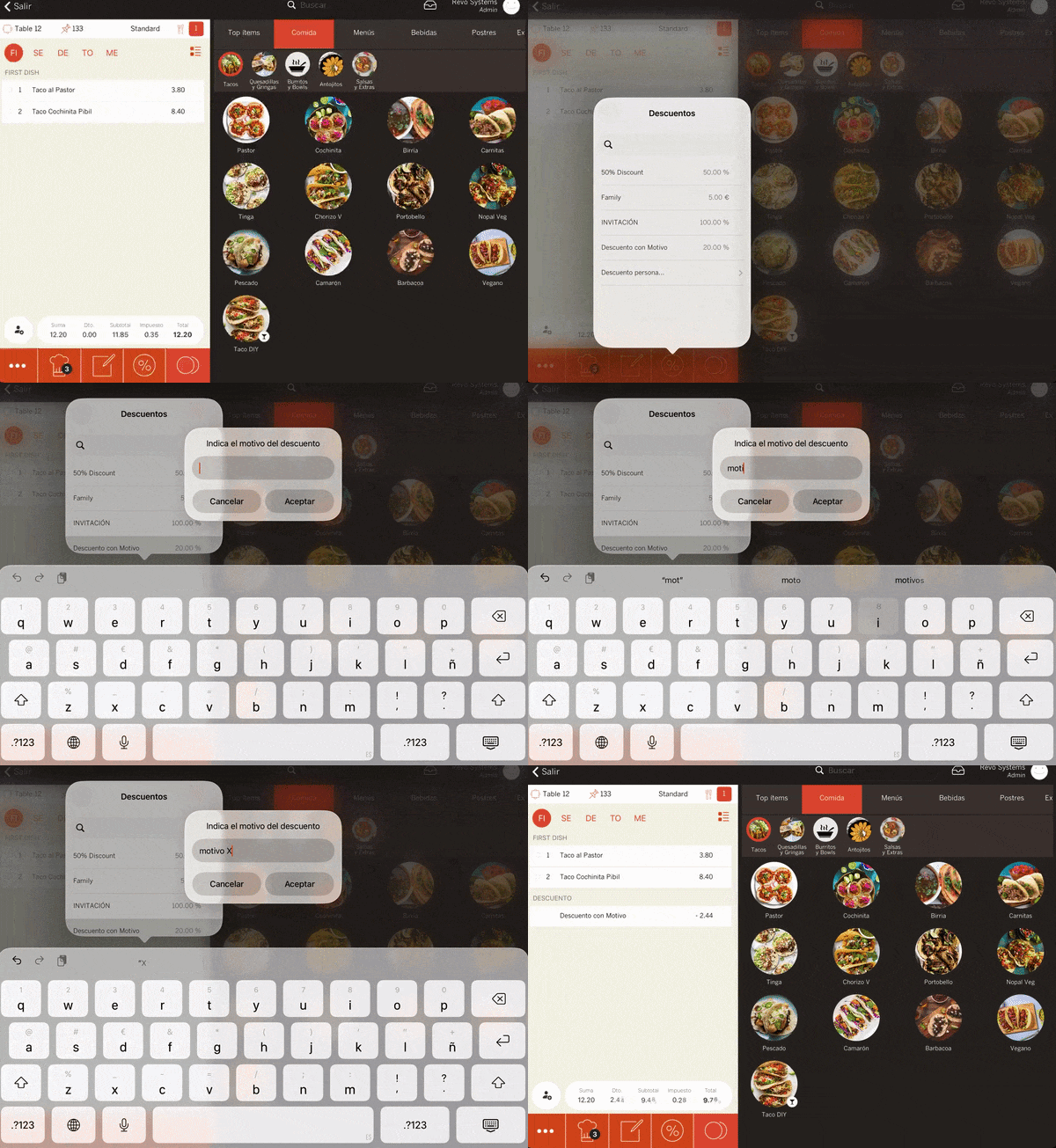
How do I see the reason for a discount with a mandatory reason?
If a discount has the Mandatory reason option turned on, selecting it in the app requires entering a reason before continuing. You can then see this text in the back-office discount list and in the CSV export.
Reason in the app
Discount list
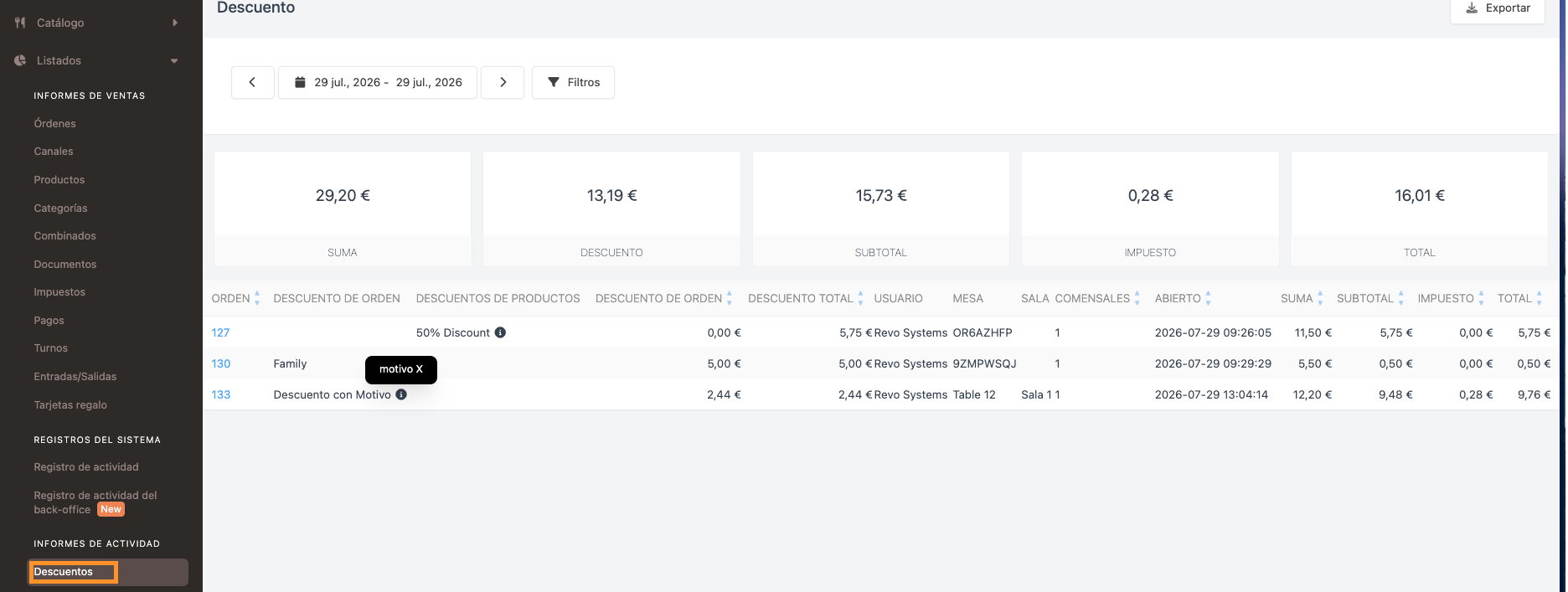
When you export the discount list, the CSV includes the Reason field. It contains the mandatory reason entered when the discount was applied.
The real CSV includes a Reason column for the order discount and another for product discounts.
| ID | TYPE | DISCOUNT | REASON | USER | TOTAL |
|---|---|---|---|---|---|
| 3307 | Product | 50% Discount | testtttttt | Revo Systems | €5.02 |
| 3312 | Order | VIP discount | Complimentary due to an incident | Manager | €18.40 |
How do I know if the discount includes extras?
Check the With extras option in the discount settings. If it is on, the discount applied to the product also includes its extras. This option is only available for product discounts.
Can I create a discount for a single sale?
Yes. Use Custom discount in the app. You can change the name, add information and choose whether it is an amount or a percentage.
Is it better to delete or deactivate a discount?
Deactivate it if you think you will use it again. Delete it only when you no longer need to keep it.
Tell when XEF only needs to split the discount across lines and when the discount cannot be applied.
5Troubleshooting
WARNINGThere is a general discount. To continue, it must be applied to each line
This message is a warning, not an error. It can appear in delivery or pickup orders without a table and in orders with the option Keep orders open.
When entering payment mode, Revo XEF needs to split the general discount across the products to keep the order amounts consistent.
When it appears:
- Press Accept.
- XEF applies the discount line by line across the products.
- Continue with the payment.
The total discount amount does not change. What changes is how it is applied and recorded before the order is closed.
ERRORThe general discount is not a percentage and cannot be applied to each line
This message means that the discount cannot be applied. When XEF needs to split a general discount across lines, the order discount must be a percentage.
A percentage can be distributed proportionally across products. A fixed amount, however, cannot be applied as a general order discount when XEF needs to split it.
Set up the discount according to the case:
- Discount for the whole order: turn on Discount percentage and set Apply to to Order or Both.
- Fixed-amount discount: set Apply to to Product or Both and apply it to a specific product.
If a fixed-amount discount is set to Both, you can use it on a product, but not as a general order discount in these cases.