
- STATUS: ACTIVE
1. WHAT IS DOJO? 2. TERMINALS AND THEIR FUNCTIONS 3. CONFIGURATION IN REVO 4. TERMINAL LINKING IN THE Revo XEF APP
1. WHAT IS DOJO?
Dojo Tech offers payment solutions for businesses, featuring its wireless payment terminal Dojo Go, which processes transactions quickly and securely. The platform also allows real-time sales tracking via a mobile app. Additionally, it provides support in Spanish and ensures seamless integration with point-of-sale systems, helping businesses improve the efficiency of their payment processes.
2. TERMINALS AND THEIR FUNCTIONS
There are three terminals:
- DOJO GO: For integrated payments with Revo XEF-Revo RETAIL / Integrated PIN PAD.
- DOJO POCKET: For Revo HANDY and for integrated payments with Revo XEF-Revo RETAIL / integrated PIN PAD.
- DOJO DUO: For Revo HANDY and for integrated payments with Revo XEF-Revo RETAIL / integrated PIN PAD.
Nota: To work with the Revo HANDY app, you can use the DOJO POCKET V2 terminal or the DOJO DUO terminal. The DOJO DUO terminal has an integrated printer for printing tickets. The DOJO POCKET V2 does not have an integrated printer; therefore, to print tickets it is necessary to connect an EPSON TM-M30 or STAR SM-S230i printer via Bluetooth to the terminal.
3. CONFIGURATION IN REVO
1. Access the back-office of REVO.
2. Click on Integrations.
3. Using the Add button, search for Dojo and click on Add.
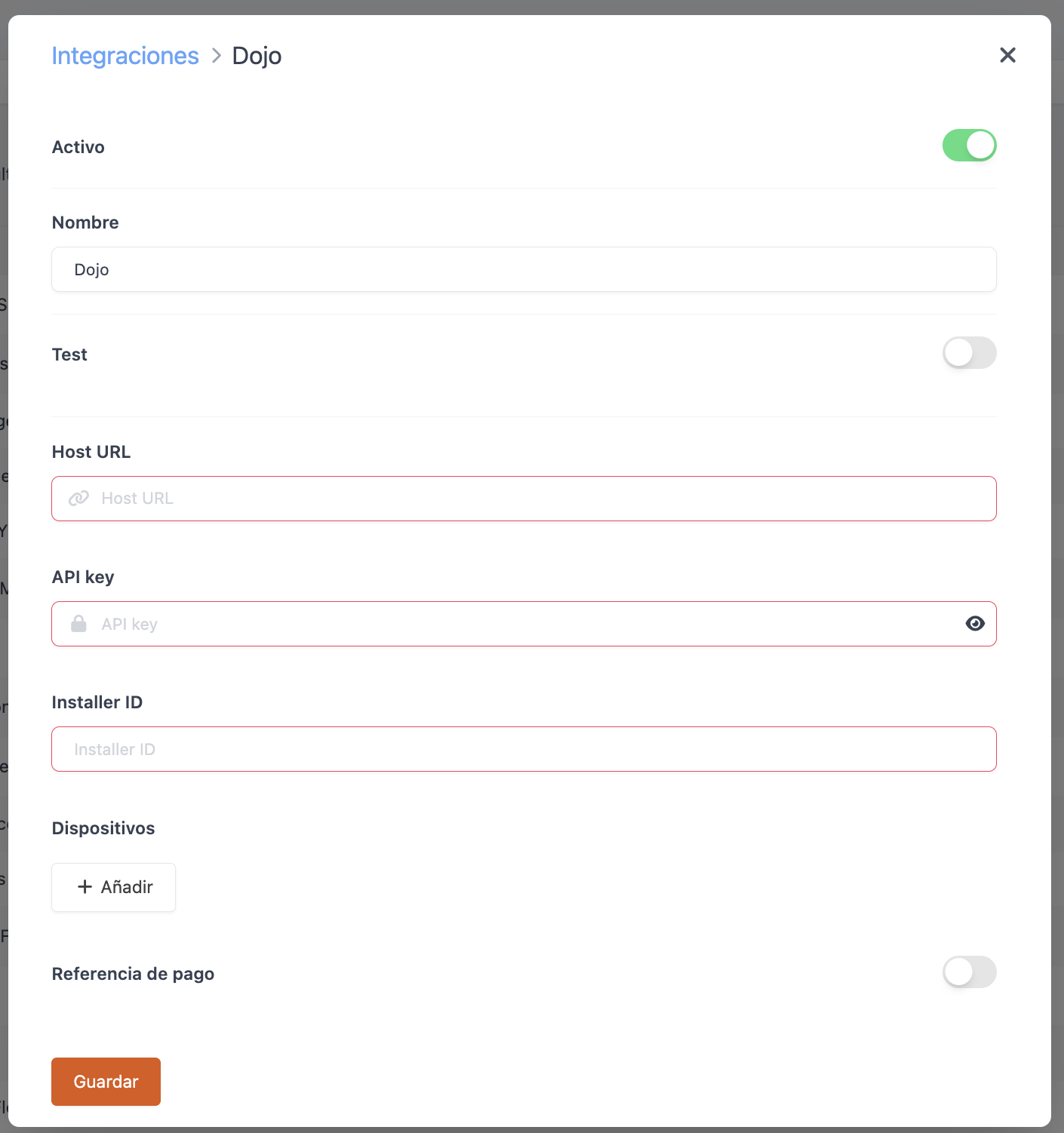
4. Fill in the following information:
-
Active: Enabled.
-
Name: Descriptive name for the integration.
-
Test: Disabled.
-
Host URL: Composed of a unique name or identifier followed by “.connect.paymentsense.cloud”. This address is unique per client and will be sent to the partner during each installation, along with the API key data and terminal identifiers (TID).
Important: For the integration to work correctly, we must prefix the Host URL data with https://
-
API Key: Authentication key used to integrate external systems with the Dojo payment platform. Provided by Dojo.
-
Installer ID: Identifies the company performing the ePOS installation. Provided by Dojo.
-
Devices: This is the configuration for each pinpad. Two fields must be completed per terminal:
-
Key: Add an identifying name for users to recognize the pinpad to which they will send the request.
-
Value: In this field, enter the "TID" defined by Dojo for each terminal. The "TID" is the terminal identifier.
-
5. Click on Save to confirm the changes.
After completing these steps, the Dojo integration is configured.
4. TERMINAL LINKING IN THE Revo XEF APP
At this point:
1. Open the Revo XEF app on your device.
2. Click on the r of REVO at the top left of the screen.
3. Go to Integrations.
4. Click on Dojo.
5. Select the name of the device configured earlier during the integration setup.
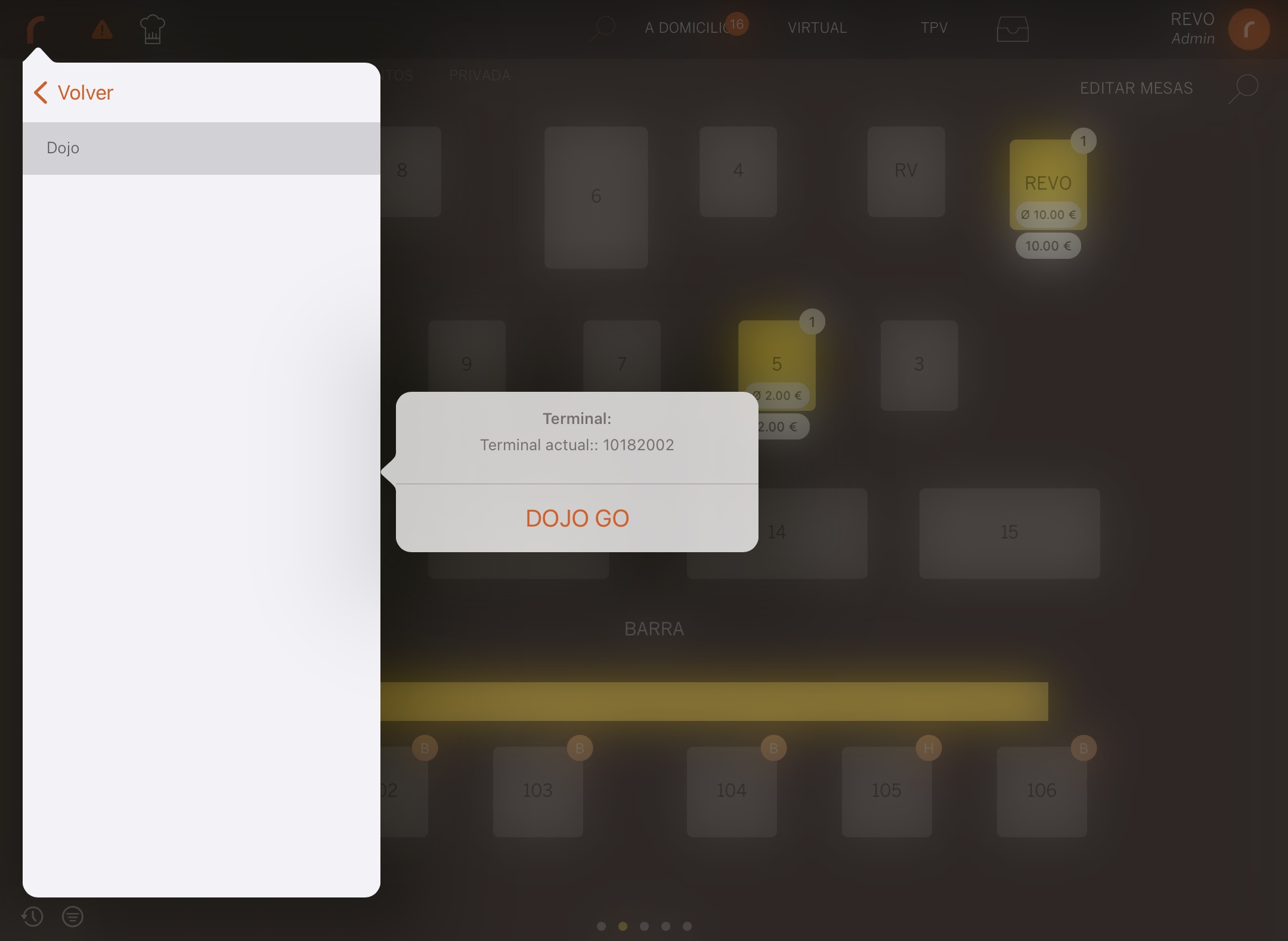
From this moment, when placing an order in Revo XEF and paying by card, the Dojo payment application will open automatically. Everything is ready for payments.
Therefore, when processing a payment with a CARD, it will be executed with the Dojo pinpad and payment gateway.
Important: If communication with the card terminal does not work, it may be because the "Countertop Payment" option is not enabled within "Integrated Payments" in the terminal's configuration. Additionally, integrated sales must be selected in the side menu. For this, contact Dojo.