Once your iPad or Android monitor is set up and the options are customised in the back-office, follow these steps to use the KDS 2 operational app in the kitchen.
Since 20 July 2026, Cegid Revo KDS can be installed on any device running Android 7 or later. Official technical support is only guaranteed for devices certified by Cegid Revo: Sunmi Flex 3 22", Sunmi Flex 3 27", Microtouch M1-215IC 22" and Microtouch M1-270IC 27".
Non-certified devices will be identified with a specific indicator in the back-office list. See the approved Android monitors. →
Log in with your Revo XEF credentials and choose the station or profile the device will work with.
1Logging in to the app
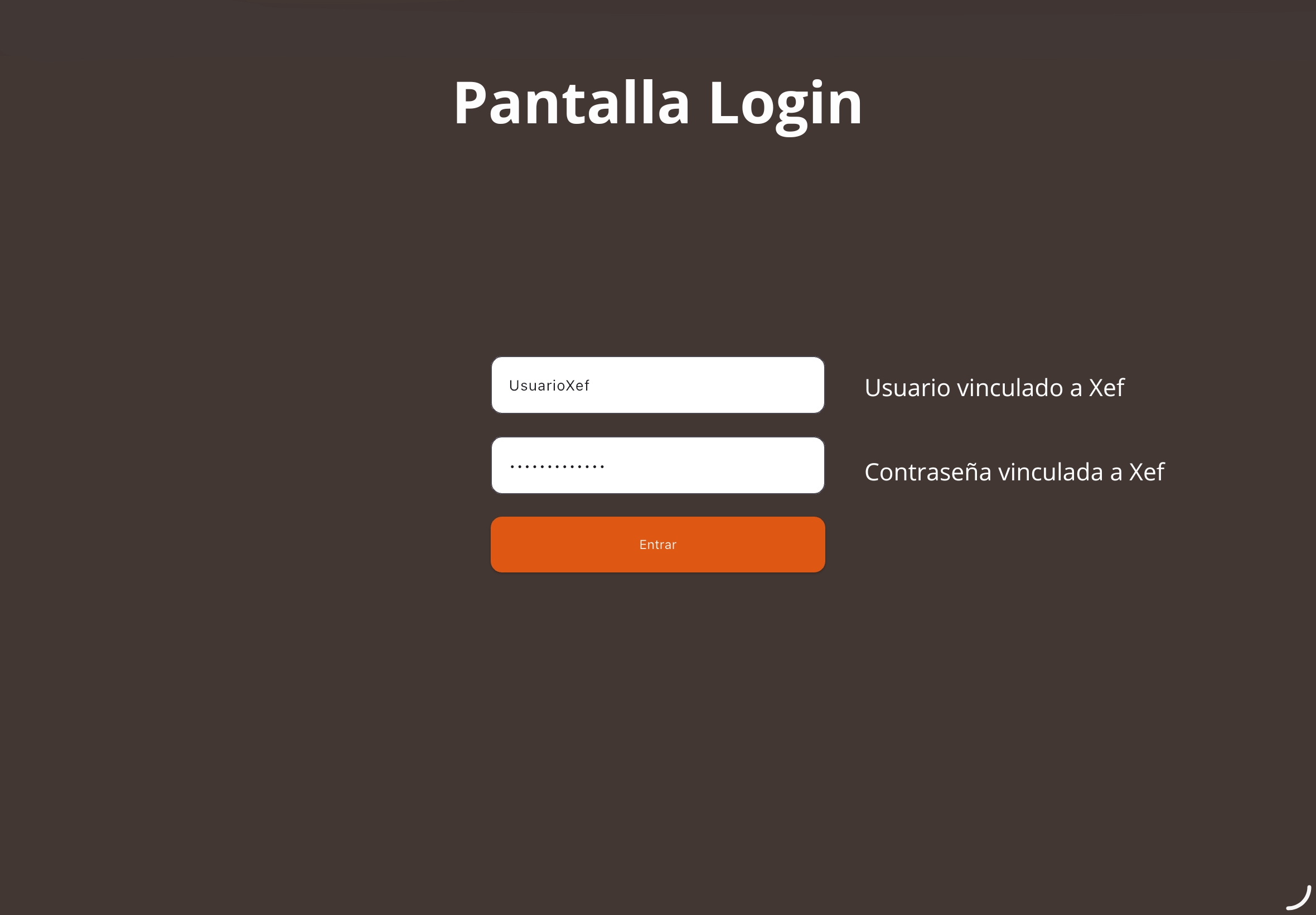
Login credentials
Open the Revo KDS 2 app and enter the username and password linked to Revo XEF.
Profile selectorNew
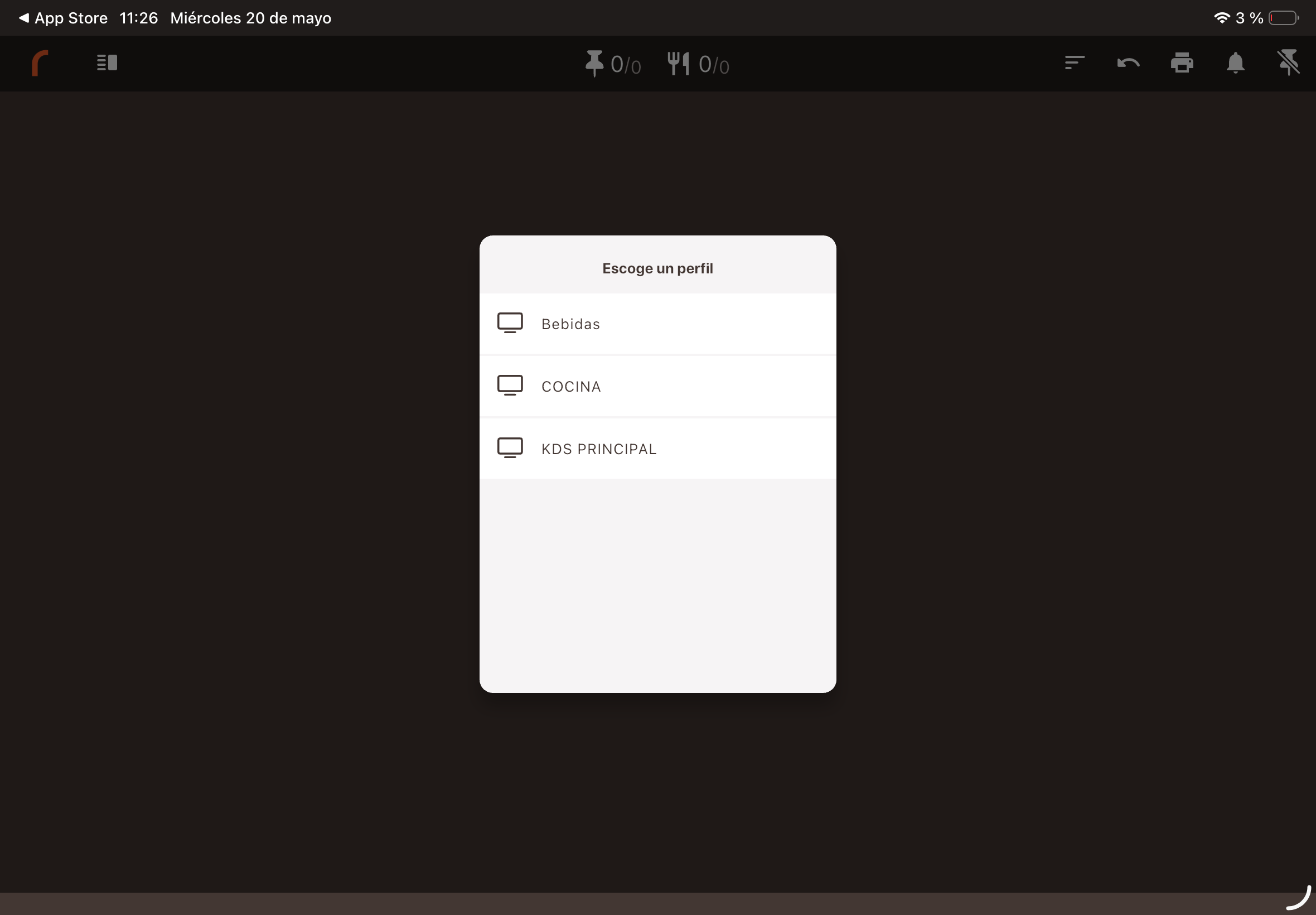
If you have more than one profile set up in the back-office, KDS 2 will ask which one you want to use when you log in, for example Cold, Hot or Pass.
Select the profile and tap Save. If there is only one profile, the system will assign it automatically.
Since version 1.5.0, the device data can be checked from the back-office after logging in to KDS 2.
Open the main menu, adjust the visible space and use the actions available at the top of the KDS.
2Navigation header
Main menu
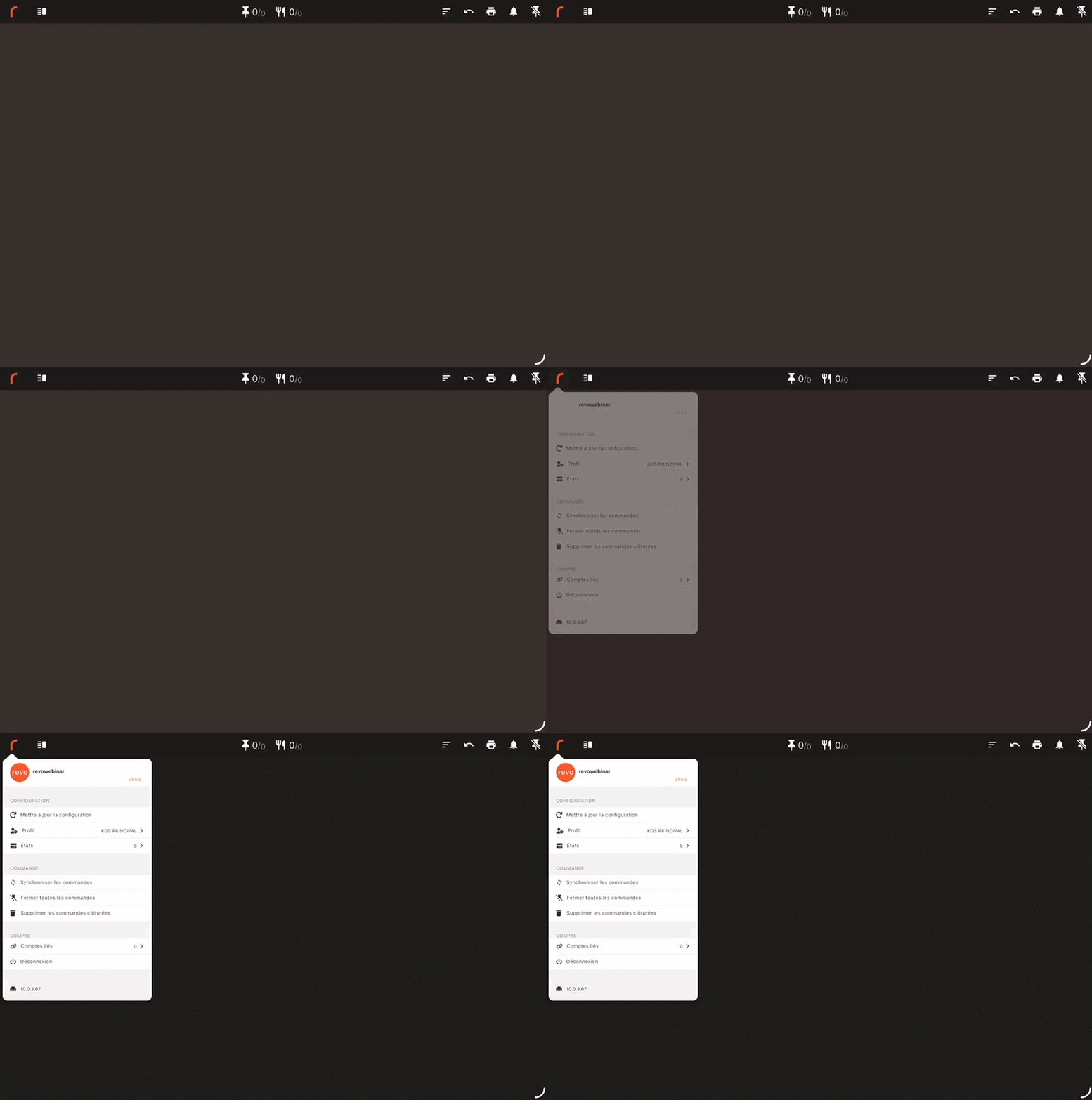
Tap the r icon in the top-left corner to open the global settings panel.
From this menu you can force syncs, change profile, check the active statuses or log out.
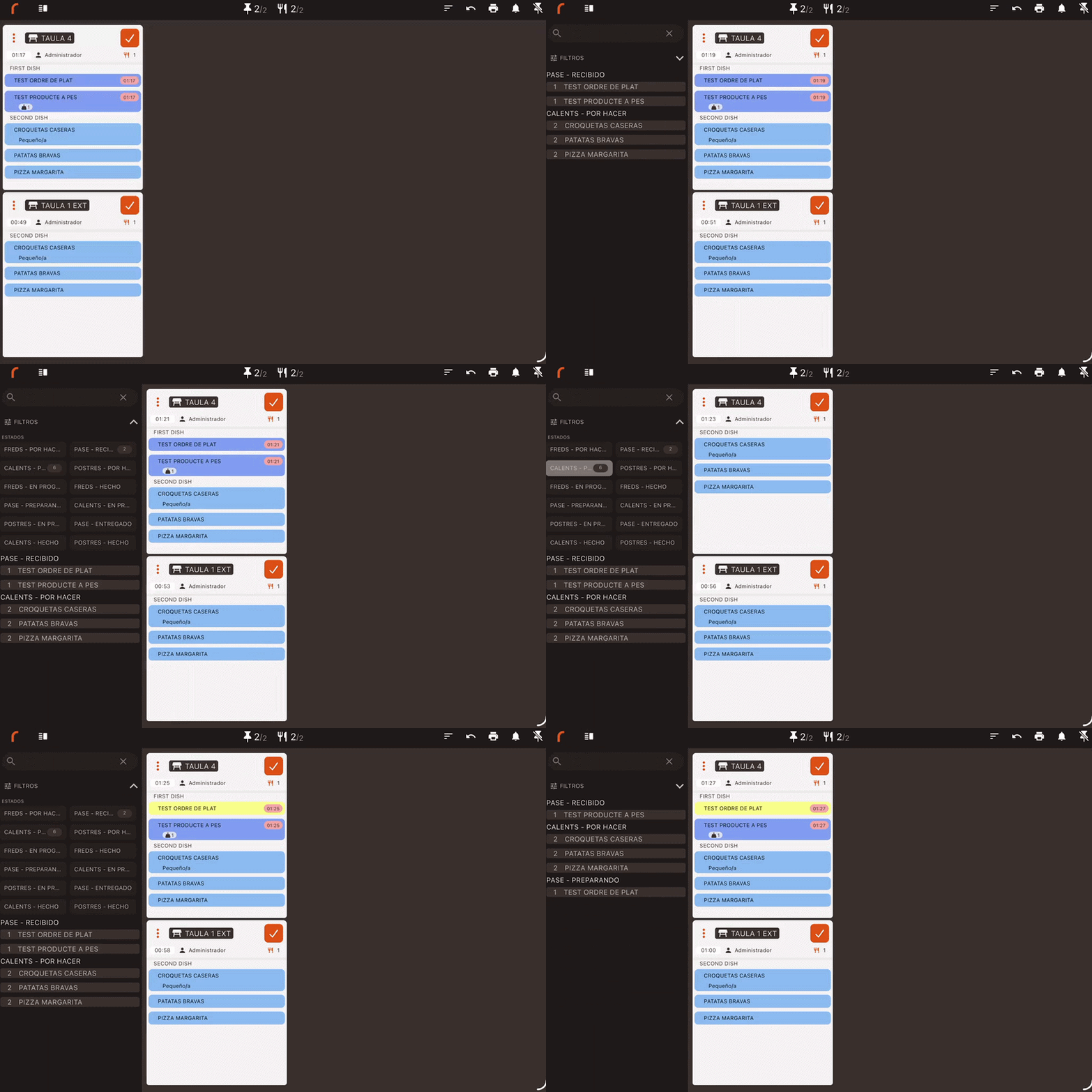
Device bar and collapsible filtersNew
The device's native bar, with the time, battery and network status, is always visible.
Below it you will find the search bar and the status filters. Use the control provided to collapse or expand them and gain space when there are many tickets on screen.
Quick action icons
In the top-right corner you have the following tools:

Find the table, waiter, number of diners, identifier and time elapsed since the order was sent to the kitchen.
3Order display
Kitchen ticket layout
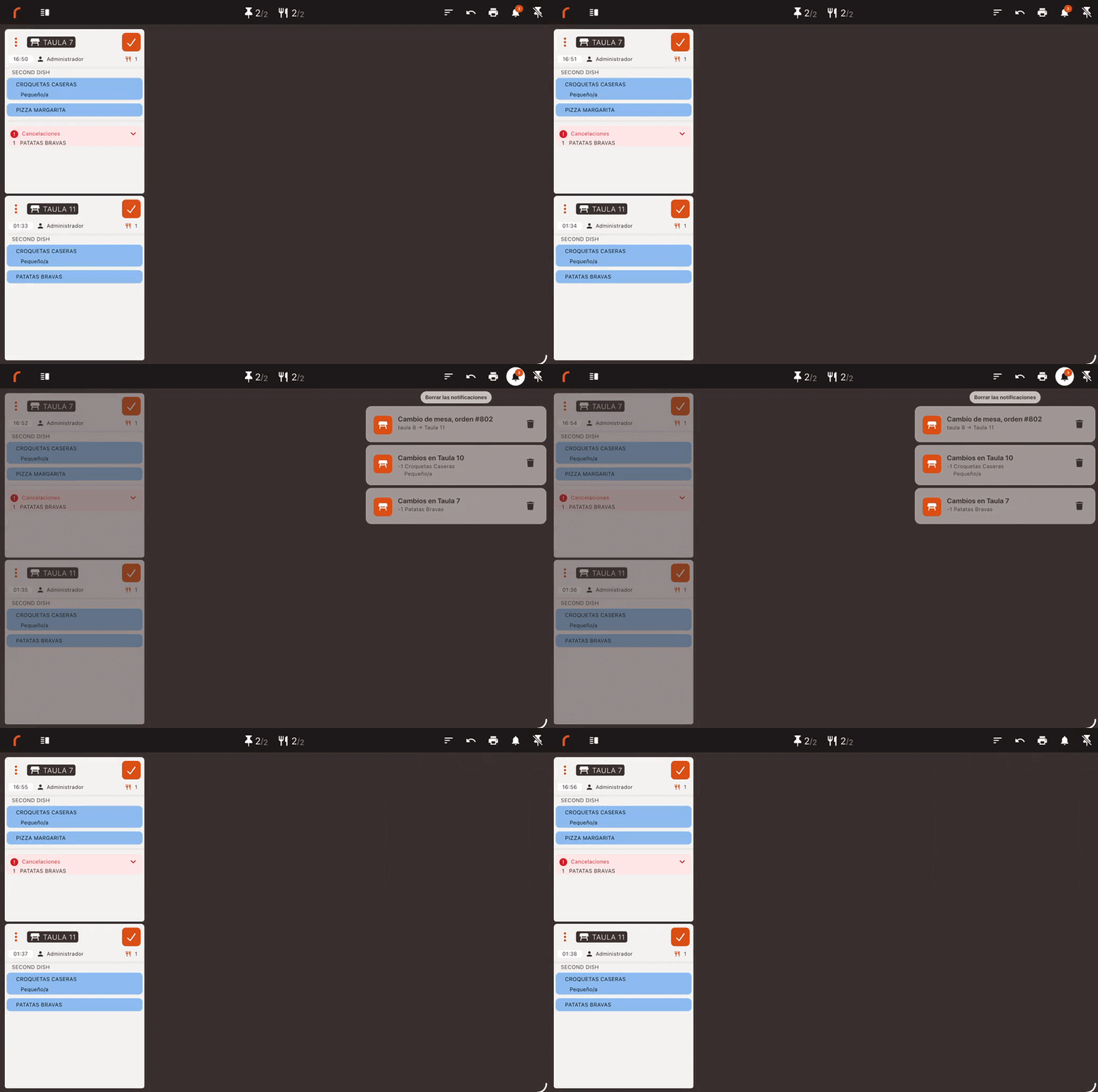
The body of each active order shows the information you need to work at a glance: the table or area, the waiter, the number of diners, the locator and the preparation timer.
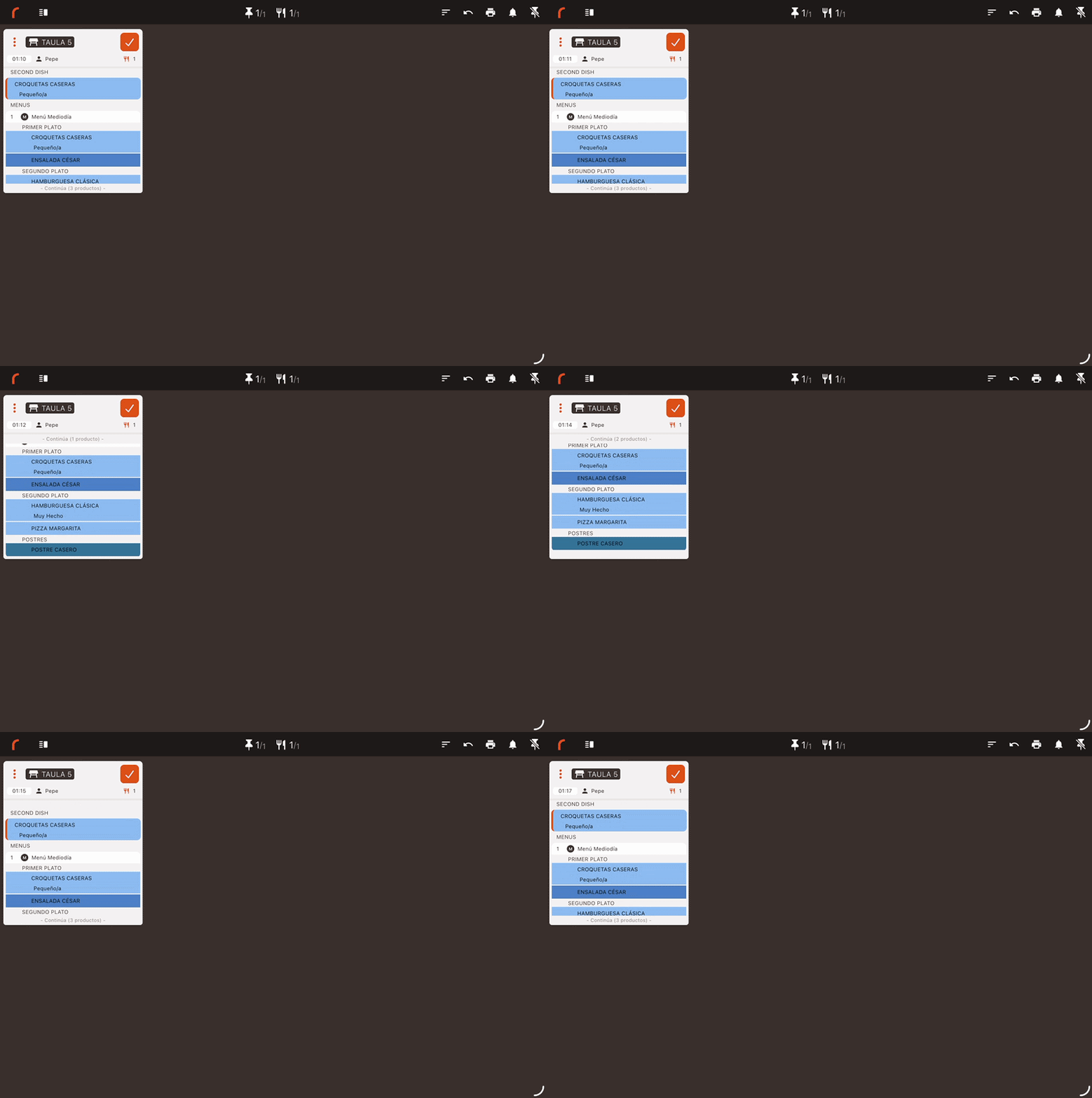
Update statuses, signal when a dish should be fired and adjust the actual quantity of products sold by weight.
4App features
Status management and monitoring from the dining room
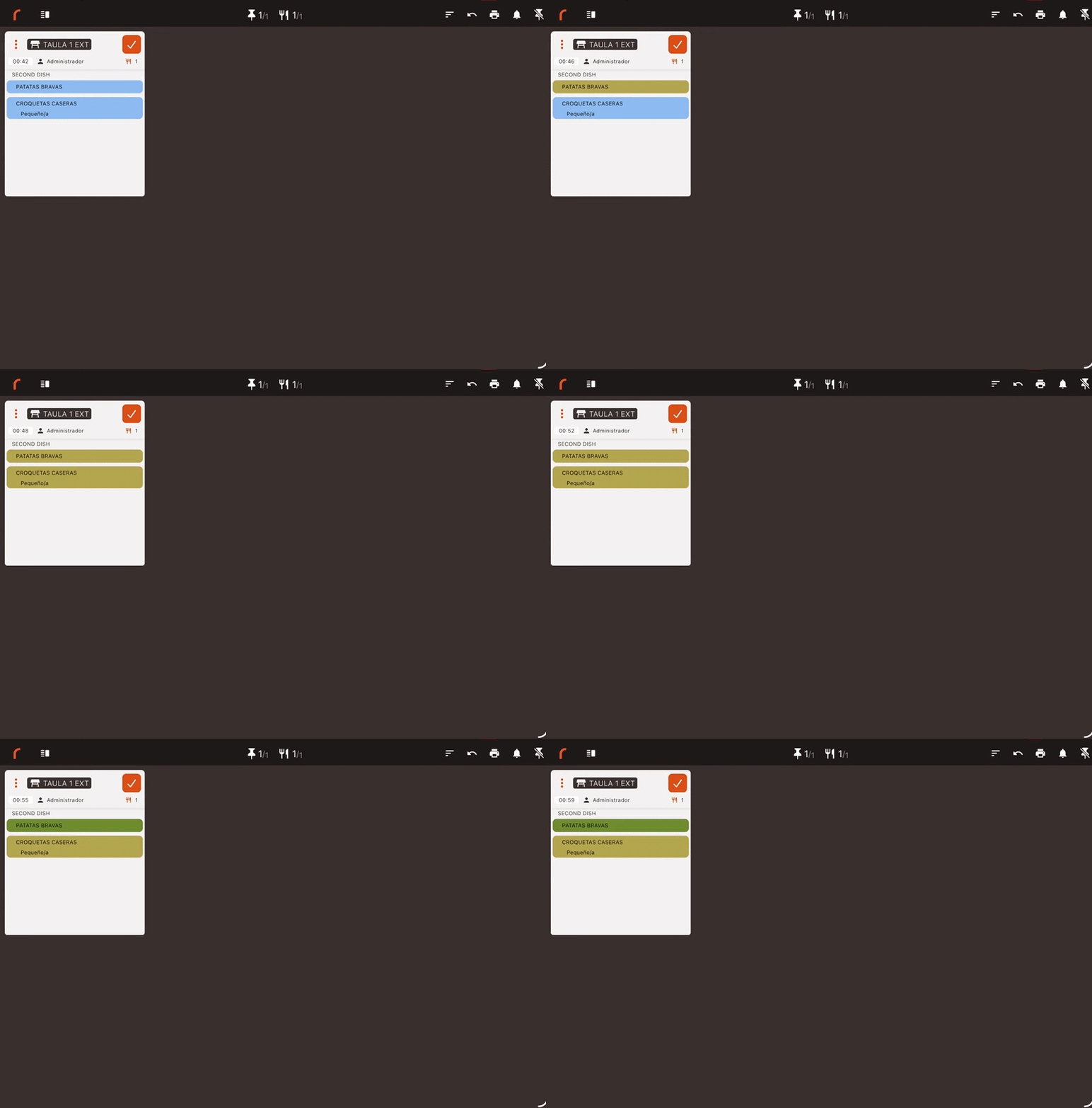
Move dishes forward through their statuses, for example from Pending to Preparing and then to Ready, with a single tap. The dining room receives the change so it can follow the order's progress.
From the kitchen: tap a product to move its preparation status forward.
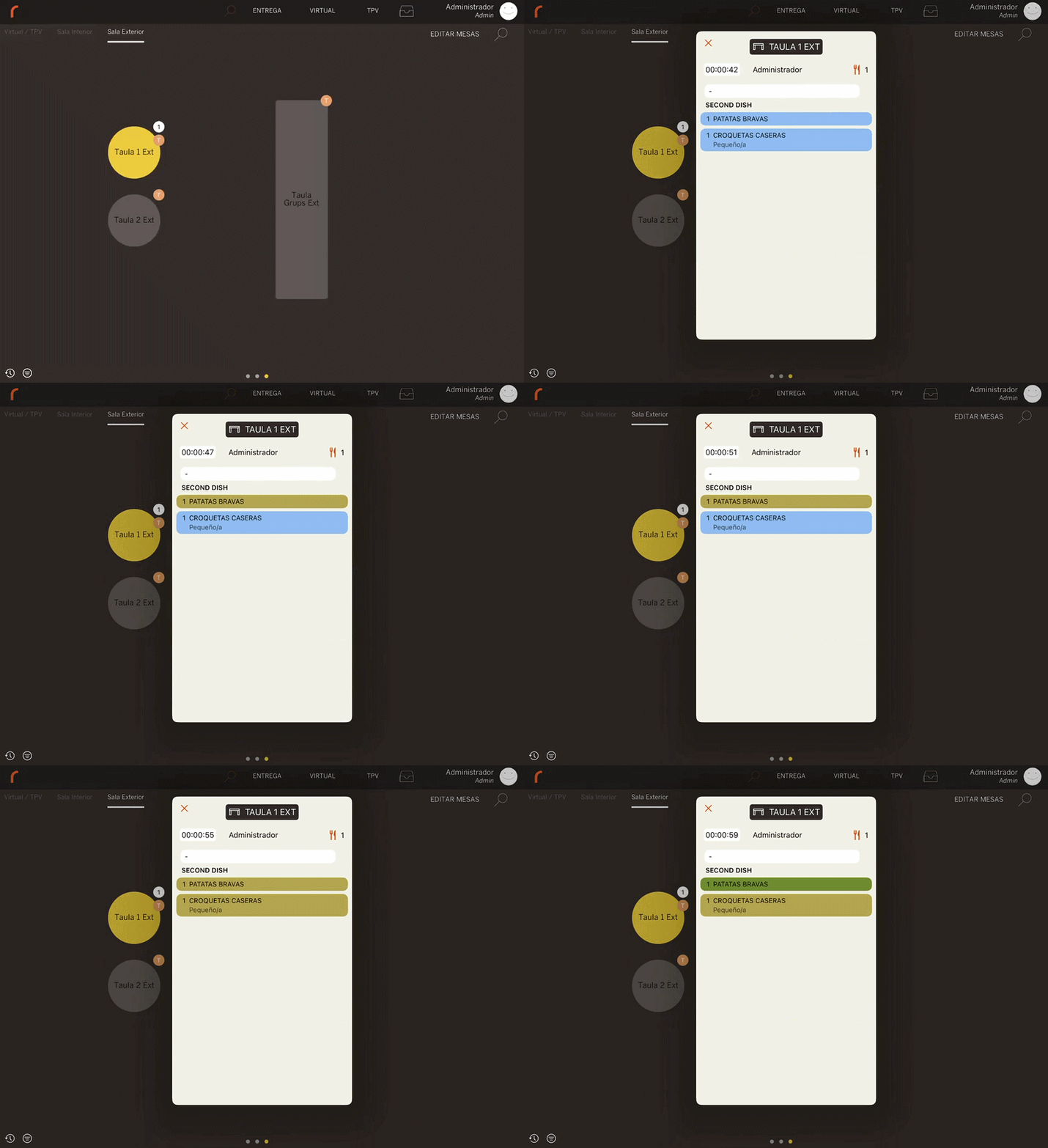
From the dining room: swipe down on an occupied table in the Revo XEF floor plan and select See KDS status. The status of each dish will be shown.
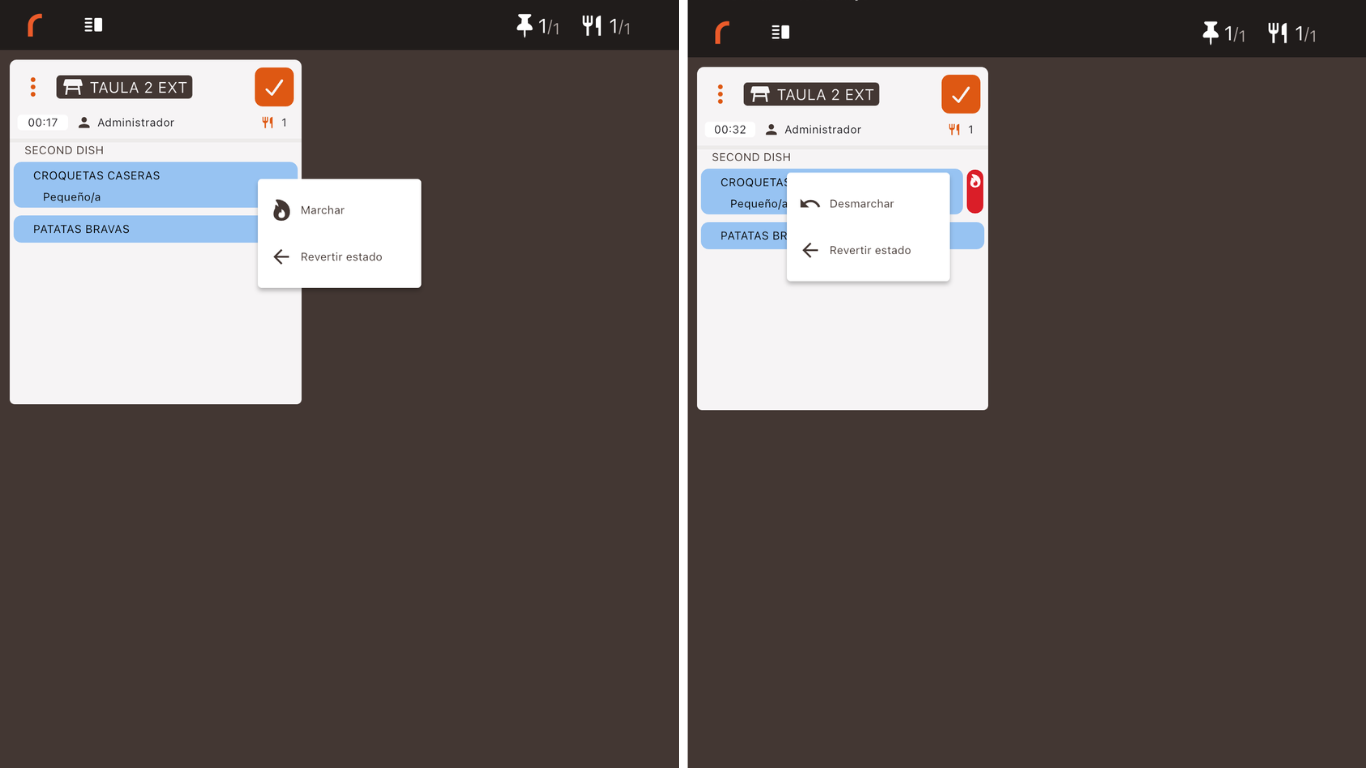
Firing and unfiring dishesNew
Press and hold a product to send the Fire alert from the kitchen. If you make a mistake, you can undo the firing from the same menu.
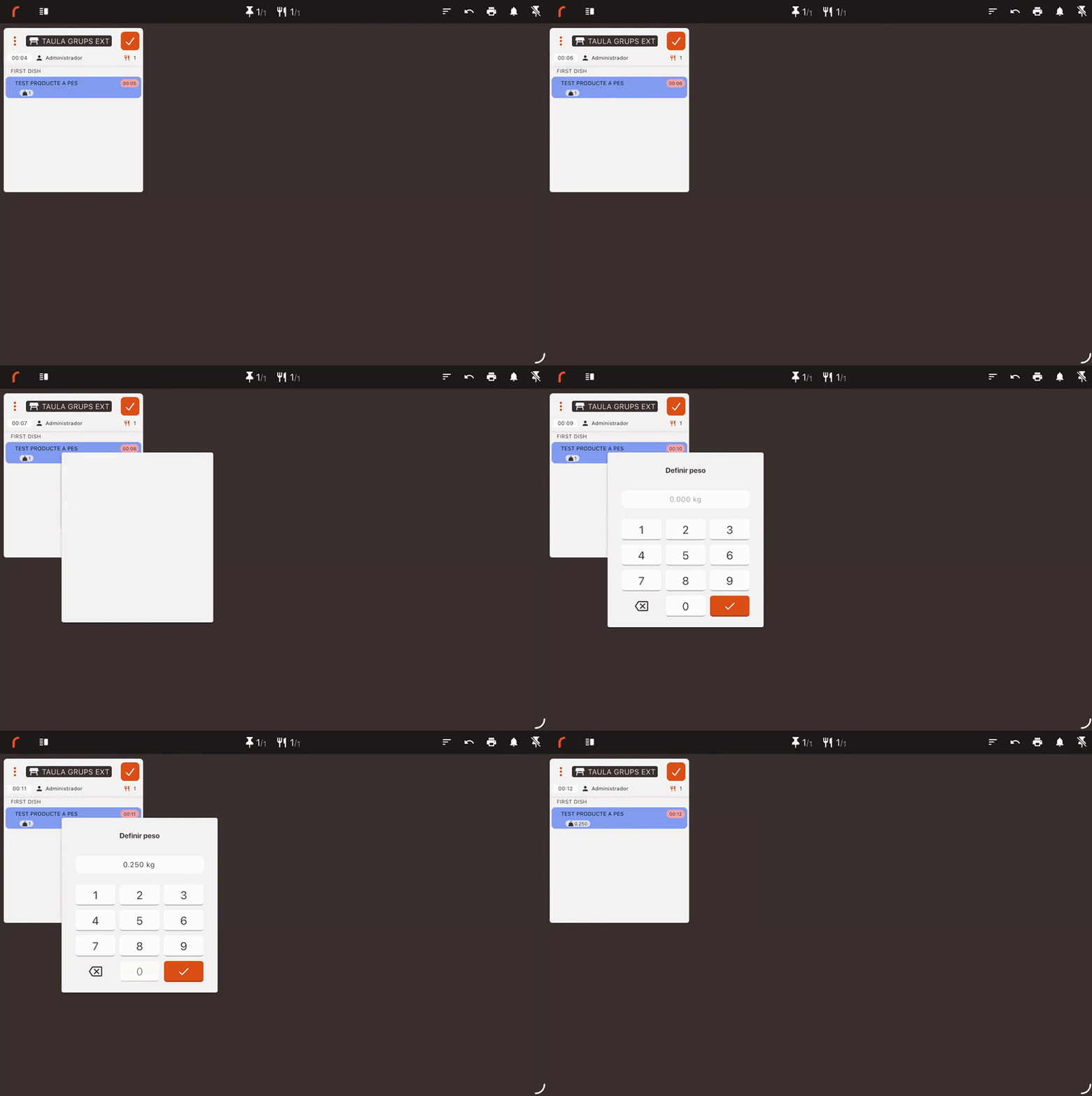
Setting product weightNew
For products sold by weight, such as meat, fish or seafood, you can adjust the actual quantity directly from KDS 2.
The updated weight is synced with Revo XEF so that the correct quantity is charged.
A tap changes the status, a long press opens additional actions and the ticket icons let you act on the whole order.
5Actions on orders
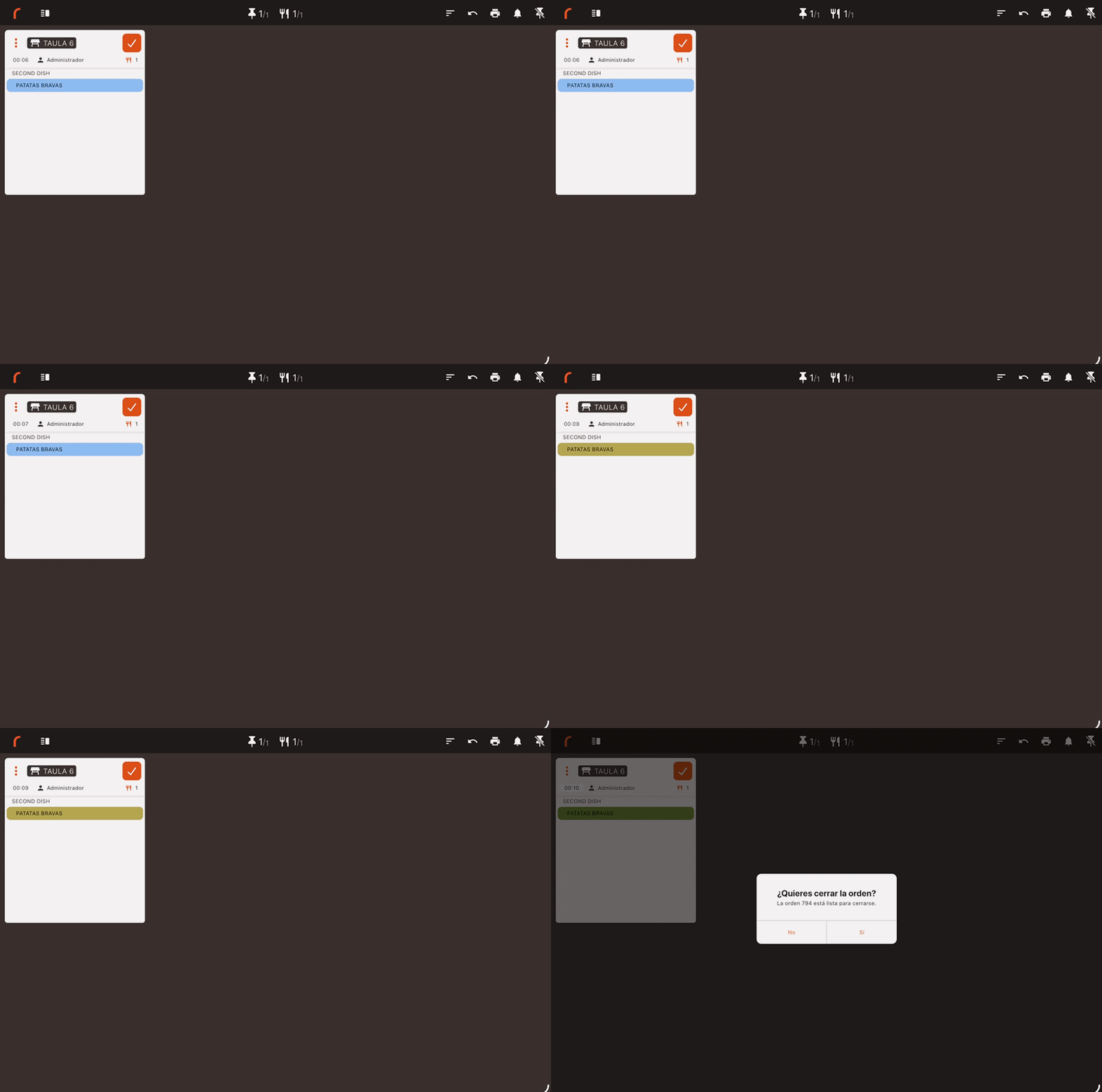
Changing status with a tap
Tap the product name to move it to the next status. Automatic ticket closing when all items are finished can be configured in the back-office.
See the closing settings in this article.
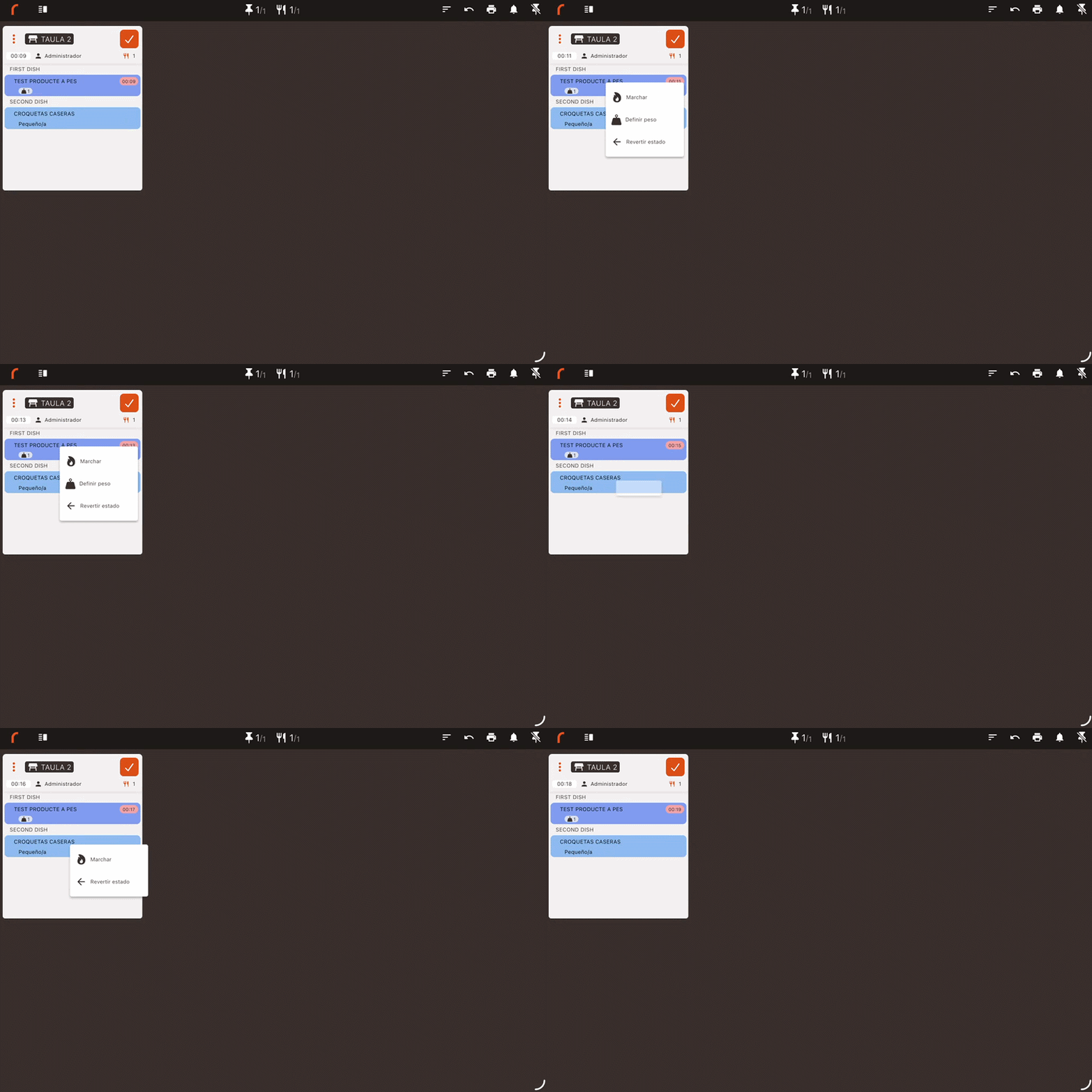
Fire or set weight by pressing and holding
Press and hold an item to open the context menu. From there you can select Fire, Unfire or Set weight, where applicable.
Bulk close and printing (ticket icons)
The behaviour of the orange check depends on the closing type configured in KDS 2.
When you tap the check, products move forward to the last status that KDS 2 can display.
If that KDS 2 can see all the statuses in the flow, the products will move to the last status and the order will close.
When you tap the check, the order closes directly without changing the status of the products.
The 3 vertical dots keep their usual actions: manually printing the pass ticket or sending special alerts, such as the “chef's hat”, to the dining room.
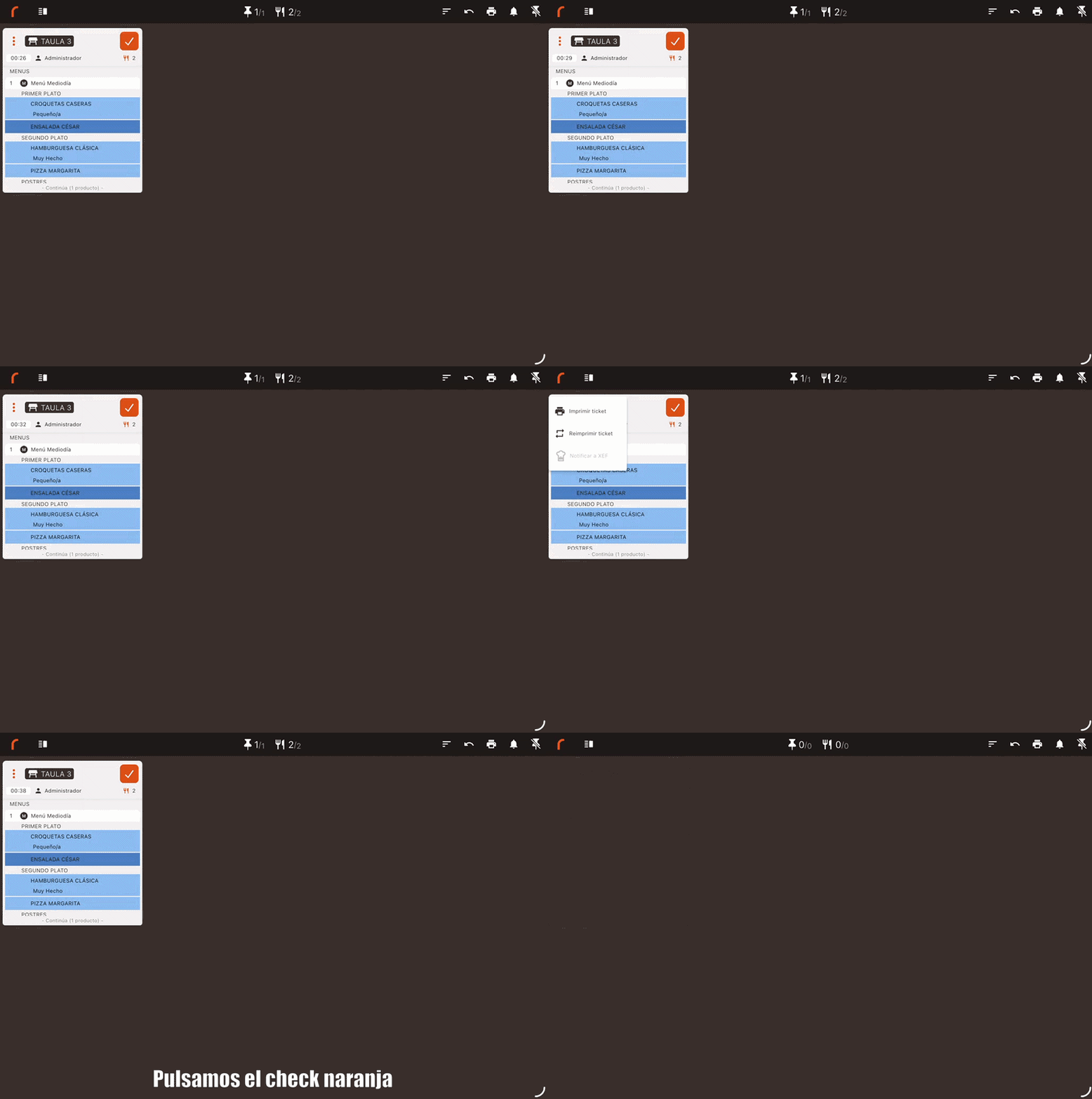
Review new orders, cancellations, table changes and dish transfers from the notification centre.
6Notification centre
Receiving alerts
The bell in the header gathers new orders, cancellations, table changes and dish transfers.
The sound only plays on the KDS devices that should receive the order, avoiding unnecessary alerts at other stations.
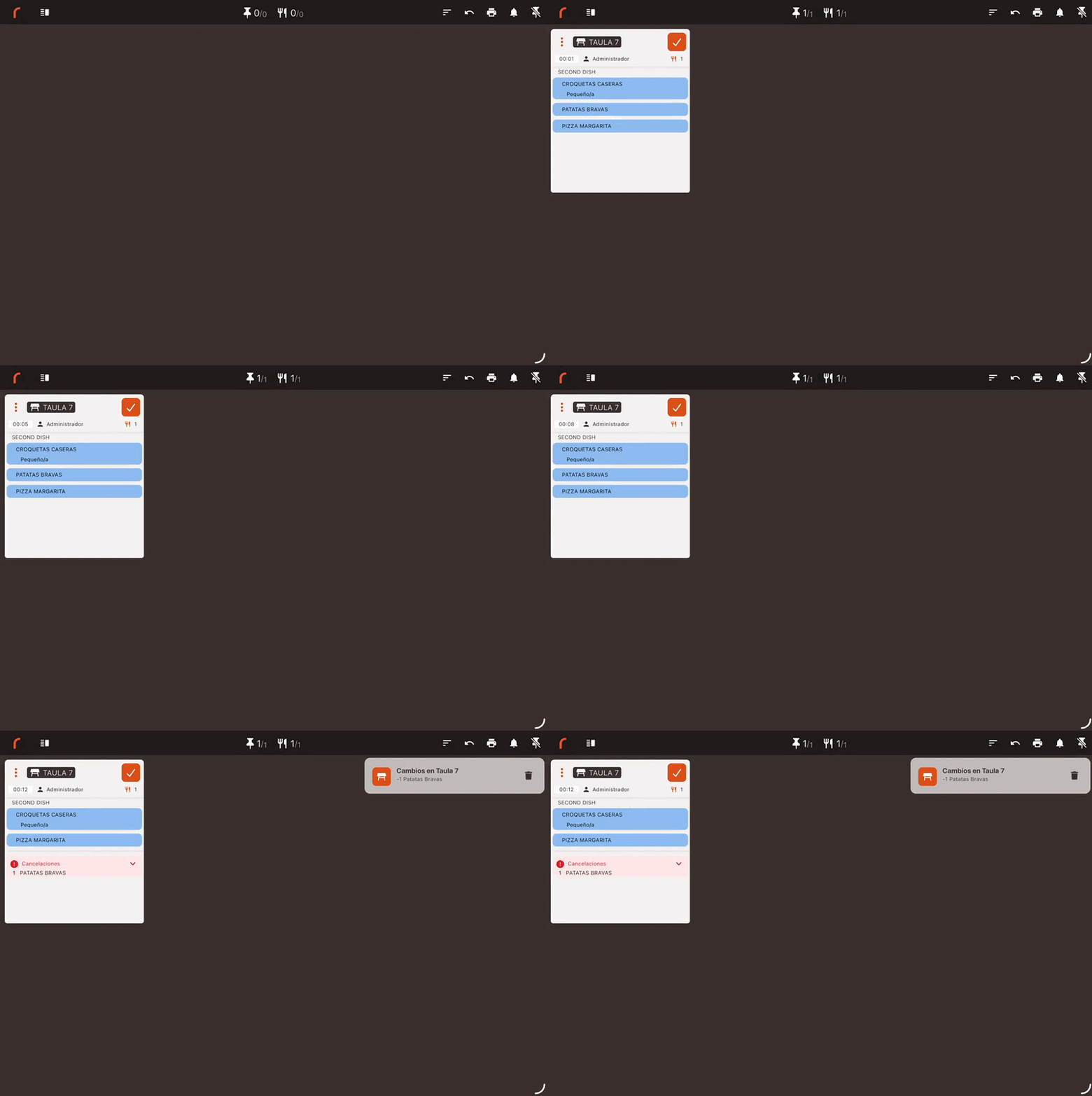
Managing notificationsNew
Tap Clear all notifications to empty the alert history.
In addition, KDS 2 automatically deletes the previous day's notifications every time the app is opened.