Permissions determine which actions each employee can perform in the app. Create permission groups by role (for example, floor staff, manager or cashier) and assign them to the relevant employees.
We recommend applying the principle of least privilege: turn on only the permissions strictly needed for each role. Permissions related to closings, payments, voids and unlocks should be reserved for people in charge.
Review which groups exist, how many permissions each one has and what you can do with them.
1Overview
- Open the back-office of Revo XEF.
- Go to Settings / App permissions.
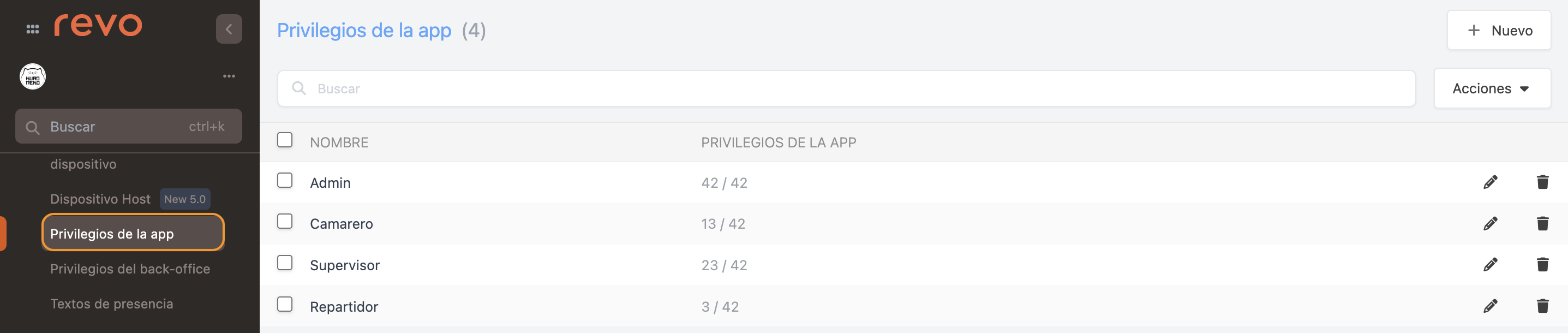
| Item | Description |
|---|---|
| + New | Creates a new permission group. |
| Search | Filters and searches the existing permission groups. |
| Actions | Deletes one or more selected permission groups. |
| Name | Name that identifies the permission group. |
| App permissions | Shows how many active permissions the group contains (for example, 13 of 43). |
| Edit / Delete | Icons to edit or delete the permission group. |
Name the group and turn on only the permissions that role needs.
2How to create a new permission group
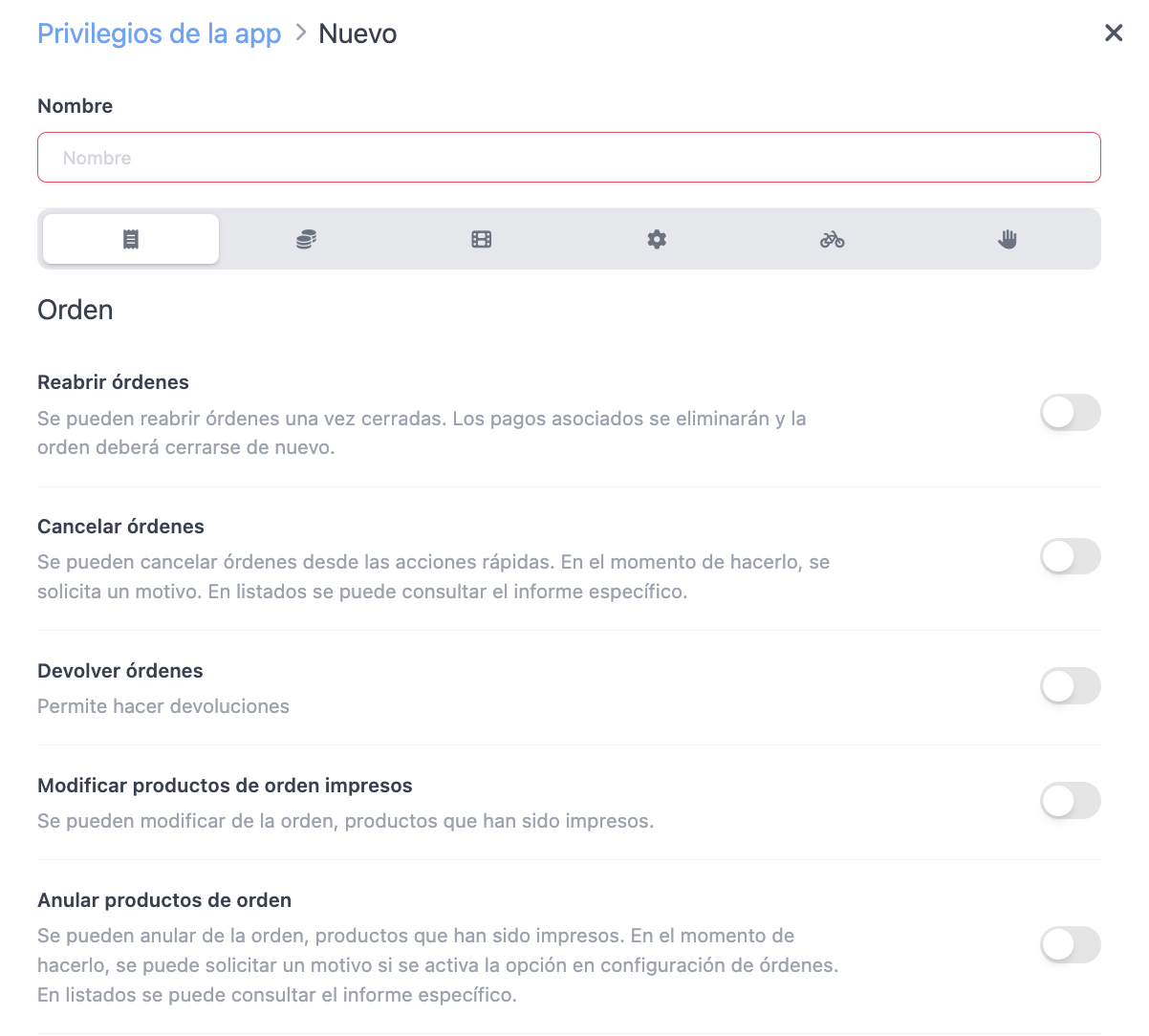
- Press the + New button and enter a Name that lets you easily identify the role (for example: "Terrace waiters" or "Managers").
| Field | Description |
|---|---|
| Name | Enter a descriptive name to identify the permission group. |
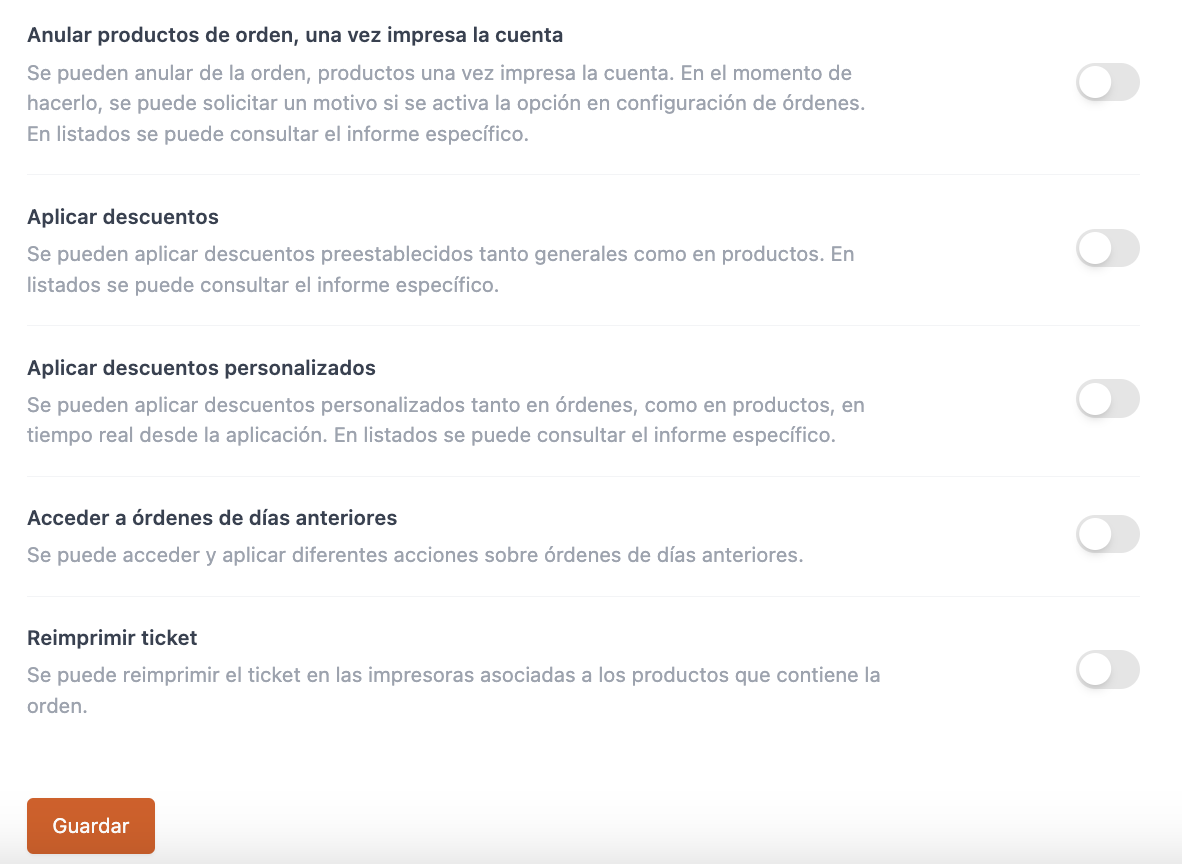
- Next, turn on the permissions listed in the different sections of the configuration and press Save.
See what each permission allows, grouped by configuration section.
3Permission list
Order
| Permission | Description |
|---|---|
| Reopen orders | Allows reopening an already closed order to correct it. When a closed order is reopened, the related payments are reversed through automatic refunds. The order stays open to apply changes and must be closed again. Useful for fixing invoicing errors. |
| Cancel orders | Allows cancelling an order from the quick actions. The system asks for a reason to record the incident, which can be reviewed later in the listings. |
| Return orders | Gives access to returning orders. Use it when you need to reverse a completed sale according to the venue's procedure. |
| Edit products sent to preparation | Allows editing products of an order that have already been sent to preparation or printed. Useful for correcting a note, quantity or option requested by the customer after the ticket has been sent. |
| Delete products sent to preparation | Allows deleting products that have already been sent to the kitchen and/or KDS. Without this option, the employee cannot remove those lines from the order and must follow the cancellation process set for the whole order. |
| Void products with the bill printed | Allows voiding products from an order after the bill has been printed. If the order settings require it, the app will ask for a reason. Voids can be reviewed in the listings. |
| Apply discounts | Allows using predefined discounts, both general and on specific products. Assign this permission when the employee needs to apply previously configured promotions or discounts. |
| Apply custom discounts | Allows creating and applying manual discounts, general or on specific products, while taking the order. These discounts are one-off and are not saved as reusable options. For a permanent discount, set it up beforehand in the back-office (see article). Warning: Because it directly affects the final price, reserve it for people in charge. |
| Access orders from previous days | Gives access to opening orders from previous days and performing the authorised actions on them. Assign it only to profiles that need to handle incidents or reviews after the daily closing. |
| Reprint ticket | Allows reprinting the ticket on the printers linked to the order's products. Useful when a print was not received correctly or a new copy is needed for preparation. |
| Mark as printed | Allows manually marking items as already printed in the kitchen. Use it when preparation was handled outside the usual printing flow and you need to update the item status in the order. |
Cash control
| Permission | Description |
|---|---|
| Charge orders | Gives access to the payment action to complete an order with the available payment methods. Without it, the employee can take orders but cannot complete them with a payment. |
| Cancelled payments | Allows using the "Cancelled" payment method. Use it only when the internal procedure requires recording the payment with that status. |
| Void payments | Allows voiding payments from the order history. The action asks for a reason, is recorded in the order activity and can be reviewed in the listings. Warning: It should be reserved for people in charge, as it affects payments that have already been recorded. |
| Access Listings | Gives access to viewing and printing the Z report and the daily summary from the app. Assign this option to employees who need to check closings and summary information about operations. |
| Access inventory | Allows the employee to access the Stock app (see article). Note that it does not replace the specific permissions configured within the inventory functions. |
| Cash in/Cash out | Allows recording cash in and cash out from cash control. Useful for documenting cash taken out to pay a supplier or cash added as change, always following the venue's procedure. |
| Cash control | Gives access to cash control to open and close shifts, check the cash count and print the Z report and other available reports. A suitable permission for shift or cash managers. |
| Print general Z report | Allows printing the Z report for all the tills configured in the account. This is different from the usual access to the reports of a specific till or shift; assign it to profiles with overall cash responsibility. |
| Change payment method | Allows changing the payment method of an invoice when it needs to be corrected. The administrator sets the level of control as Never, Always or Only in the current shift. |
| Proforma invoices | Allows printing proforma invoices. Use it to give the customer a document before payment or a detailed bill before completing the sale. |
Order actions
| Permission | Description |
|---|---|
| Rename table | Allows changing the displayed name of a table from the order. It can be used to temporarily identify a table, an area or a customer when operations require it. |
| Scan QR code | Allows scanning products from a QR code. This action enables product code scanning exclusively for the Balance Codes integration. It is not meant for freely adding any product to an order without that integration. |
Settings
| Permission | Description |
|---|---|
| Device preferences | Gives access to the device preferences from the app. The changes available in the settings section may be limited by the complementary permission Sections. |
| Sections | Defines which parts of the device preferences the employee can change. Use it to give access only to the necessary areas and avoid unwanted changes to the technical configuration. |
| Change preferences profile | Allows changing the device's preferences profile from the app menu. Useful when the same device needs different configurations depending on the service, area or way of working. |
| Log out | Gives the option to log out of the account in the app. Assign this access when the employee needs to be able to end the device session or switch user through the usual flow. |
| Access Integrations | Allows opening the integrations section from the app menu. The available options depend solely on the integrations configured for the account. |
| Switch account | Allows switching between XEF accounts without logging out. Useful for authorised employees who work with more than one operating account. |
| Edit tables | Allows editing the table layout from the app. Assign it only to profiles that manage the floor layout, as changes can affect day-to-day operations. |
| Assign identifier to employee | Allows linking a new identifier to the employee. Limit this action to people in charge, as identifiers are used to securely recognise users during operations. |
| Create customers | Allows creating new customers from the app during operations. Useful when you need to register a customer's details without going to the back-office. |
| Deactivate products | Allows disabling products in XEF or SOLO, temporarily or permanently, from the order quick actions. Use it, for example, when a product sells out or should not be available. |
| Activate products | Allows reactivating products in XEF or SOLO from the order quick actions. Useful for restoring the availability of a product that had been deactivated. |
| Edit sale price | Allows changing the sale price of products from the app. Warning: It should be assigned carefully and only to trusted profiles, as it directly affects the final order amount and revenue. |
| Create optional modifiers | Allows creating optional modifiers from the app. Used when an extra option or note needs to be added to a product while taking the order. |
Delivery
| Permission | Description |
|---|---|
| Delivery | Gives access to the Delivery module. Assign this option to employees who handle home delivery orders or the actions available in that area. |
| Delivery driver | Allows the employee to use the delivery driver function in the Delivery module. Turn it on for profiles that carry out or directly manage deliveries. |
Other
| Permission | Description |
|---|---|
| Edit non-shared tables | Allows editing tables opened by other employees. Essential for people in charge who need to step into an order even if they did not open it. |
| Open cash drawer | Allows opening the cash drawer when printing a ticket. Assign it only to profiles that need to handle and process cash during service. |
| Force unlock | Allows unlocking an order held by another user. It is meant for exceptional incidents, such as a device with a dead battery, frozen or out of service. Warning: Misuse can cause conflicts in operations or the loss of products and orders, so we recommend restricting it to administrators only. |
| Cash machine | Gives access to the cash machine settings. Assign it to employees responsible for operating or supervising that integration on the device. |
| Empty cash machine | Allows emptying the cash machine. Warning: Because of its high impact on the cash handled, it should be reserved exclusively for authorised, fully trusted profiles. |
Regularly review who has access to sensitive functions.
4Best practices
We recommend regularly reviewing the configuration of your permission groups to make sure no employee keeps access to sensitive features (such as editing prices, voiding payments, emptying cash machines or forcing unlocks) if their role does not require it.