In this video, you can see how to register the Veri*Factu option in the fiscal configuration.
VERSION: REVO XEF 4.8.9
1. WHAT IS VERIFACTU? 2. MAIN SCREEN 3. BACK-OFFICE CONFIGURATION 4. FISCAL STATUS IN INVOICES 5. QR CODE ON INVOICES
1. WHAT IS VERIFACTU?
VeriFactu is the fiscal control system that automatically sends invoice records to the Spanish Tax Agency (AEAT) in real time, ensuring the authenticity, traceability, and integrity of each issued invoice.
With VeriFactu in revo XEF, you can:
- Automatically send invoices to the AEAT, complying with VeriFactu regulations.
- Issue verifiable invoices, with a QR code allowing the client to check their validity with the AEAT.
- Ensure fiscal traceability, as each invoice is recorded and cryptographically linked to the previous one.
IMPORTANT: Invoices issued with VeriFactu are automatically sent to the Tax Agency and can be verified via the QR code printed on the ticket or invoice.
2. MAIN SCREEN
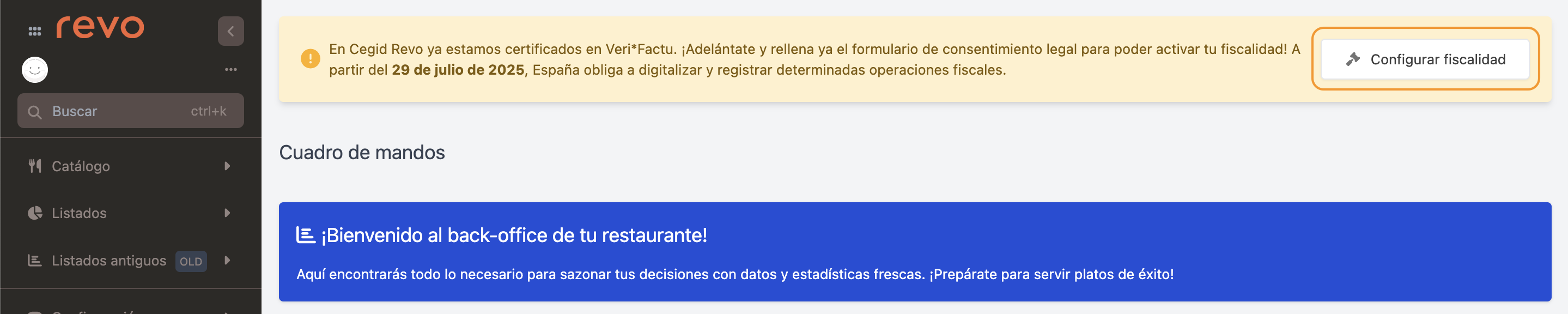
Access the back-office and a message will appear requesting fiscal configuration. Click Configure fiscal settings to start the process.
For existing users, the button is only available on iPads with version 4.8.9 or higher.
3. BACK-OFFICE CONFIGURATION
BEFORE STARTING
Before configuring VeriFactu, make sure you have:
- Complete fiscal data of your company.
- Billing email with active access.
- Company NIF correctly registered.
ACCESS TO FISCAL CONFIGURATION
1. Go to the back-office of revo XEF.
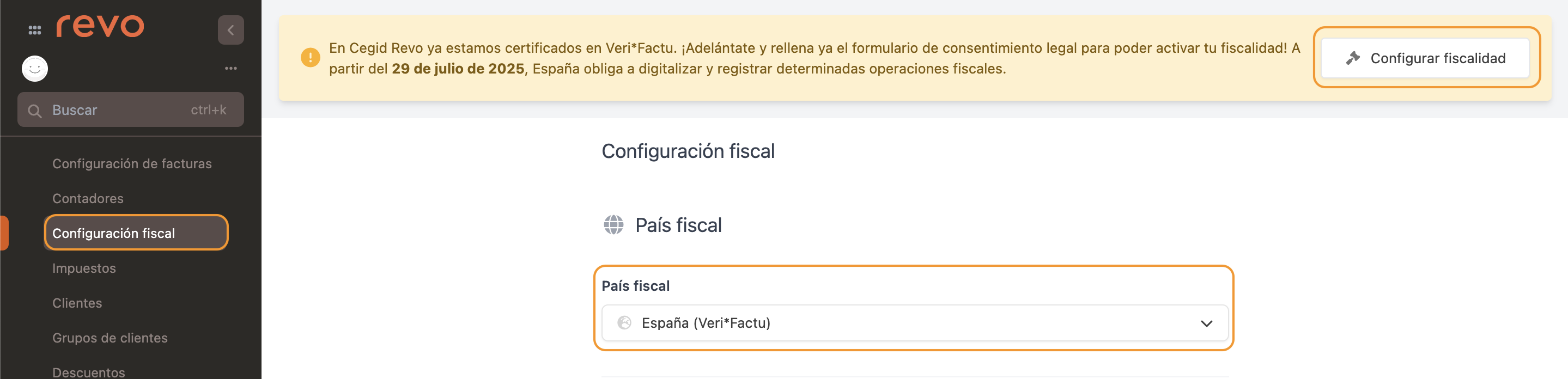
2. Navigate to Configuration / FISCAL CONFIGURATION.
3. Click Configure fiscal settings and select Fiscal Country: Spain (VeriFactu).
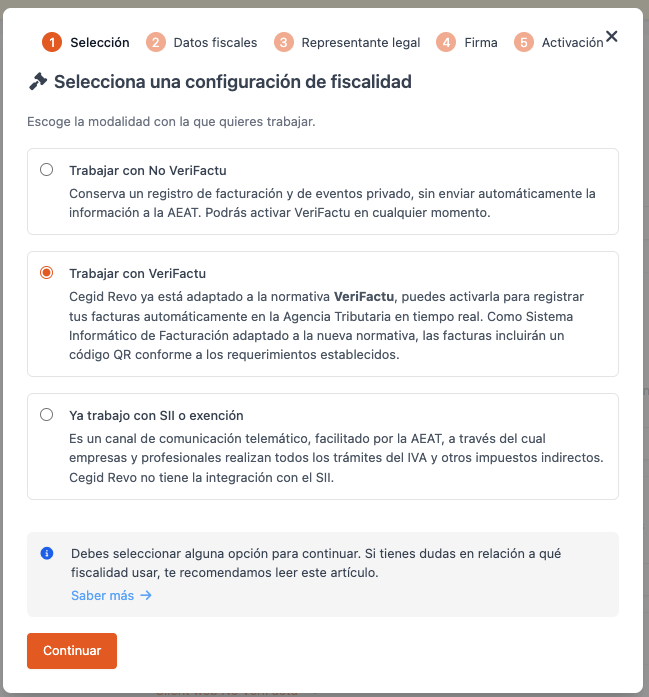
MODE SELECTION
Option 2: Work with VeriFactu
FISCAL DATA
Check the imported data from the Company section.

- NIF: Taken from Company section. Not editable.
- Fiscal Name: Enter the complete registered company name. Must match AEAT records exactly.
- Address: Enter full fiscal address (street, avenue, etc.). Must match AEAT registry.
- Number: Enter the street number. If none, indicate "S/N".
- City: Enter the city.
- Postal Code: Enter the postal code (5 digits in Spain).
- Province / State: Enter the corresponding province (e.g., Barcelona, Madrid, Valencia…).
- Resident: Indicate if the company owner is Resident or Non-resident in Spain. Default: "Resident".
- Country Code: Enter the country code according to standard. For Spain: 11 (default value).
Important: Once activated, the fiscal country cannot be changed.
- Mobile: Enter a valid mobile number of the legal representative for verification and notifications during digital signing.
Important: The phone must be a mobile and accessible at the time of signing.
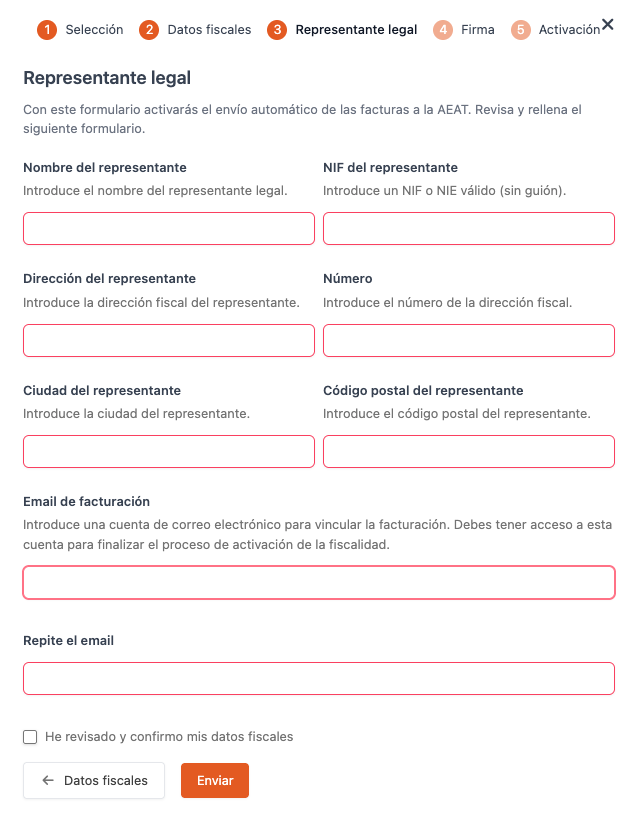
LEGAL REPRESENTATIVE DATA
-
Representative Name: Enter the full name.
-
Representative NIF: Enter a valid NIF or NIE (without dash).
-
Representative Address: Enter the fiscal address.
-
Number: Enter the number of the address.
-
Representative City: Enter the city.
-
Representative Postal Code: Enter the postal code.
-
Billing Email: Enter an email to link billing. Access required to complete fiscal activation.
-
Repeat Email: Enter again for confirmation.
-
I have verified and confirm my fiscal data: Check this box to confirm the data is correct.
-
Once all data is entered, click Send.
CONSENT SIGNATURE
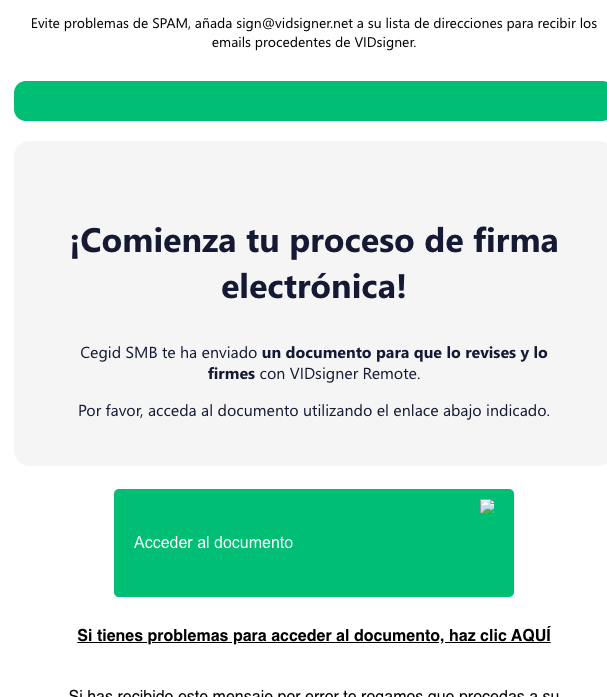
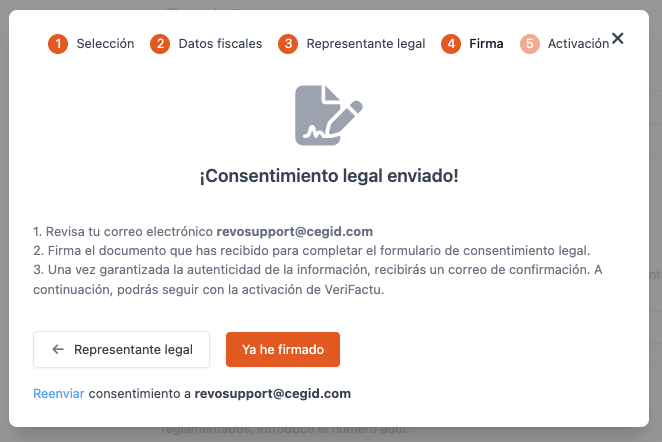
You will receive an email from CEGID for digital signing via the VIDsigner platform.
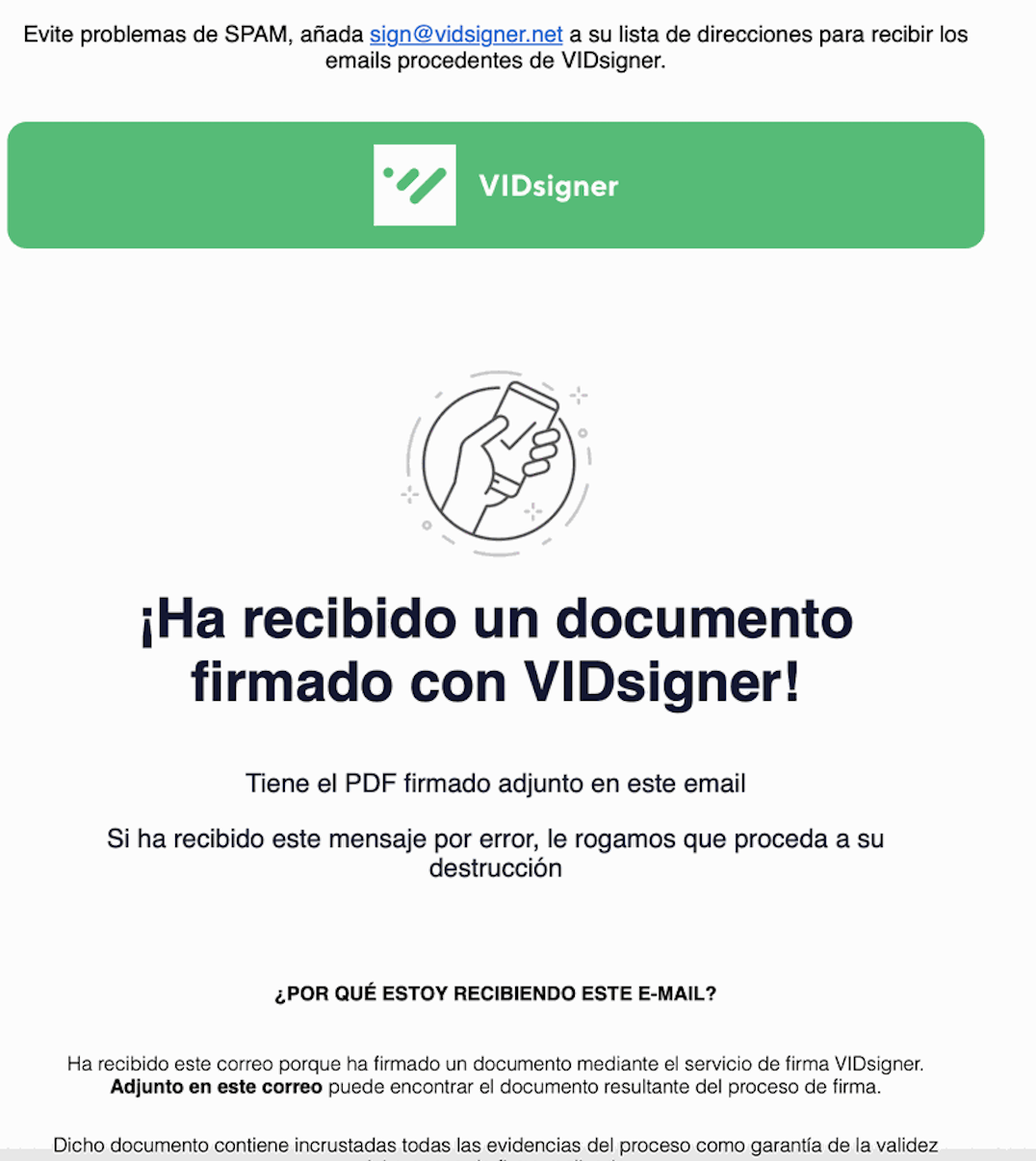
Once completed, you will receive a confirmation email.
Return to the back-office for the final steps.
ACTIVATION
Click I have signed and continue with activation.
- Indicate the start date.
- If applicable, add resolution and authorization number.
- Click Activate fiscal settings.
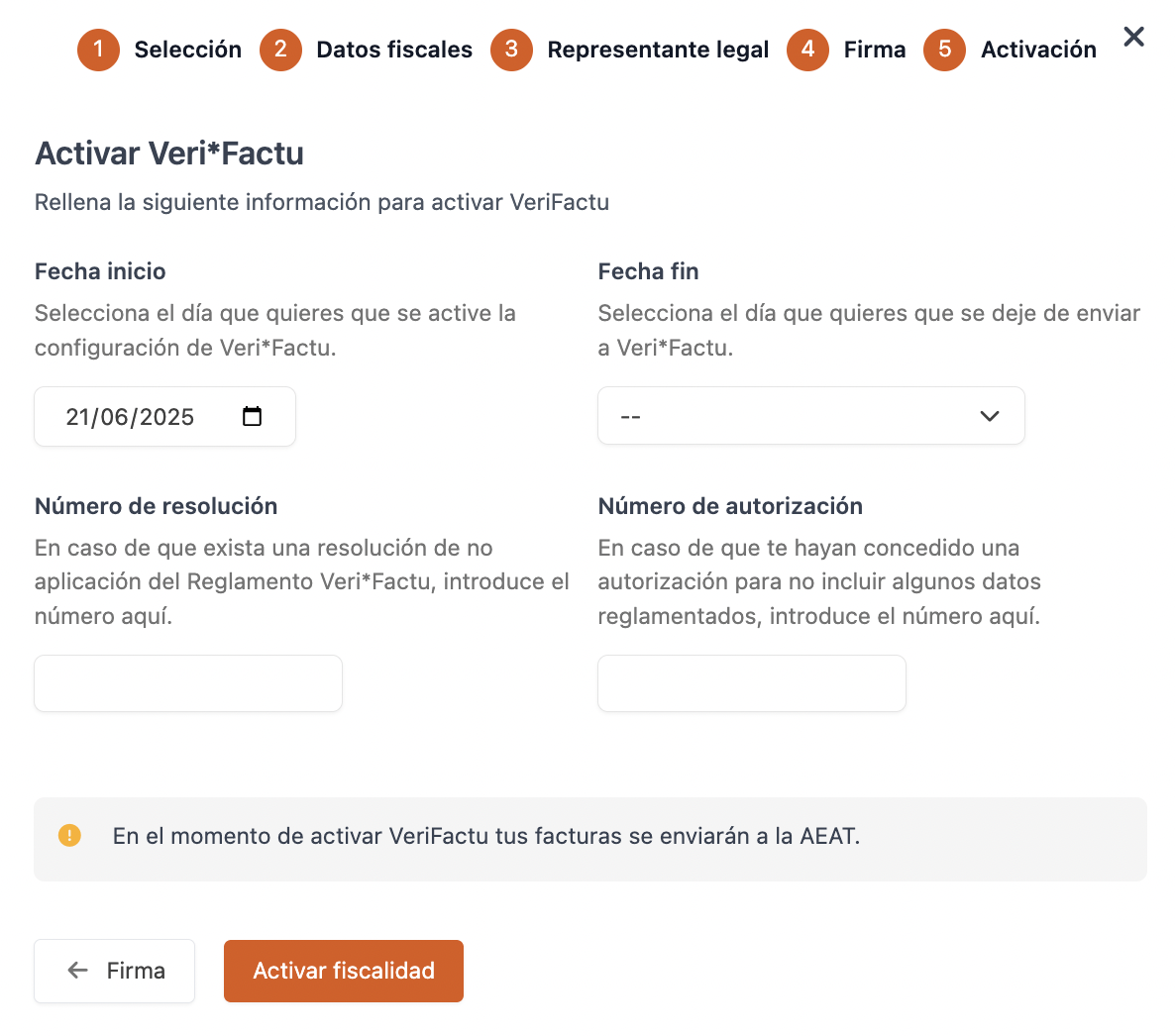
Once activated, you can check your fiscal configuration anytime at:
Configuration → Company → FISCAL CONFIGURATION.
Done! VeriFactu is now correctly configured.
4. FISCAL STATUS IN INVOICES
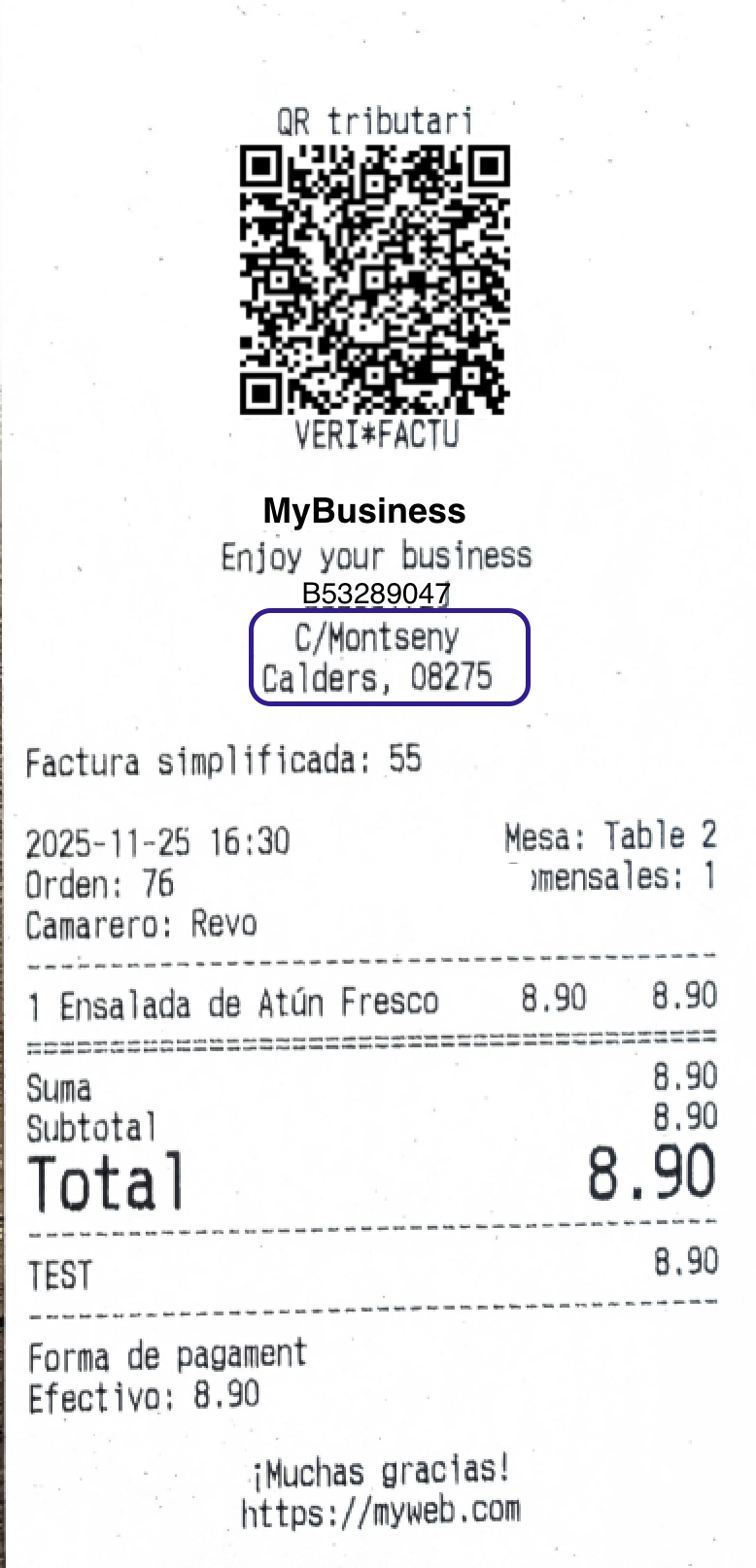
Each invoice generated in Revo XEF includes a QR code that links directly to the AEAT for fiscal verification.
In Lists → INVOICES you can check the fiscal status of each document and access its full traceability.
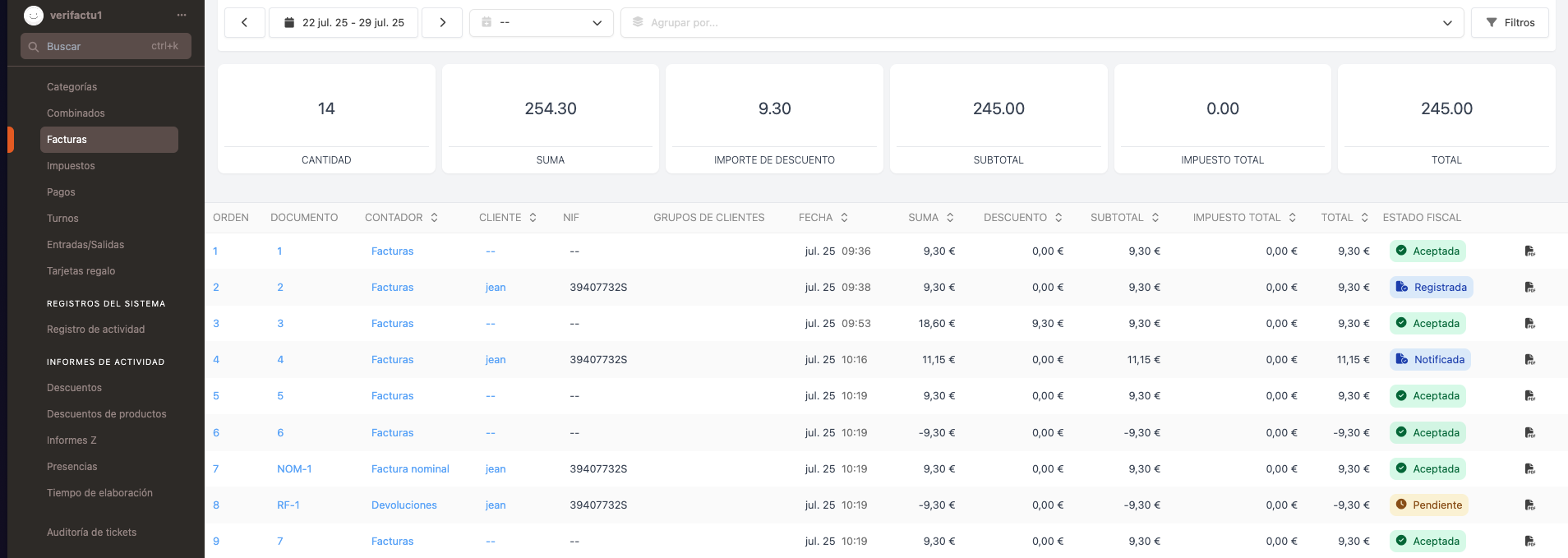
Clicking on the status opens a panel with shipment details, including dates, AEAT responses, and any incidents.
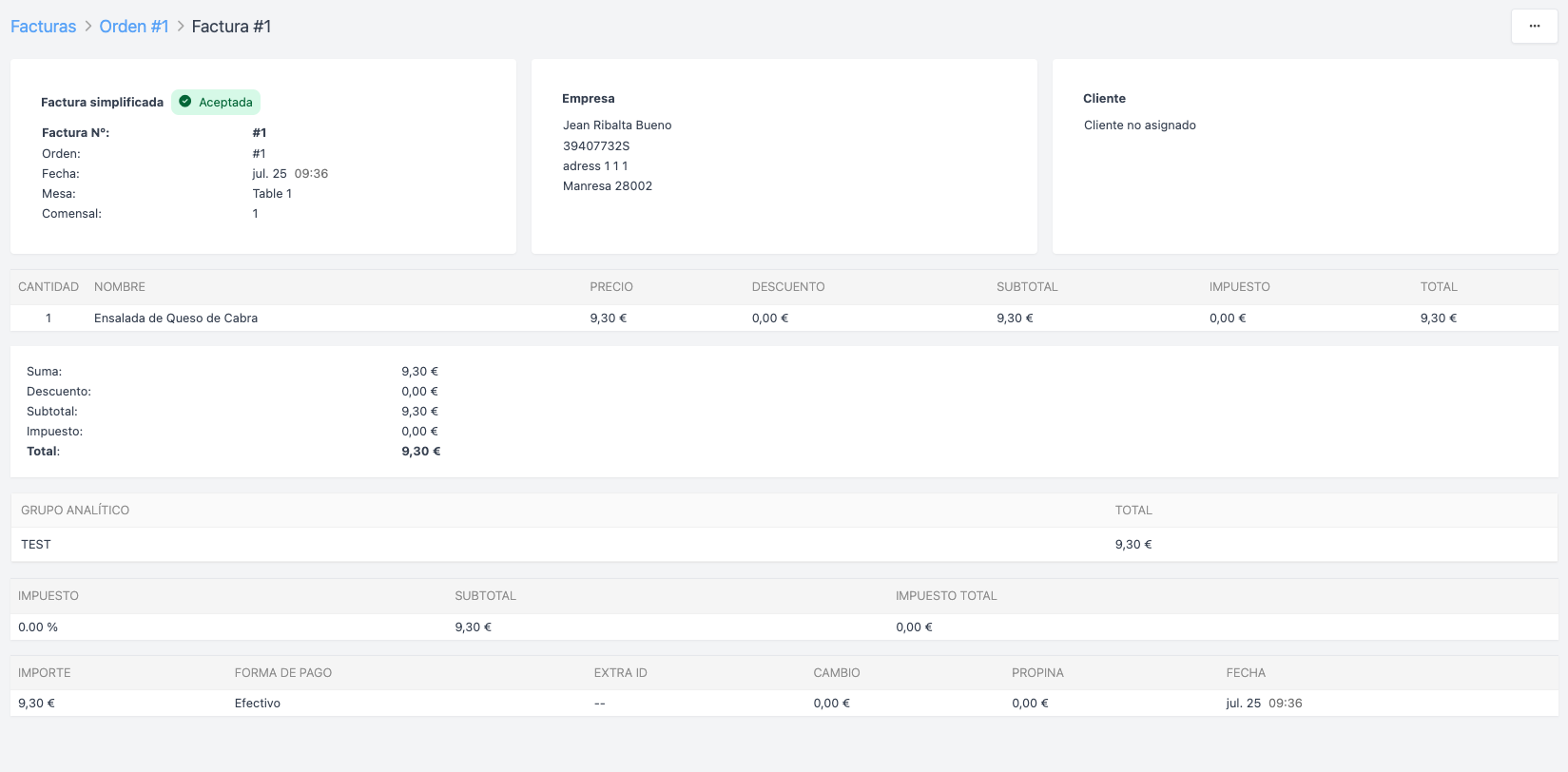
Status color code
The system uses four colors to quickly identify the fiscal status of each invoice:
🟢 GREEN — Correct
Status: RECEIVED
The invoice has been accepted and correctly registered with AEAT.
No action required.
→ Desired final status.
🔵 BLUE — Normal process
Statuses: CREATED | REGISTERED | NOTIFIED | PENDING
The document is automatically processed.
Intermediate and temporary statuses.
→ No intervention needed. Monitor if status does not change after several hours.
🟡 YELLOW — Requires review
Statuses: PENDING CORRECTION | PENDING REVIEW | RECEIVED WITH WARNINGS
An observation or warning requires manual verification.
→ Contact your technical team.
🔴 RED — Critical error
Statuses: ERROR REGISTERING | ERROR NOTIFYING | ABORTED
The invoice could not be sent or accepted by AEAT.
Immediate intervention needed.
→ Contact your technical team.
Practical rule:
- Green or blue: No action.
- Yellow: Review.
- Red: Act immediately.
5. QR CODE ON INVOICES
Once VeriFactu is properly activated and the invoice is sent to AEAT, the client can verify it by scanning the QR code printed on the ticket or invoice.
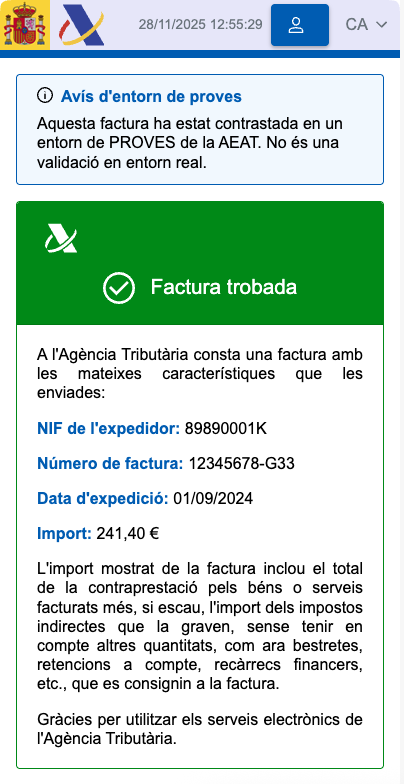
The QR redirects to the official AEAT verification page and will show “Invoice found” if the invoice has been correctly registered.
Example: