In this video, you can see how to register the NO Veri*Factu option in the fiscal configuration.
VERSION: REVO XEF 4.8.9
1. WHAT IS NO VERIFACTU? 2. GENERAL SCREEN 3. CONFIGURATION IN THE BACK-OFFICE 4. INVOICE REGISTRATION PLATFORM 5. QR CODE ON INVOICES
1. WHAT IS NO VERIFACTU?
No VeriFactu is a fiscal configuration mode that allows you to comply with tax obligations in Spain without the need to automatically send invoicing records to the Spanish Tax Agency (AEAT) in real time.
With No VeriFactu in revo XEF you can:
- Issue valid invoices with a QR code.
- Store invoices in the Cegid Invoice Manager platform.
- Manage your fiscal obligations without automatic submission to AEAT.
IMPORTANT: Invoices issued with No VeriFactu are legally valid but are not automatically sent to the Tax Agency.
2. GENERAL SCREEN
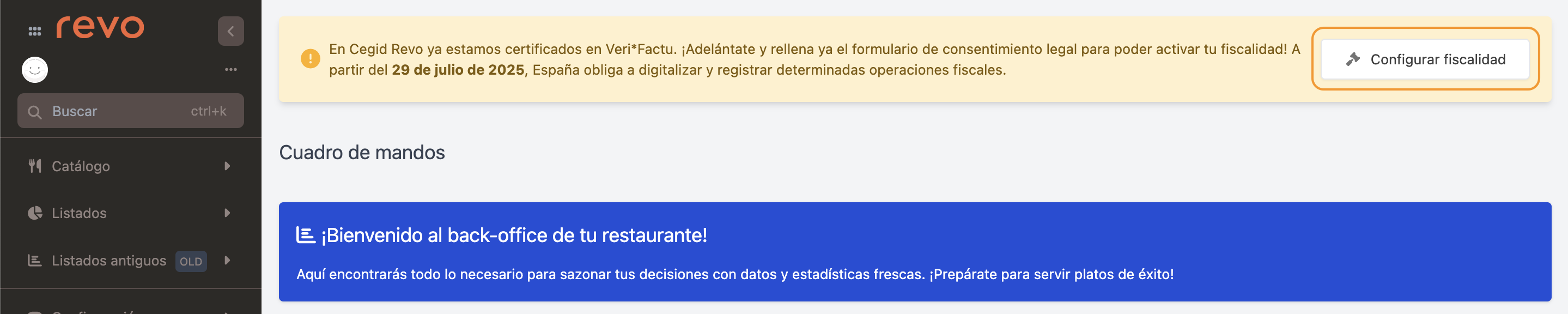
When accessing the back-office, a message requesting fiscal configuration will appear. Click Configure fiscal settings to start the process.
IMPORTANT: For existing users, the button is only enabled on iPads with app version 4.8.9 or higher.
3. CONFIGURATION IN THE BACK-OFFICE
BEFORE STARTING
Before configuring No VeriFactu, make sure you have:
- Complete fiscal data of your company.
- Billing email with active access.
- Company VAT/NIF correctly registered.
ACCESS TO FISCAL CONFIGURATION
1. Log in to the back-office of revo XEF.
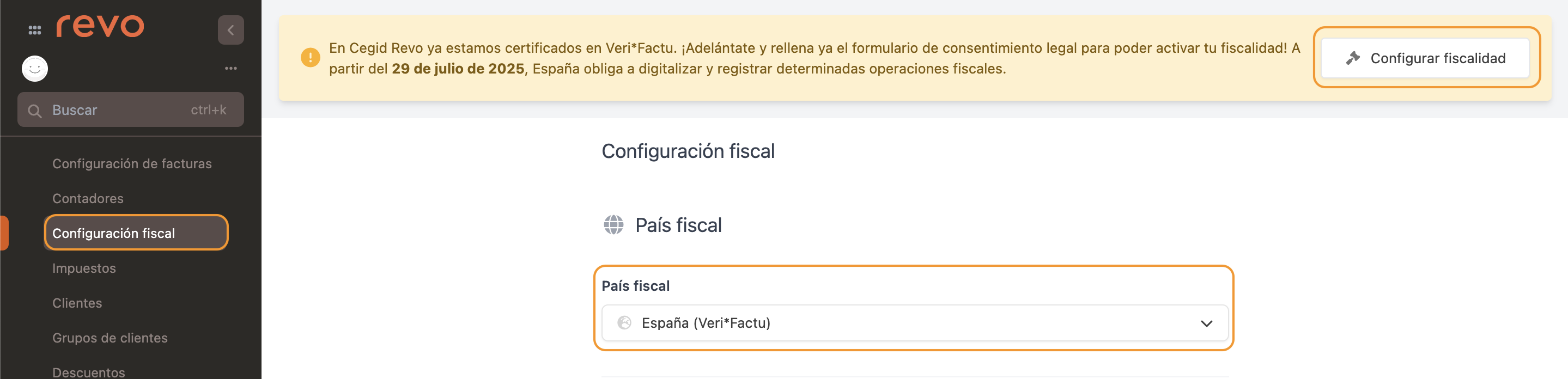
2. Go to Settings / FISCAL CONFIGURATION.
3. Click Configure fiscal settings and select Fiscal country: Spain (VeriFactu).
MODE SELECTION
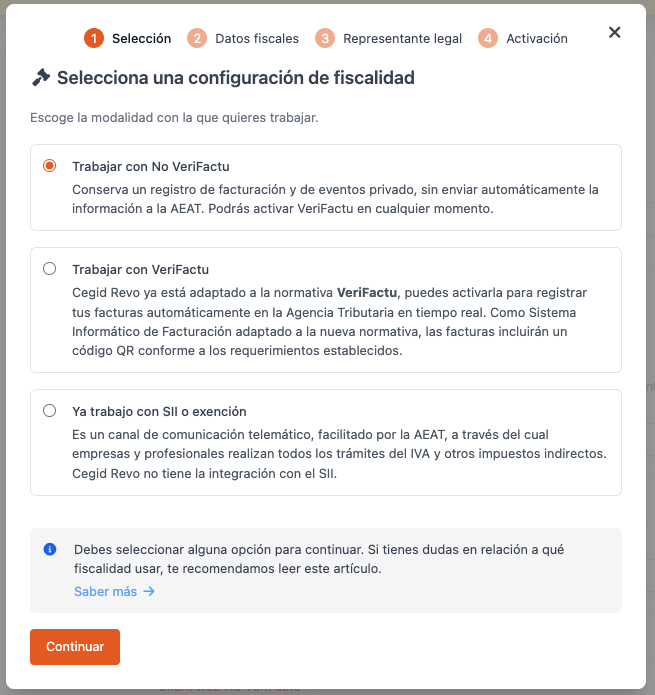
Option 1: Work with No VeriFactu
Select this option if your business does not need to automatically send invoicing records to the AEAT.
FISCAL DATA
Check the data imported from the Company section.

-
VAT/NIF: Automatically imported from the Company section. Field not editable.
-
Fiscal name: Enter the full registered company name. Must exactly match the information on file at the tax authorities.
-
Address: Enter the company’s full fiscal address (street, avenue, etc.). Must match the address registered with AEAT.
-
Number: Enter the number corresponding to the fiscal address. If no number exists, indicate S/N.
-
City: Enter the city corresponding to the fiscal address.
-
Postal code: Enter the postal code associated with the fiscal address (5 digits in Spain).
-
State / Province: Enter the province corresponding to the fiscal address. Example: Barcelona, Madrid, Valencia.
-
Resident: Indicate whether the company owner is a Resident or Non-resident in Spain. By default, it shows Resident.
-
Country code: Enter the country code according to the required standard. For Spain, it should be 11 (default value).
IMPORTANT: Once activated, you cannot change the fiscal country.
- Mobile: Enter a valid mobile phone number.
LEGAL REPRESENTATIVE DATA
-
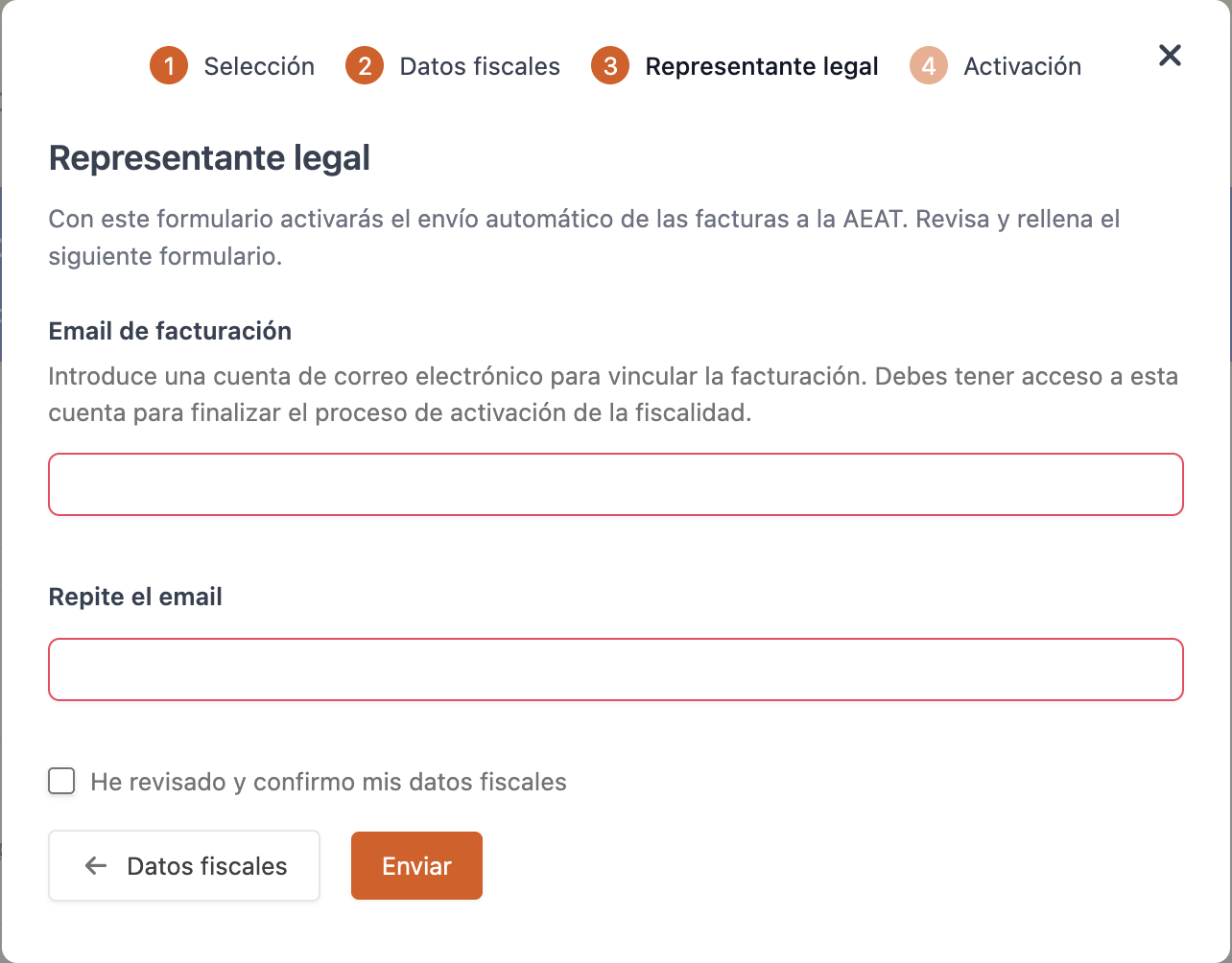
Billing email: Enter an email address to link the billing. You must have access to this account to complete the fiscal activation process.
-
Repeat email: Enter the same email address again to confirm.
-
I have reviewed and confirm my fiscal data: Check this box to confirm that the entered data is correct before continuing.
-
Once all data is entered, click Send and continue with activation.
ACTIVATION
Once sent, the current window disappears. At this point, the system is processing the fiscal information. Wait until the following message appears:

At this stage, no action or consent is required. Click Activate fiscal settings to complete the process.
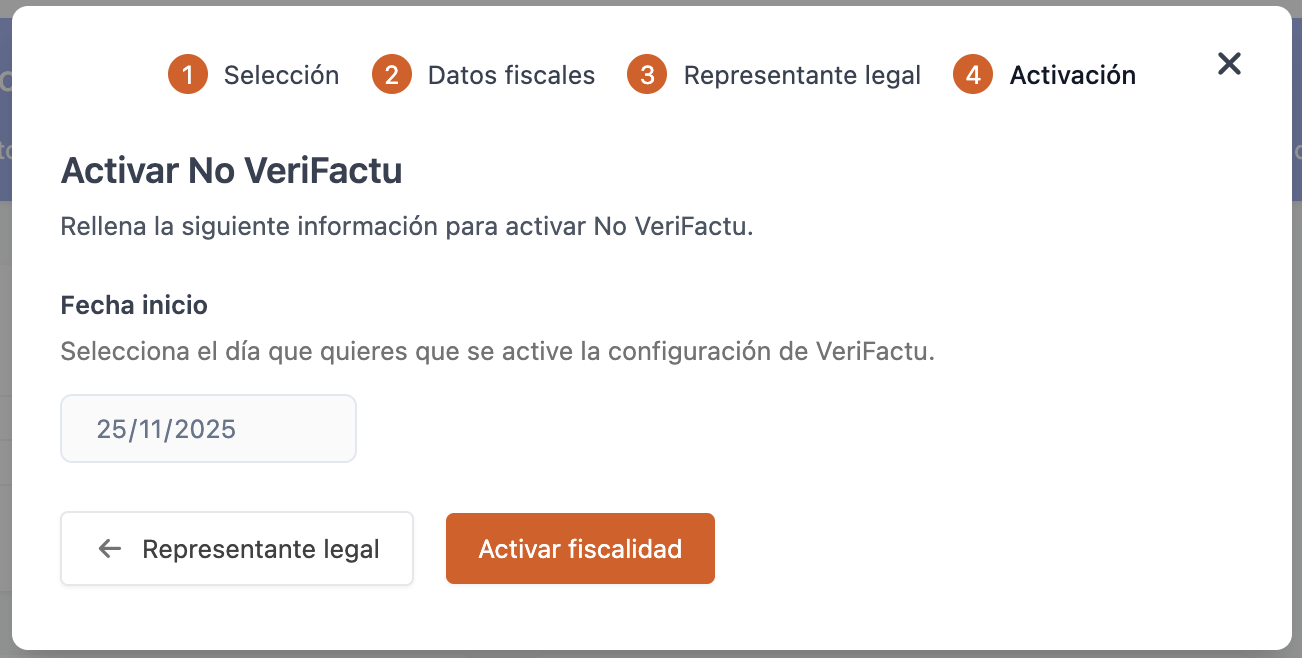
Once activated, the pending configuration message will disappear. You can review the information from the same Fiscal Configuration menu.
Done! No VeriFactu is now correctly configured.
4. INVOICE REGISTRATION PLATFORM
For accounts with No VeriFactu, invoices are stored on the Cegid Invoice Manager portal where you can view all your invoices and their status.
ACCESS TO CEGID INVOICE MANAGER PORTAL
1. Log in to the back-office of revo XEF.
2. Go to Settings / FISCAL CONFIGURATION.
3. Click the No VeriFactu Web Client link to access the portal.
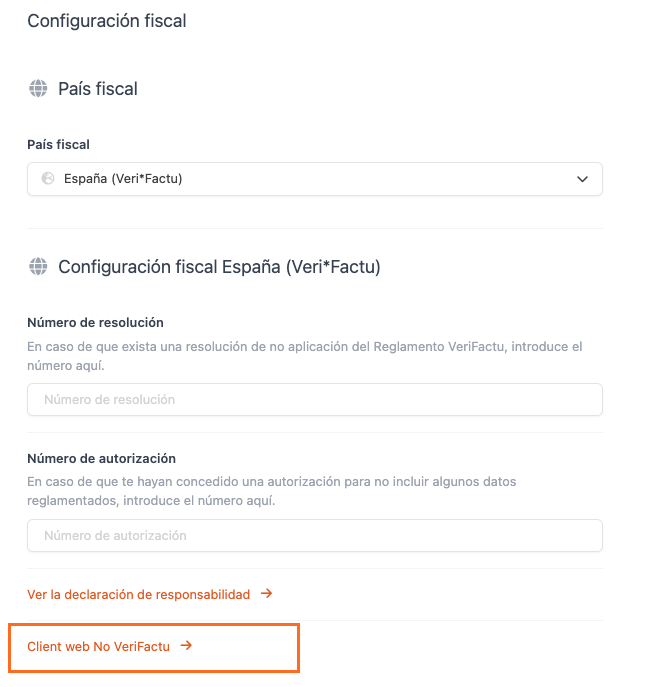
4. You will be automatically redirected to the platform where you can consult all your invoices.
Keep your access credentials in a secure place.
MODIFY YOUR ACCOUNT EMAIL
To modify your account details once you are in the portal:
- Click on your username at the top right and go to Profile.
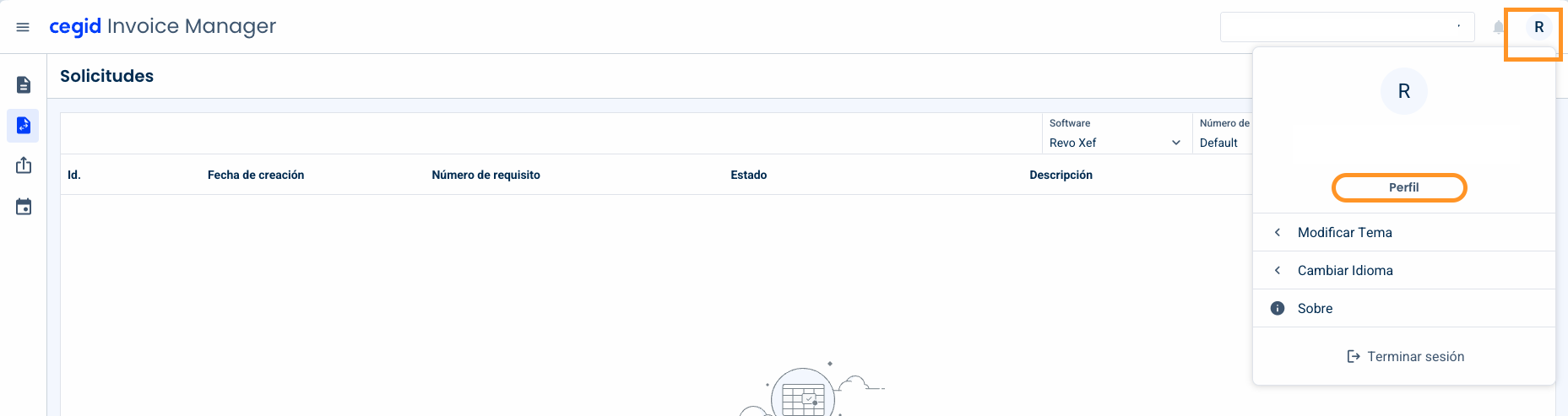
- Once in the profile section, go to Change email.
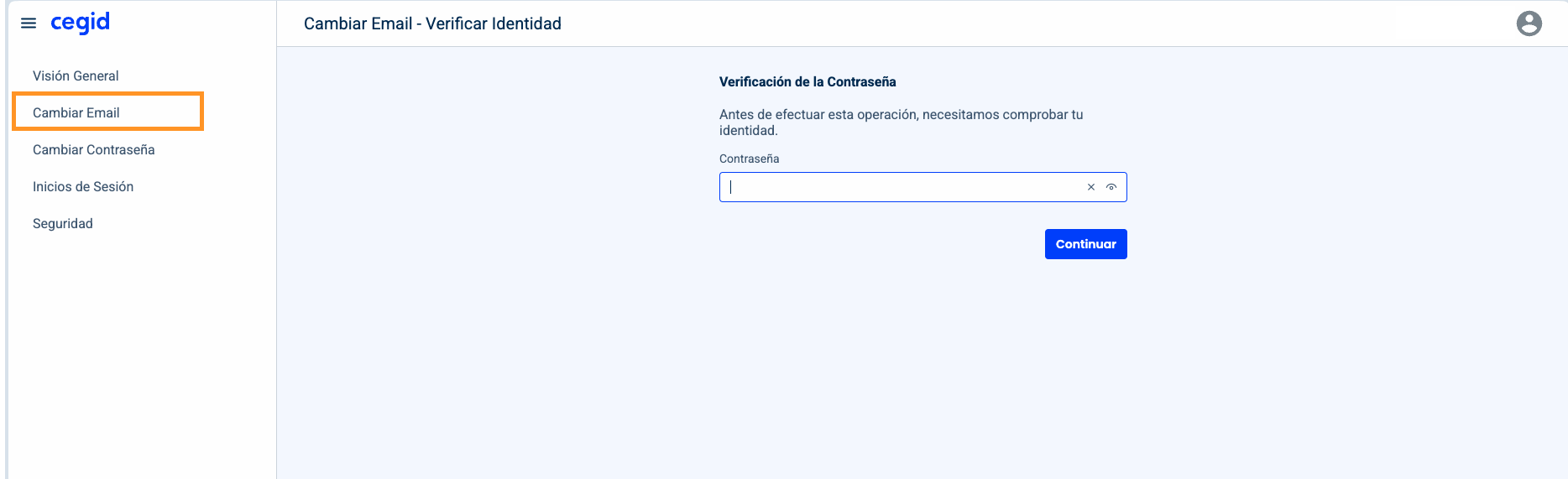
- Enter your new email address and save the changes.
5. QR CODE ON INVOICES
All invoices issued with revo XEF include a QR code that allows the client to verify the invoice.
WHAT HAPPENS WHEN SCANNING THE QR?
When the client scans the QR code on the receipt or invoice, they are automatically redirected to the Spanish Tax Agency (AEAT).
In the case of a No VeriFactu invoice, the AEAT shows a message similar to the following:
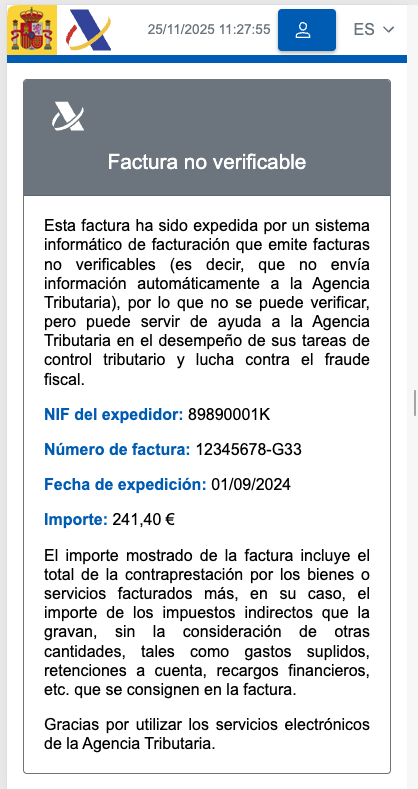
IMPORTANT: The message "Invoice not verifiable" does not mean the invoice is invalid; it means the business is not automatically sending the records to AEAT (No VeriFactu mode).