Learn how the kitchen display replaces the printer and connects the dining room with the kitchen.
1What is Revo KDS 2
We understand that kitchen efficiency is key to a restaurant's success. That is why we have worked to create a more powerful, agile and customisable tool.
With Revo KDS 2 (Kitchen Display System), we stop working with a printer and it becomes a kitchen management system. By improving its operability and usability, KDS 2 no longer acts as a printer and expands its capabilities, adapted to each dish and to the needs of the business.
The KDS takes over from the POS in the kitchen, managing the workflow there with the same skill with which the POS does it in the dining room.
And if, as is the case with Cegid Revo, the KDS is also part of a comprehensive suite of technology solutions, the success is even greater.
Because the kitchen screen or Kitchen Display System (KDS) is connected to the waiters' point-of-sale software, communication between the dining room and the kitchen is smoother. This technology is a major step forward in operations: head chefs can quickly check the status of every dish, and cooks can receive, read and archive orders in just a few clicks, without rummaging through paper and reducing the pressure on teams that are already at their limit during peak hours.
It is also the only paperless method for managing orders, which reduces the environmental footprint of any restaurant.
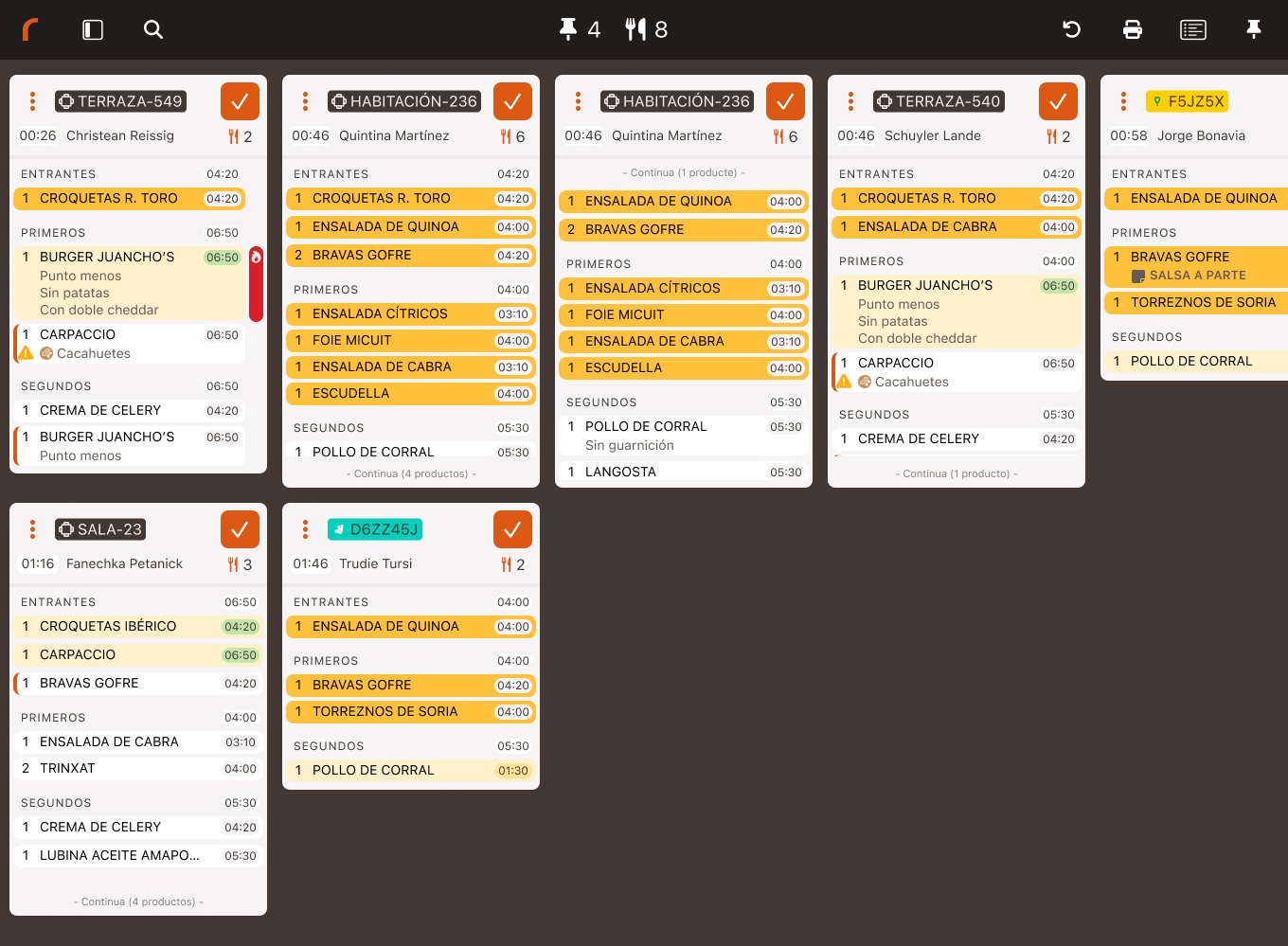
Review the new KDS 2 features and the compatible devices.
2What's new in Revo KDS 2
To see the approved Android monitor models, click here. →
You can find more information on how to request/buy an Android monitor in point 4 of this article. →
Check the benefits, the requirements and how to set a static IP.
3Benefits and requirements of Revo KDS 2
Benefits
Requirements for using Revo KDS 2 on the iPad and on the MicroTouch Android monitor
- Revo XEF: Revo KDS 2 works together with Revo XEF, not on its own.
- Revo XEF Advance version: To receive orders on KDS 2 devices, Revo XEF Advance must be installed.
- Dedicated iPad and MicroTouch Android monitor: Install Revo KDS 2 on an iPad/MicroTouch monitor used exclusively for it.
- Power connection: Make sure it has access to a power socket so that it does not run out of battery during service.
- Screen always on: Set the iPad/MicroTouch monitor never to turn off, as this could cause connection errors when sending orders from Revo XEF. In the iPad or MicroTouch monitor Settings, go to Display & Brightness and then Auto-Lock. Select Never so that the iPad/MicroTouch monitor does not turn off while you use the app.
- Turn off notifications: We recommend turning off all Notifications in the device Settings.
- App: For the iPad, get the Revo KDS 2 app from the App Store. On the MicroTouch Android monitor, the KDS 2 app is already installed on the device; if it is not, you can download it from the Google Play Store.
- Static IP: The iPad and/or MicroTouch Android monitor must have a static IP.
Assign a static IP
- Go to Settings on your iPad/MicroTouch monitor.
- Tap Wi-Fi.
- Tap the information icon of the connected Wi-Fi network.
- Select Configure IP.
- Choose Manual (it must be selected ).
- Manually enter the IP address, subnet mask (usually 255.255.255.0) and router, and save the changes.
- Go to Configure DNS.
- Choose Manual (it must be selected ).
- Manually enter a DNS address (8.8.8.8) and save the changes.
- Return to the previous menu by tapping Wi-Fi.
Follow the steps to buy a monitor from the portal.
4How to request/buy a MicroTouch Android monitor
You can request/buy a MicroTouch Android monitor through the portal.
Once in the portal:
- Go to the Self-Service section.
- Select Contratar Pantallas KDS 2.
- Select the MicroTouch monitor model you want to buy and enter the quantity.
- Confirm the purchase.