In this article you will find the recommended settings to optimize the use of Android KDS monitors with our Cegid Revo KDS solution. You will learn how to set up the KDS 2 application on approved Sunmi and MicroTouch devices, as well as how to configure the AnyDesk tool with its corresponding accessibility plugin for remote technical support. Click here for more information on approved Android KDS monitors.
⚡ Quick Setup Assistant
Select your optionTable of Contents
1. Kiosk Mode and App Pinning Configuration
Steps to lock the screen on KDS 2 and prevent accidental exits on Sunmi terminals.
❯
📋 View step-by-step instructions for Sunmi
Click to expand 👇
Instructions open
To ensure that the KDS monitor operates without interruptions or accidental app exits on Sunmi devices, you can opt to enable system-native Kiosk Mode or the App Pinning feature.
Option A: Enable Kiosk Mode on Sunmi
- Open the Settings app on the Sunmi monitor.
- Scroll down the side menu and tap on Additional settings.
- Select the Kiosk option.
- Find the KDS 2 app in the list and toggle its switch on.
- Open the KDS 2 app, and from that moment on, the device will run KDS 2 exclusively by default.
It is also possible to enable kiosk mode using SUNMI's MDM.
To exit Kiosk Mode on Sunmi:
- Press and hold the physical power button on the monitor until the system menu appears.
- Tap on Exit Kiosk.
- Enter the assigned unlock PIN to exit to the main Android menu.
Option B: Pin the KDS 2 App on Sunmi
- Go to Settings > Security > More security settings.
- Enter App pinning and turn on Use app pinning.
- Open the KDS 2 app.
- Open the recent apps / multitasking menu on the monitor.
- Tap the top icon on the KDS 2 window frame and select Pin.
- Tap Got it to confirm.
To unpin the app: Simultaneously press and hold the virtual Back and Recent Apps buttons on the bottom navigation bar.
2. Pinning and Unpinning the KDS 2 App
Settings to secure the app on MicroTouch monitors using Android system pinning.
❯
📋 View step-by-step instructions for MicroTouch
Click to expand 👇
Instructions open
Step 1: Enable and pin the KDS 2 App
- Open the Settings app on the MicroTouch monitor.
- Navigate to Security > More security settings.
- Enter App pinning and toggle on Use app pinning.
- Open the KDS 2 app.
- Open multitasking by swiping up from the bottom edge, tap the top icon of the KDS 2 window, and select Pin.
Step 2: How to unpin the App on MicroTouch
- While inside the pinned app, perform the gesture of swiping up from the bottom edge and holding for one second.
- The system will exit pinned mode, sending you to the lock screen or main menu.
3. AnyDesk and Plugin AD1 for Accessibility
Configuration of tools for interactive touch technical support from remote locations.
❯
📋 View step-by-step instructions for AnyDesk
Click to expand 👇
Instructions open
To provide efficient technical support on the Android KDS monitor, setting up remote access via AnyDesk is recommended.
Step 1: Installing AnyDesk and Plugin AD1
- Open the Google Play Store app on the KDS monitor.
- Search for and install the main app: AnyDesk Remote Desktop.
- Search for and install the add-on: AnyDesk plugin ad1.
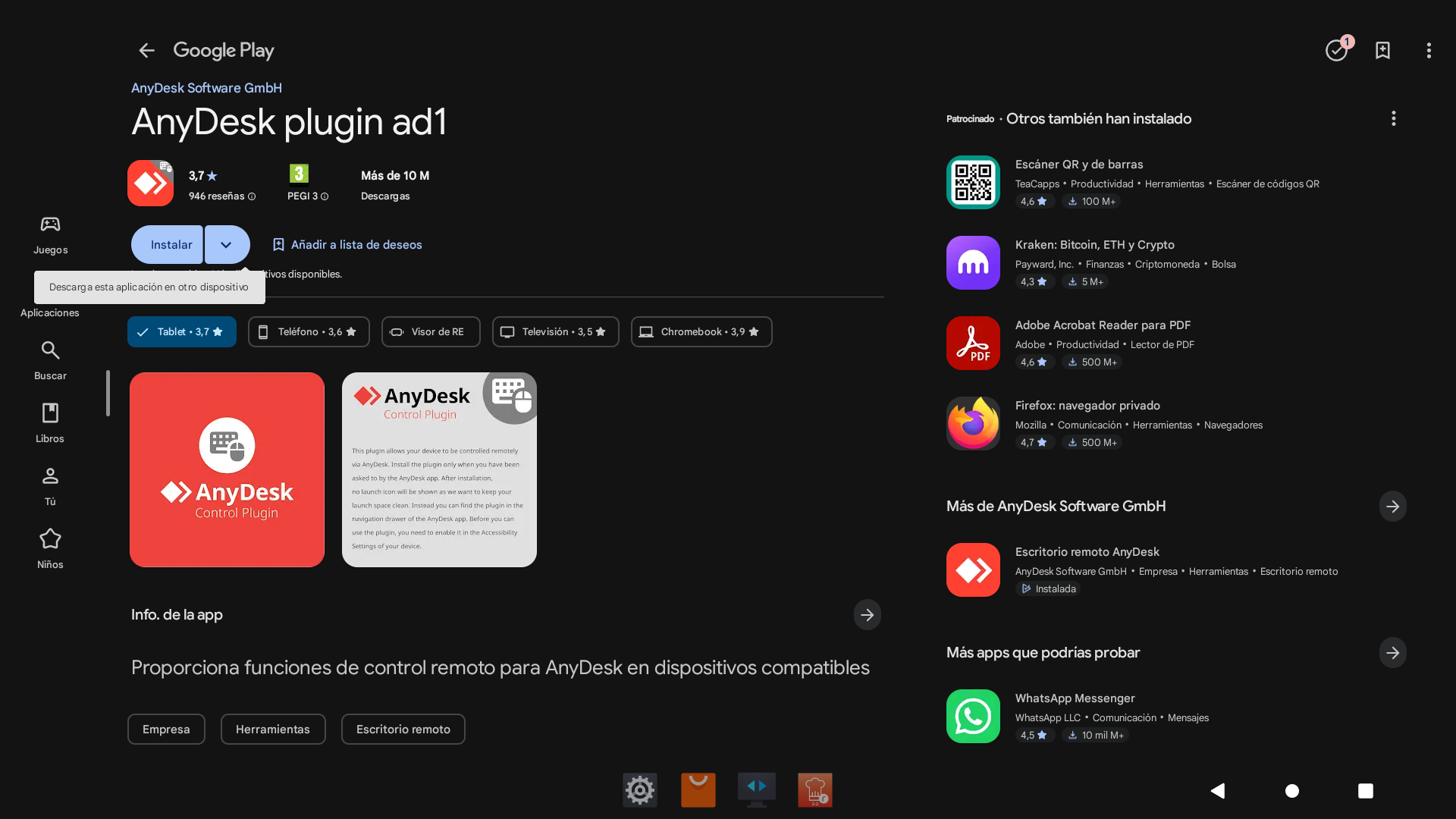
Step 2: Granting Accessibility permissions
- Open AnyDesk on the monitor and accept the prompt regarding add-on usage.
- Open the device's Settings app.
- Go to the Accessibility section.
- Under Downloaded apps, tap on AnyDesk Control Service AD1.
- Toggle the switch on and select Allow to authorize touch control.
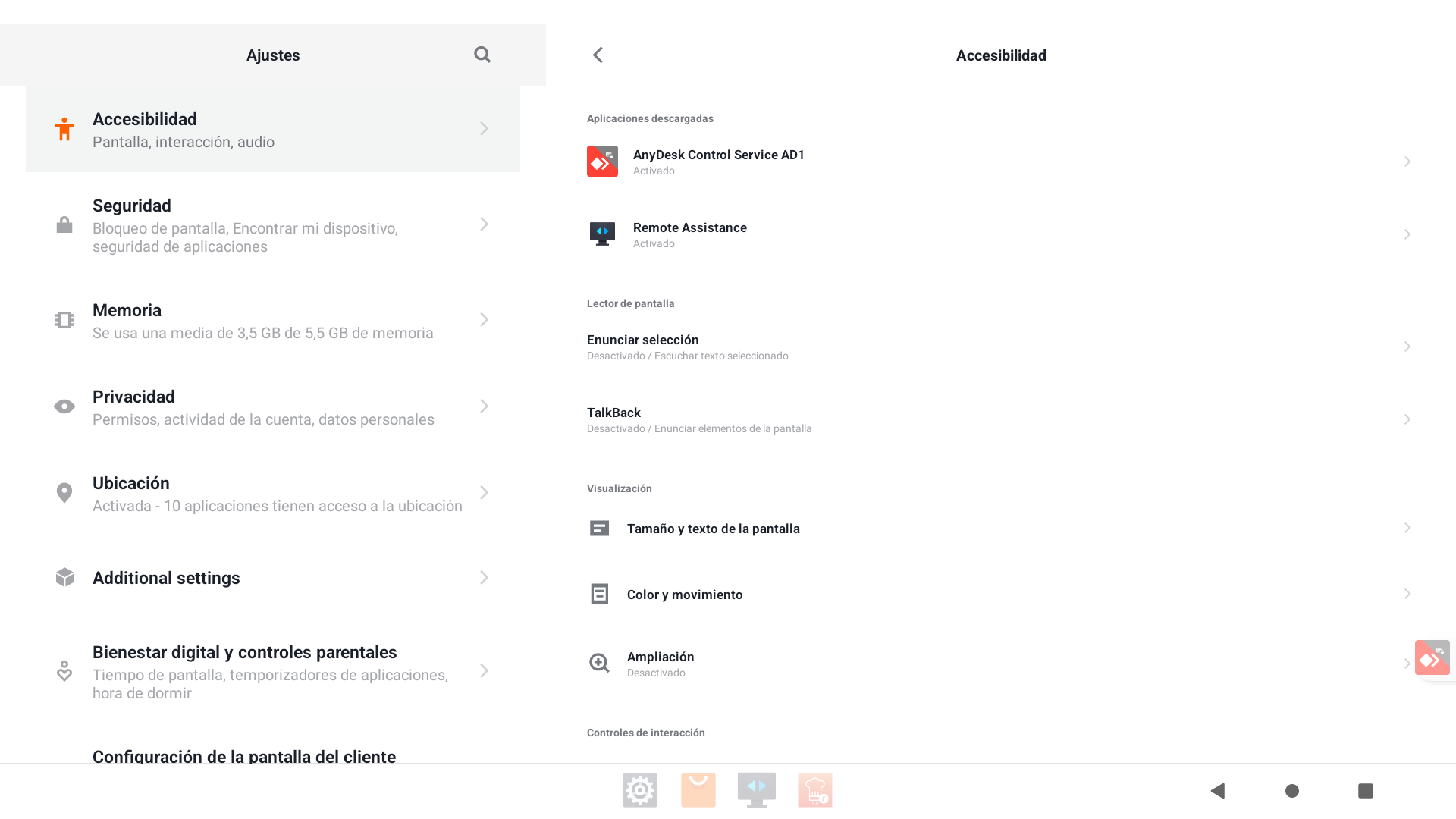
Step 3: Remote support connection
- Provide the AnyDesk Address (ID) to the support technician.
- The technician will enter the ID from their computer to request a connection.
- Accept the pop-up prompt on the KDS screen to initiate remote control.